How to Create an Estimation
How to Create an Estimation

Vendtill Back Offfice
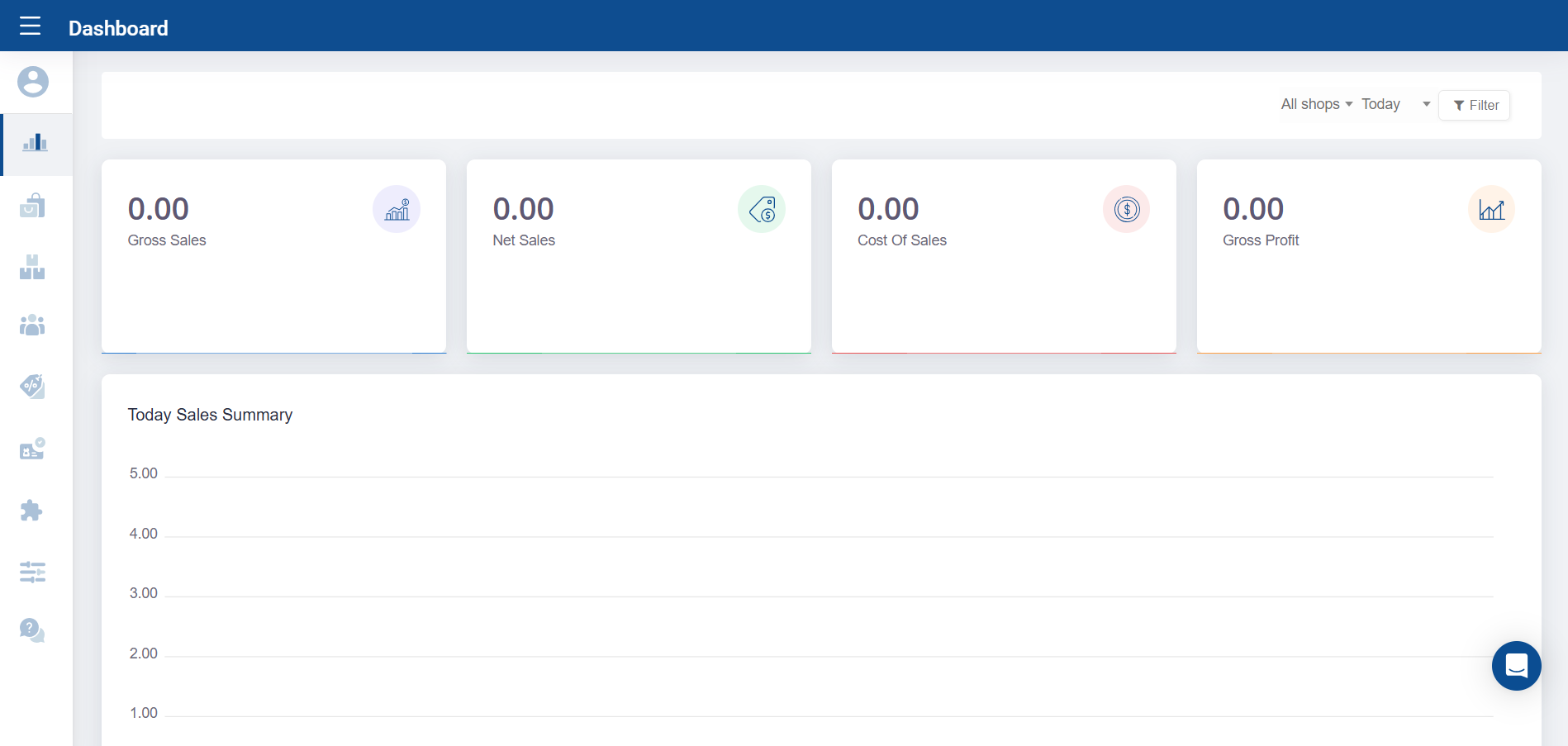
Estimation Module
The Estimate Module helps streamline your business operations while enhancing transparency and professionalism in your customer interactions. An estimate is a document that outlines the projected costs for goods or services you intend to provide, giving customers a clear understanding of pricing before they commit.
Example:
Imagine you're a mobile phone retailer. A customer expresses interest in purchasing 10 smartphones. Using the Vendtill backoffice, you can quickly generate a professional estimate that details the product names, quantities, unit prices, and total cost. This not only provides clarity to the customer but also boosts your credibility and speeds up the decision-making process.
How to Create and Send an Estimate in Vendtill
Creating an estimate in Vendtill is quick and easy. Follow these steps to send a professional estimate to your customer:
1. Log in to the Vendtill Back Office web portal
2. From the main menu, click on Customer.
3. Navigate to the Estimate section.
4. Click the "Create Estimate" icon to get started.
5. Choose the customer and shop, then enter a validity period and any comments you'd like to include.
6. Select the product(s) and input the quantity for the estimate.
7. Click the Save button to save your estimate.
8. After saving, click the Send icon to email the estimate directly to your customer.
Related Articles
How to Create Suppliers
How to Create Suppliers Vendtill Back Office → Inventory Overview The Suppliers feature allows you to store information about vendors who supply goods to your business. You can add details such as name, location, phone number, and email address. Once ...How to Create Customers
How to Create Customers Vendtill 'Back Office' > Main Menu > Customer How to Enable and Use Barcode-Based Customer Registration in Vendtill: Enabling the Internal Barcode Feature: 1. Open the POS App and go to the Main Menu. 2. Tap on Settings. 3. ...How to Create Modifiers
1. Go to Vendtill Back Office > Products > Modifiers Modifiers allow customers to tailor their order to their personal preferences or dietary restrictions, making the dining experience more enjoyable. 2. Create Modifier Group Give the modifier group ...How to Create Other Staff
How to Create Other Staff Vendtill Back Office > Users > Other staff What is “Other Staff” in Vendtill POS? In Vendtill POS, Other Staff refers to employees whose primary role is not billing but who still contribute to the business operations. This ...How to Create an Employee
Special Note When you set a Personal Identification Number (PIN) for yourself (Admin) or for employees using the Back Office, you will see a padlock or PIN icon in the POS app. Employees will use this PIN to log in to the POS. Step 1: Access ...