How to Create Discount Plans Attached to the Receipt
Special Note
As part of the restructuring process, the Product-wise Discount plan options are now accessible within the item customization dialog, while Receipt-wise Discount plans are under a discount icon in the main receipt interface.
You can toggle these discounts on or off as needed.
Steps to Create a Discount Plan
1. Login to Vendtill POS Back Office
Select ‘Promotions’ from the main menu.
Go to ‘Discounts’.

2. Click ‘CREATE DISCOUNT PLAN’

3. Type the Discount Plan Name

4. Select the Shop

5. Select the Discount Attachment Method

6. Select Discount Type (Value / Percentage)
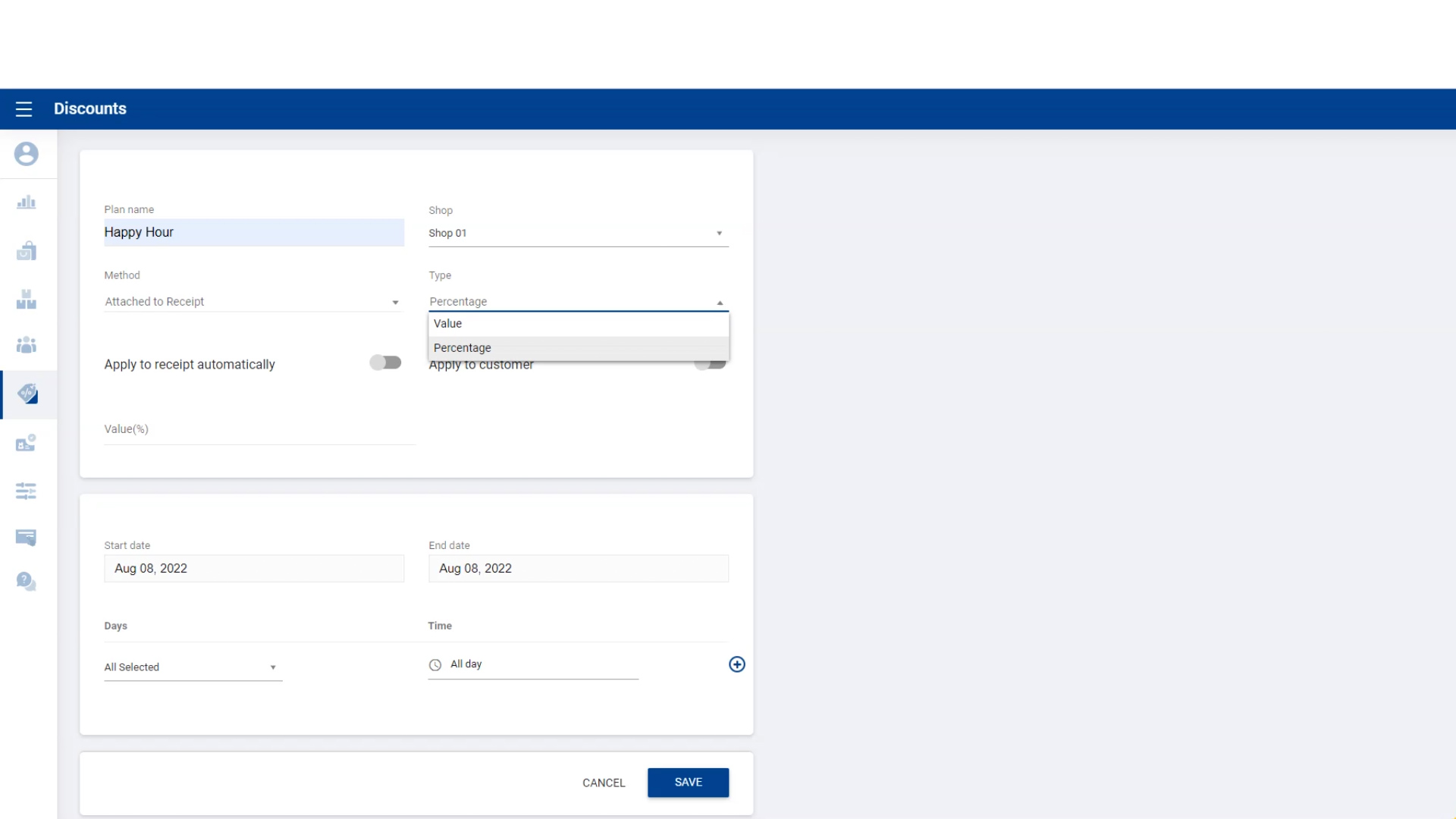
7. Enter the Percentage Value
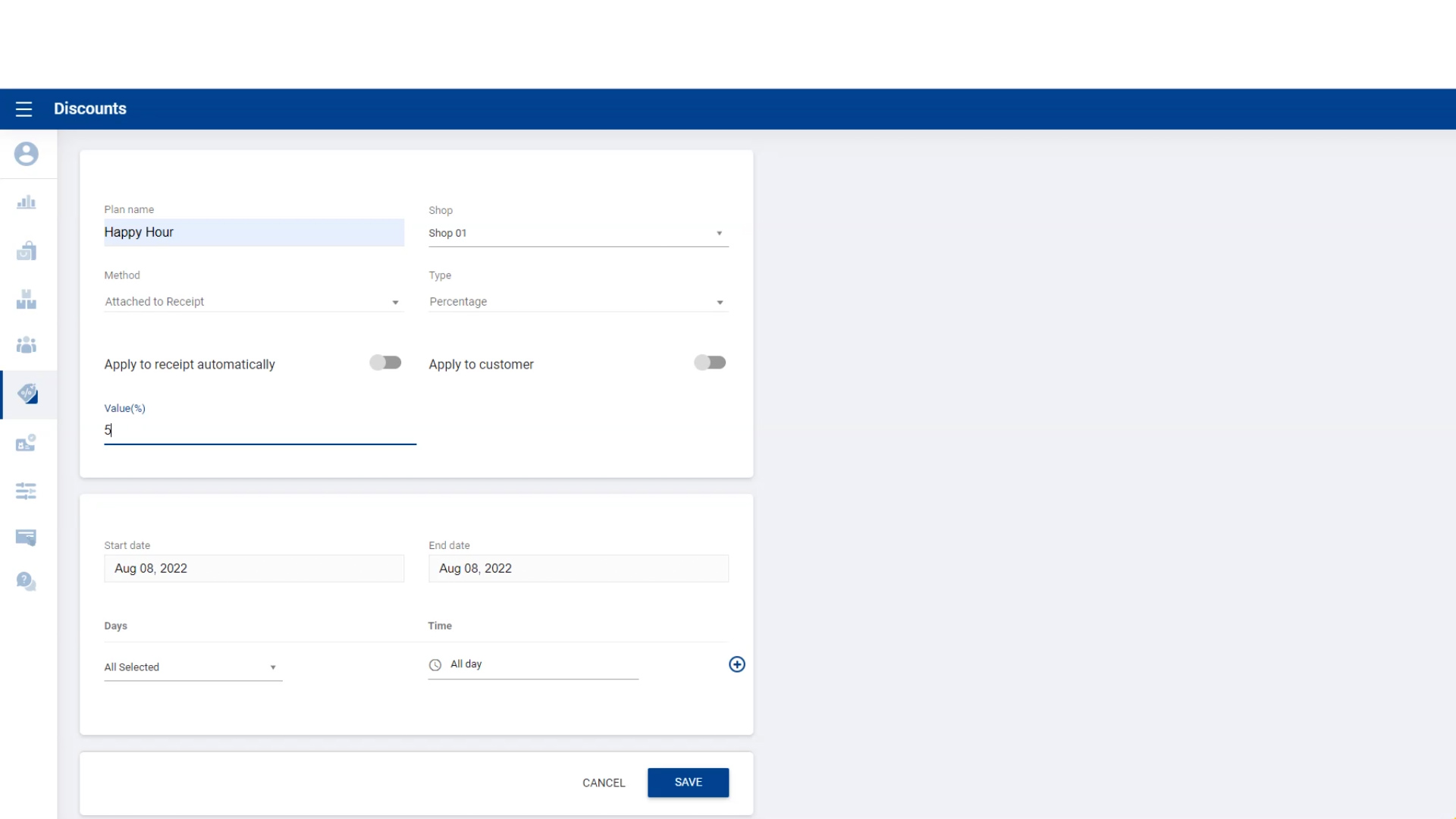
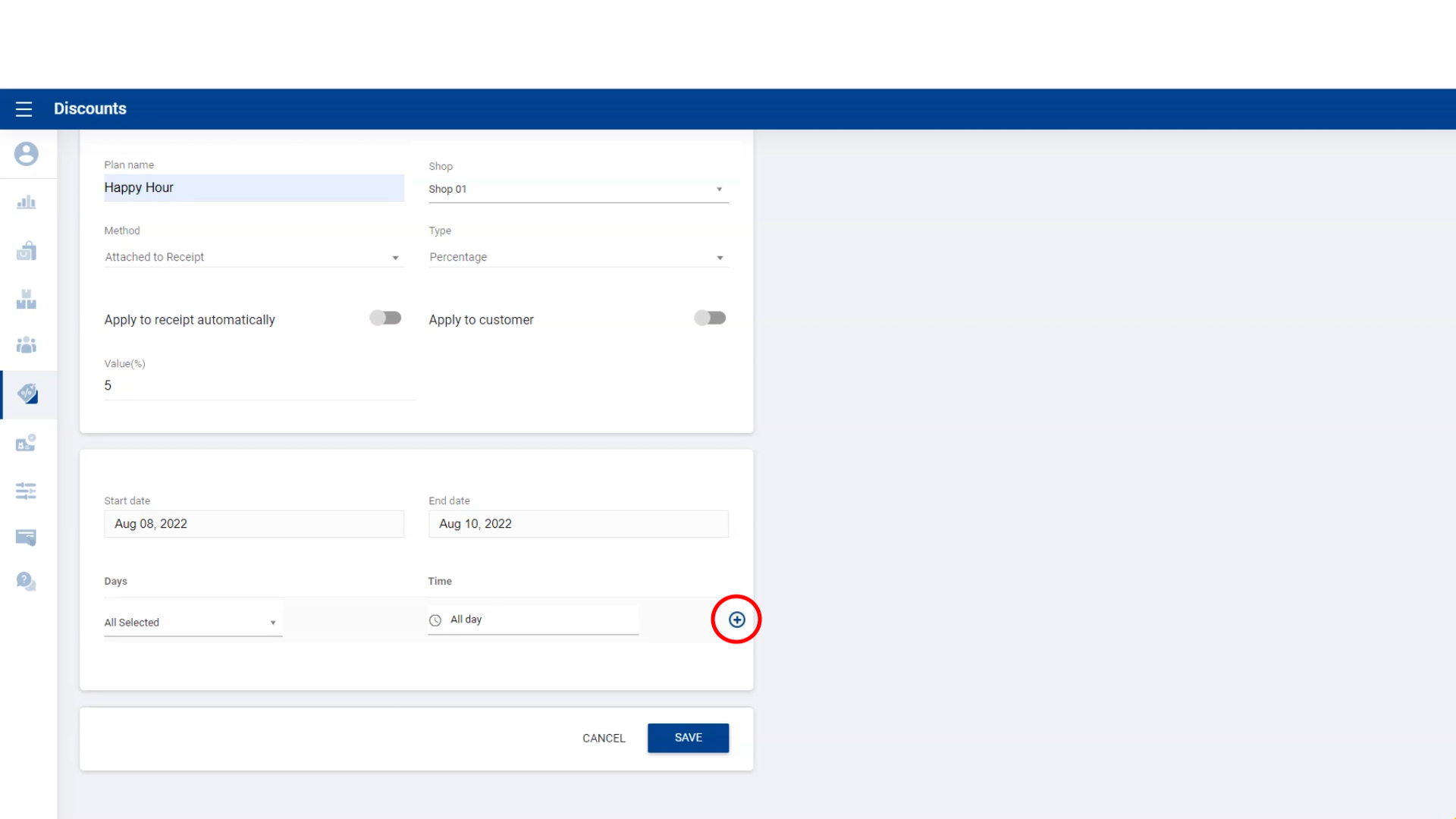
8. Select Discount Start Date and End Date

9. Select Days of the Week for Discount

10. Select Time of Day for Discount
11. Click ‘Add Button’ before saving
Then click ‘Save’.
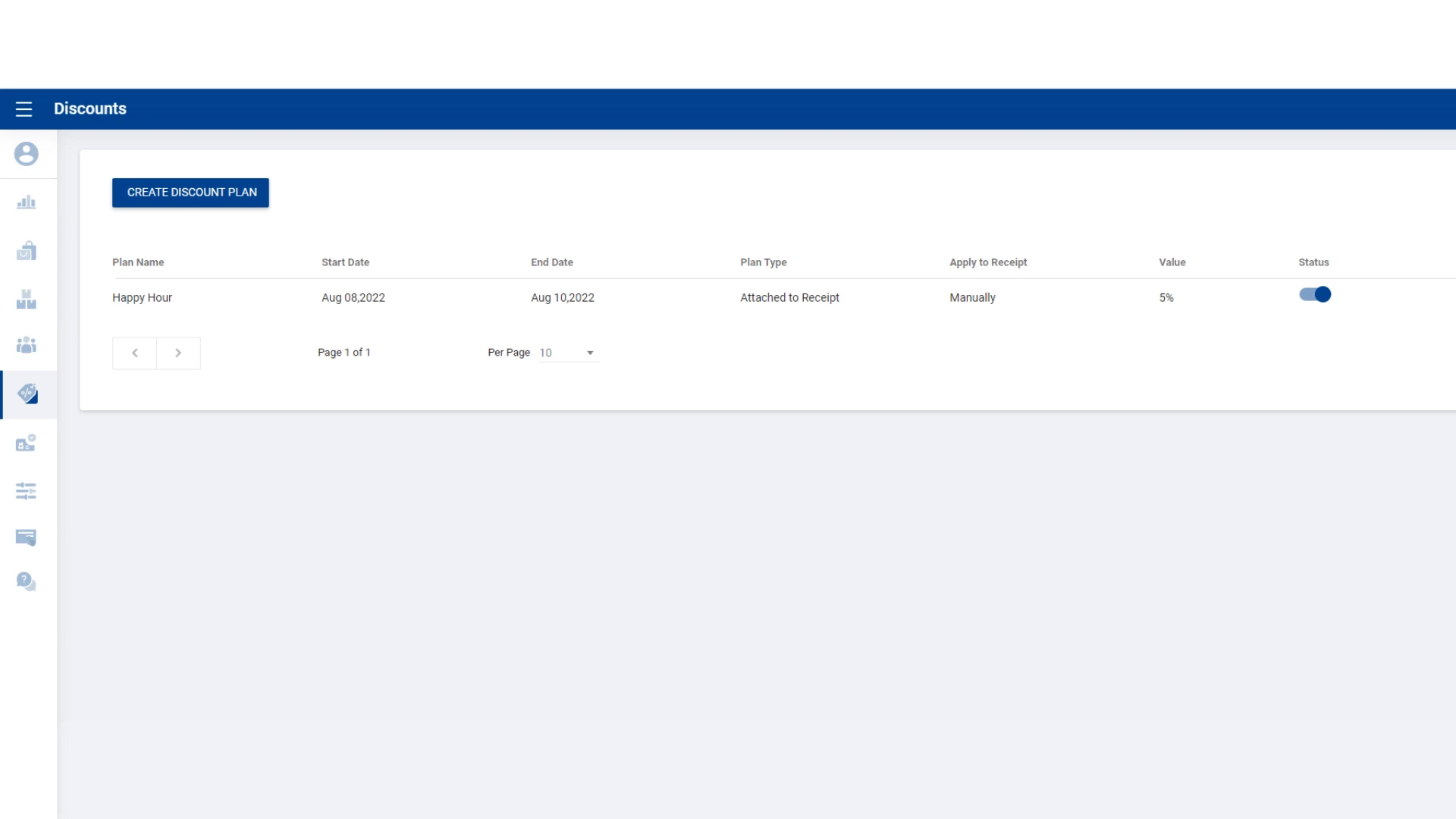
12. Discount Plan Saved Successfully
Adding Discounts to Receipts Manually
Add products to the cart.
Click the ‘Discount Button’.
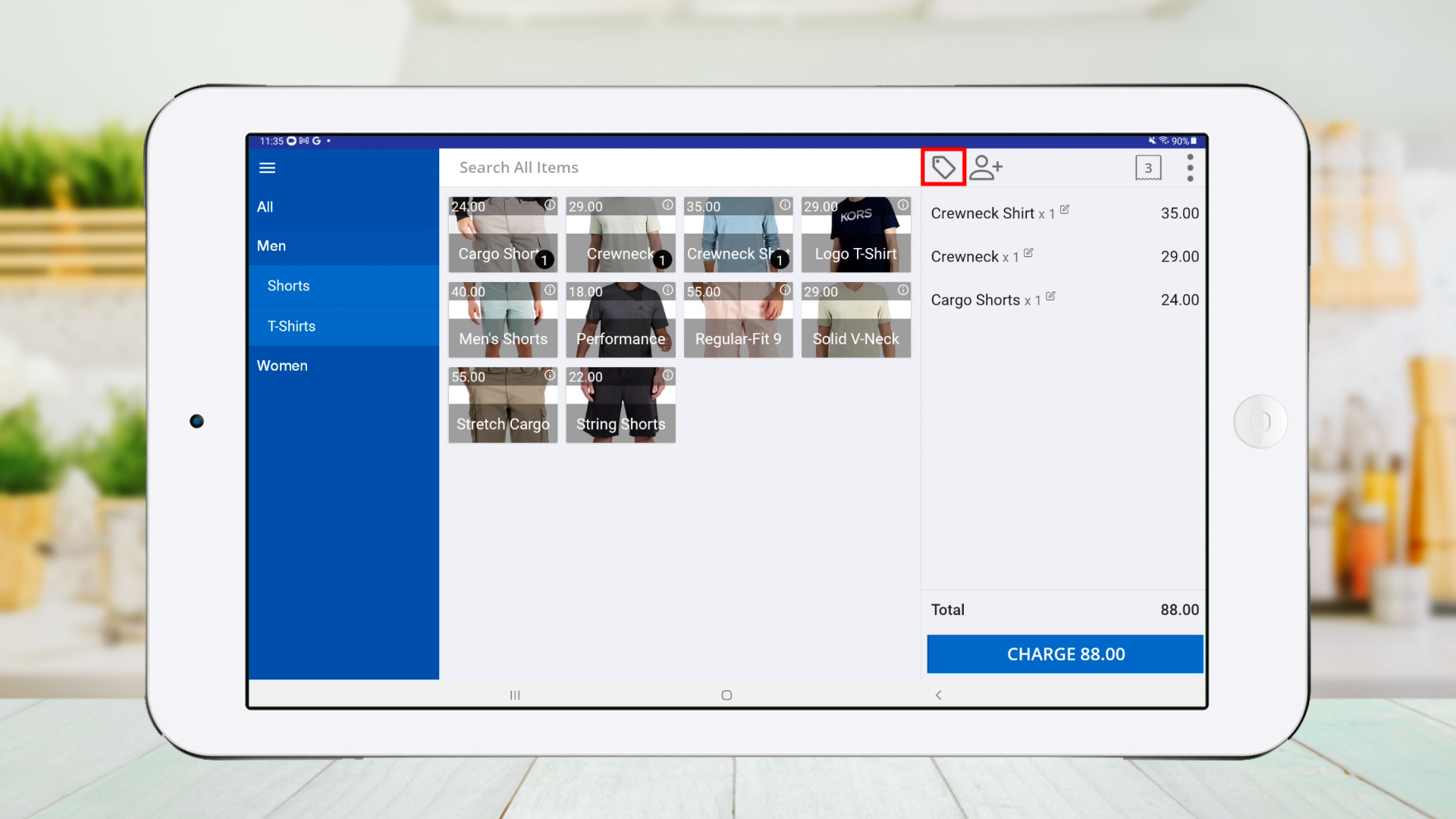
1. Select Discount Plan
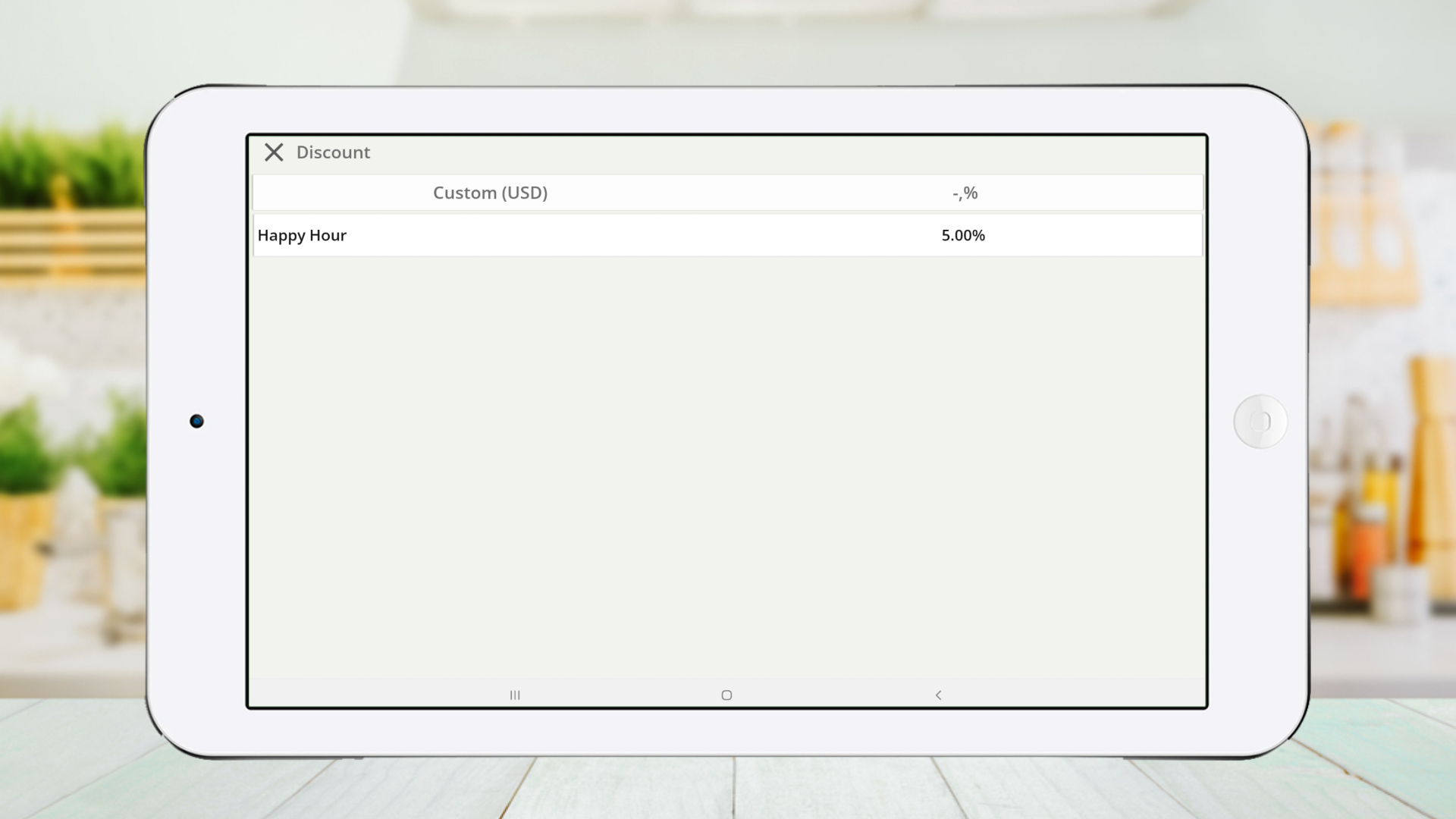
2. Click ‘CHARGE’
Discount is successfully added to the receipt.

Automatic Discount Application
Click on the Existing Plan

Enable ‘Apply to receipt automatically’ and click ‘SAVE’

Add products to the cart.
Discount will be automatically applied.

Click ‘CHARGE’
Discount appears on the receipt successfully.

This format keeps your step-by-step structure, images, and video, while improving readability and organization for your users.
Related Articles
How to Create Pricing Plans
Special Note Important: With the updated pricing plan method, clicking on a Price Plan item in the POS App opens an item customization dialog box. From this dialog box, users can: Select the required pricing plan Add quantities Apply discounts All ...Promotions with Pricing Plans
How to Handle Promotions with Pricing Plans in Vendtill POS Step-by-step Vendtill POS allows you to create different pricing plans for products, like offering discounts based on the quantity purchased. For example, if you sell butter, you can offer ...How to Create Graphical Table Layout
How to Create Graphical Table Layout Vendtill Back Office Vendtill POS offers a powerful Graphical Table Layout feature that allows restaurants and cafes to manage floor plans visually. This guide walks you through activation, customization, and ...How to Disable the Automatic Print Receipt Option
How to Disable the Automatic Print Receipt Option Vendtill Back Office Follow these steps to turn off automatic receipt printing in both the Back Office and the POS App. This allows you to control when receipts are printed. 1. Disable Automatic ...How to Create Other Staff
How to Create Other Staff Vendtill Back Office > Users > Other staff What is “Other Staff” in Vendtill POS? In Vendtill POS, Other Staff refers to employees whose primary role is not billing but who still contribute to the business operations. This ...