How to Design Receipts
How to Design Receipts

Vendtill Back Office
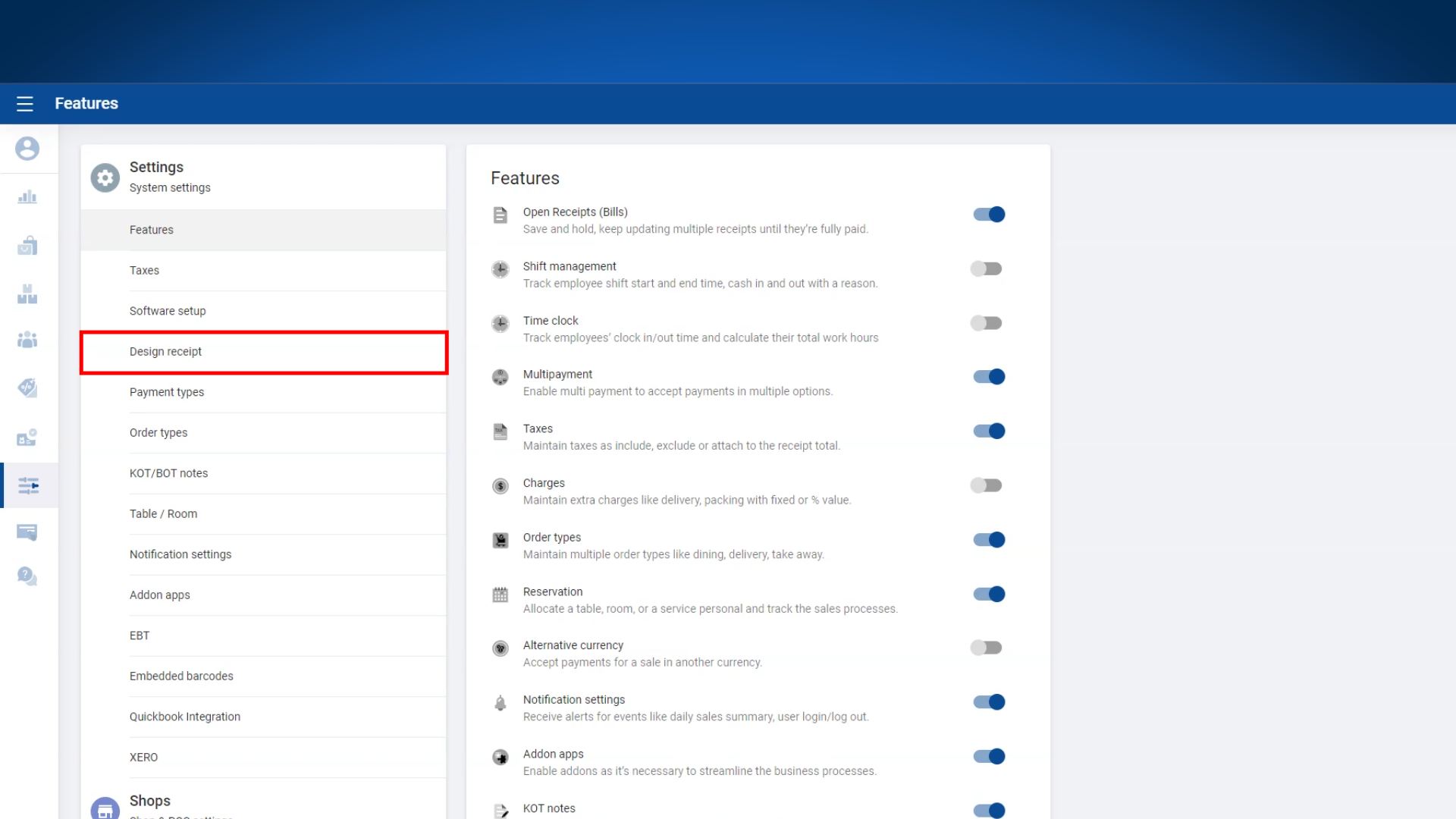
1. Login to POS Back Office > Select “ Settings ” from main menu > Click on 'Design receipt'
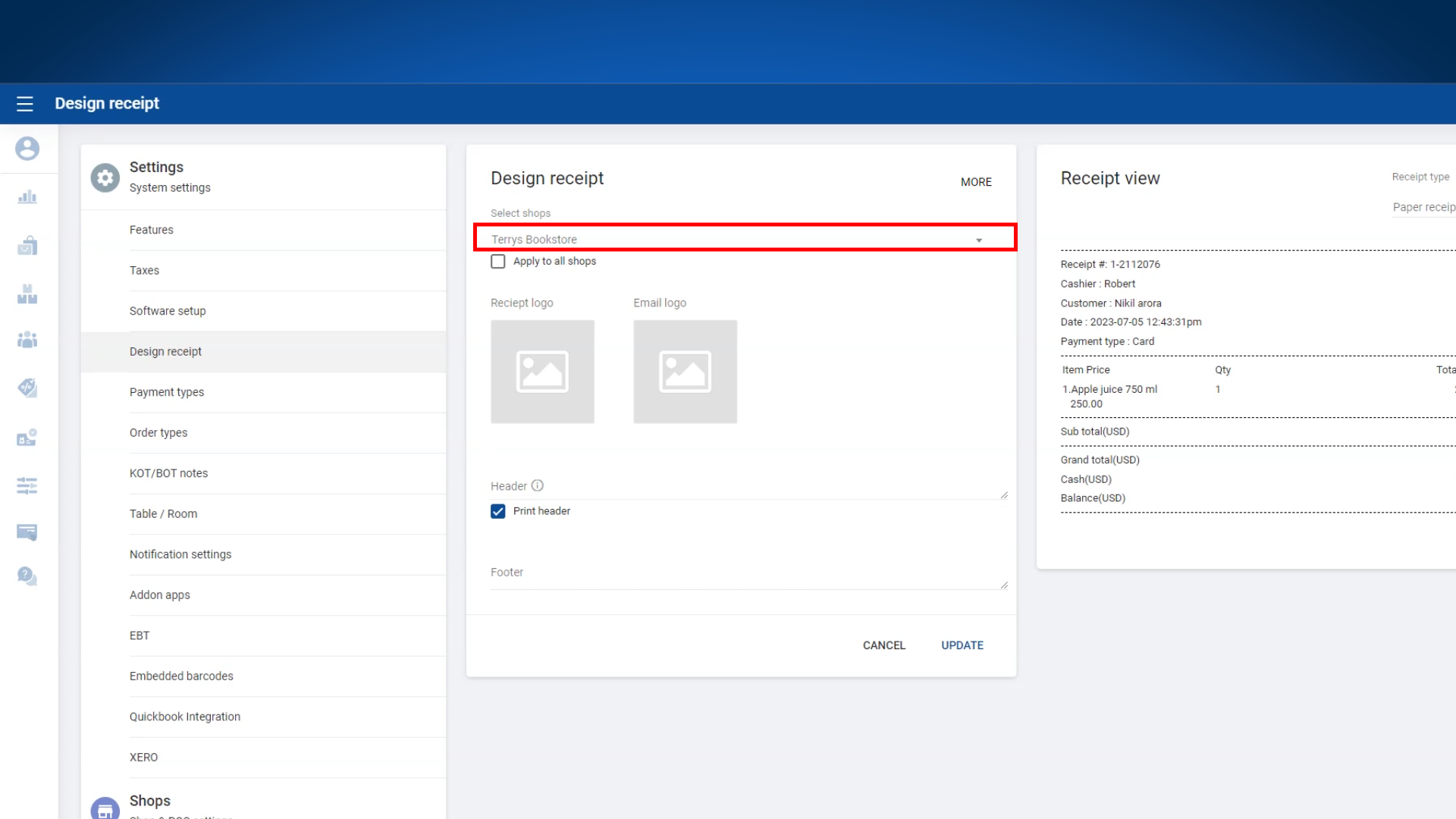
2. Select relevant shop(s) from the drop down menu
3.1 Receipt logos
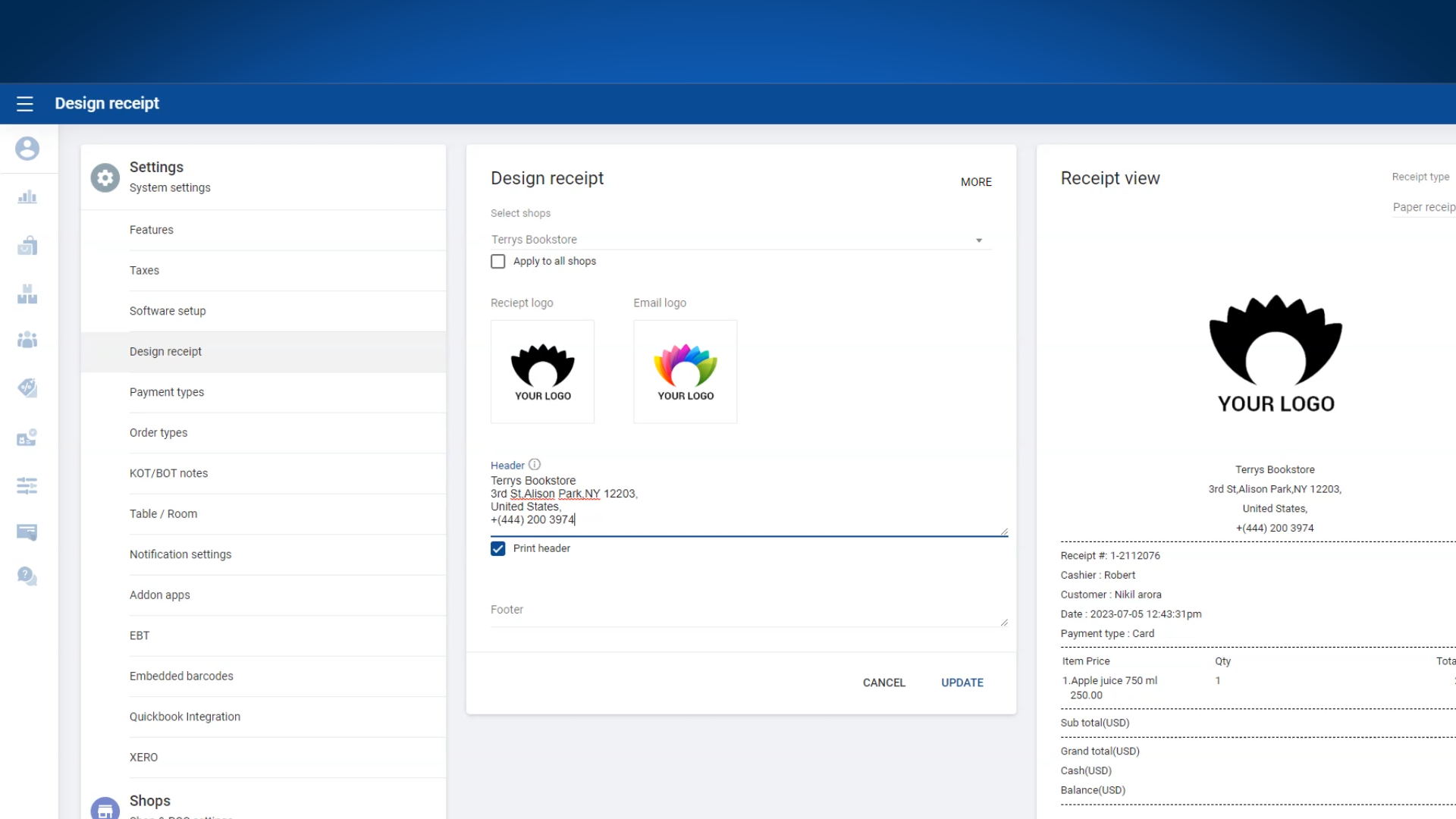
- For the paper logo, we recommend uploading a black and white version, while for the email logo, you can use a color image.
4. Enter Header Text
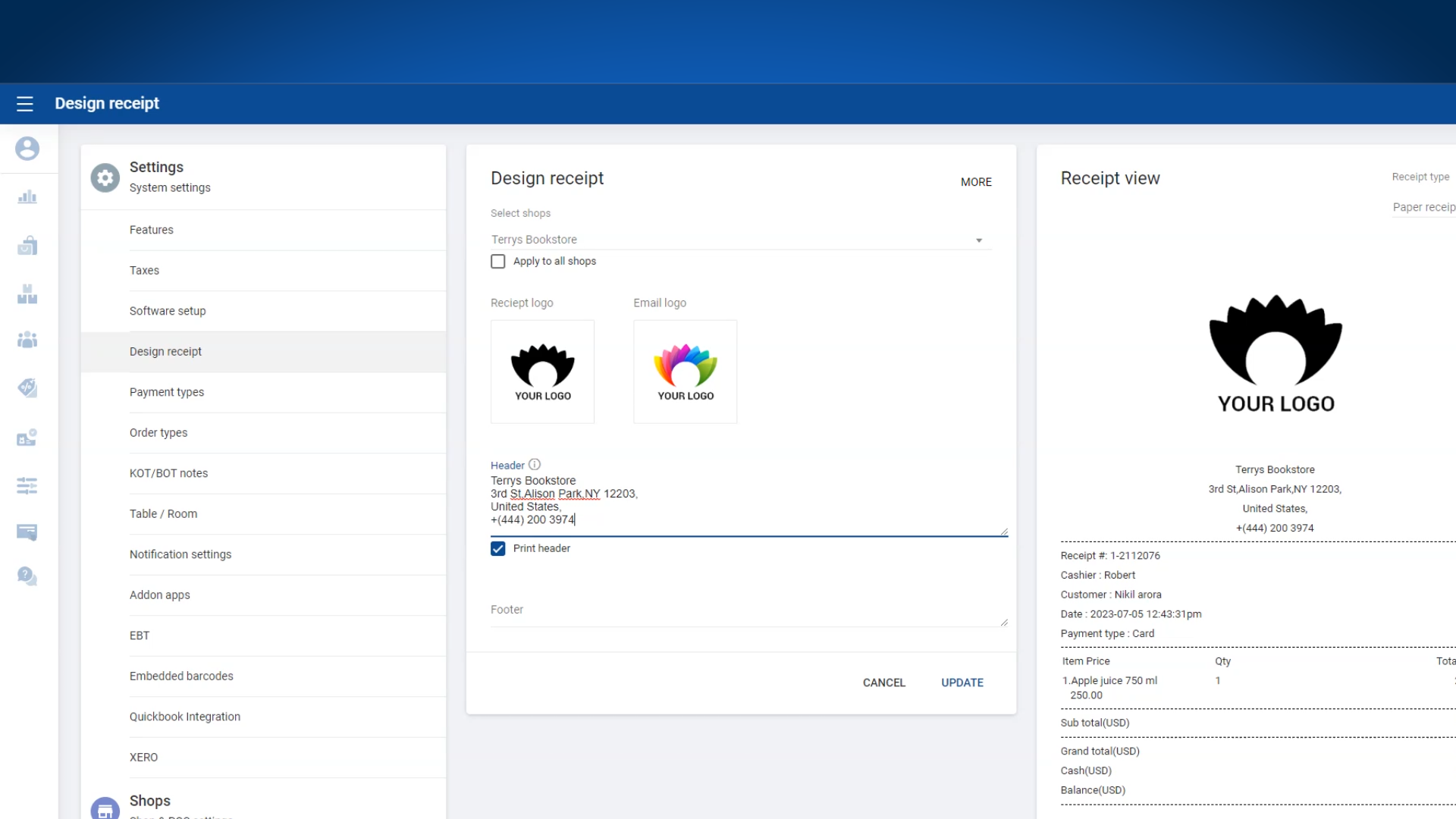
Enter Footer Text
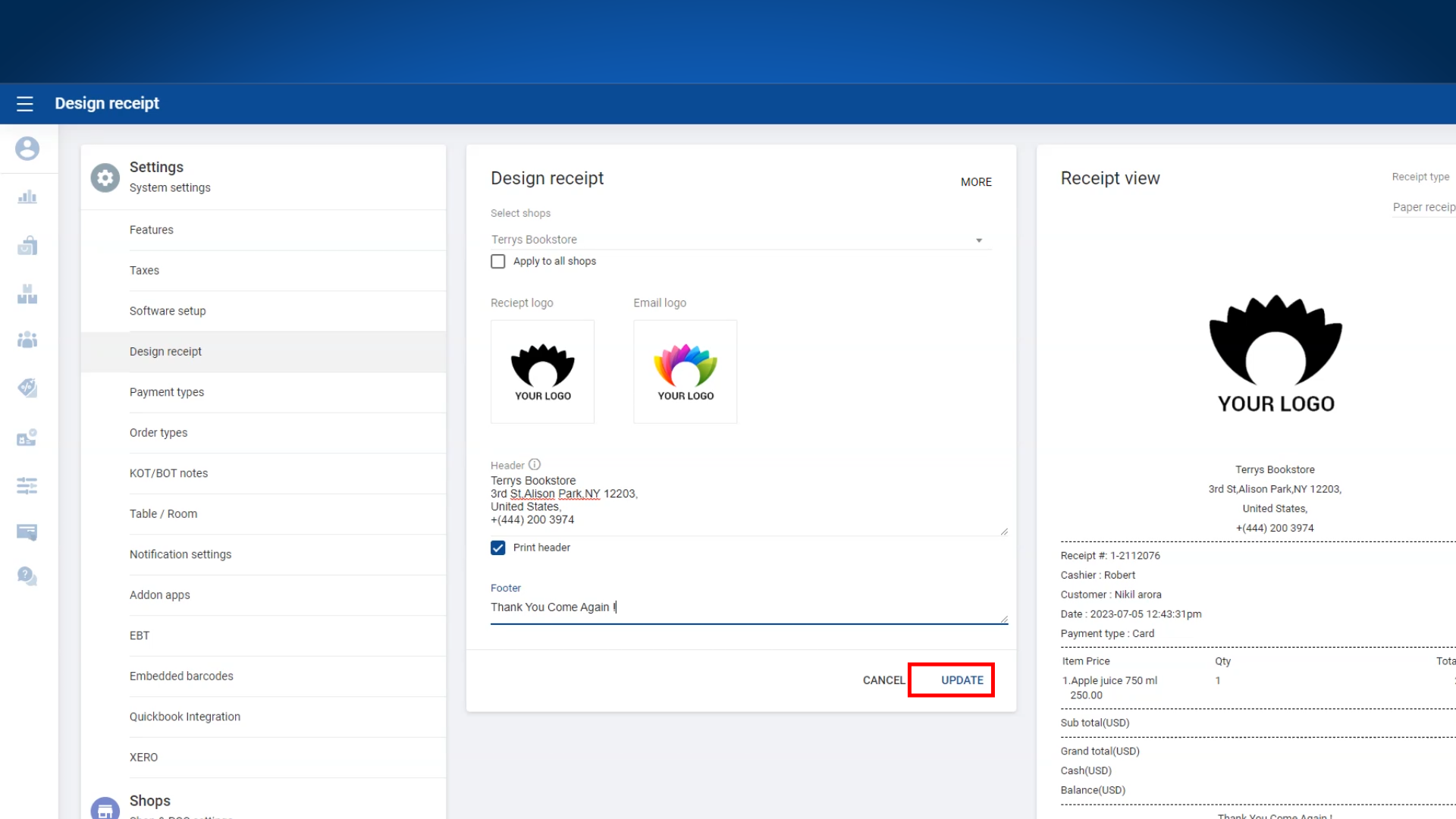
- Click 'UPDATE'.
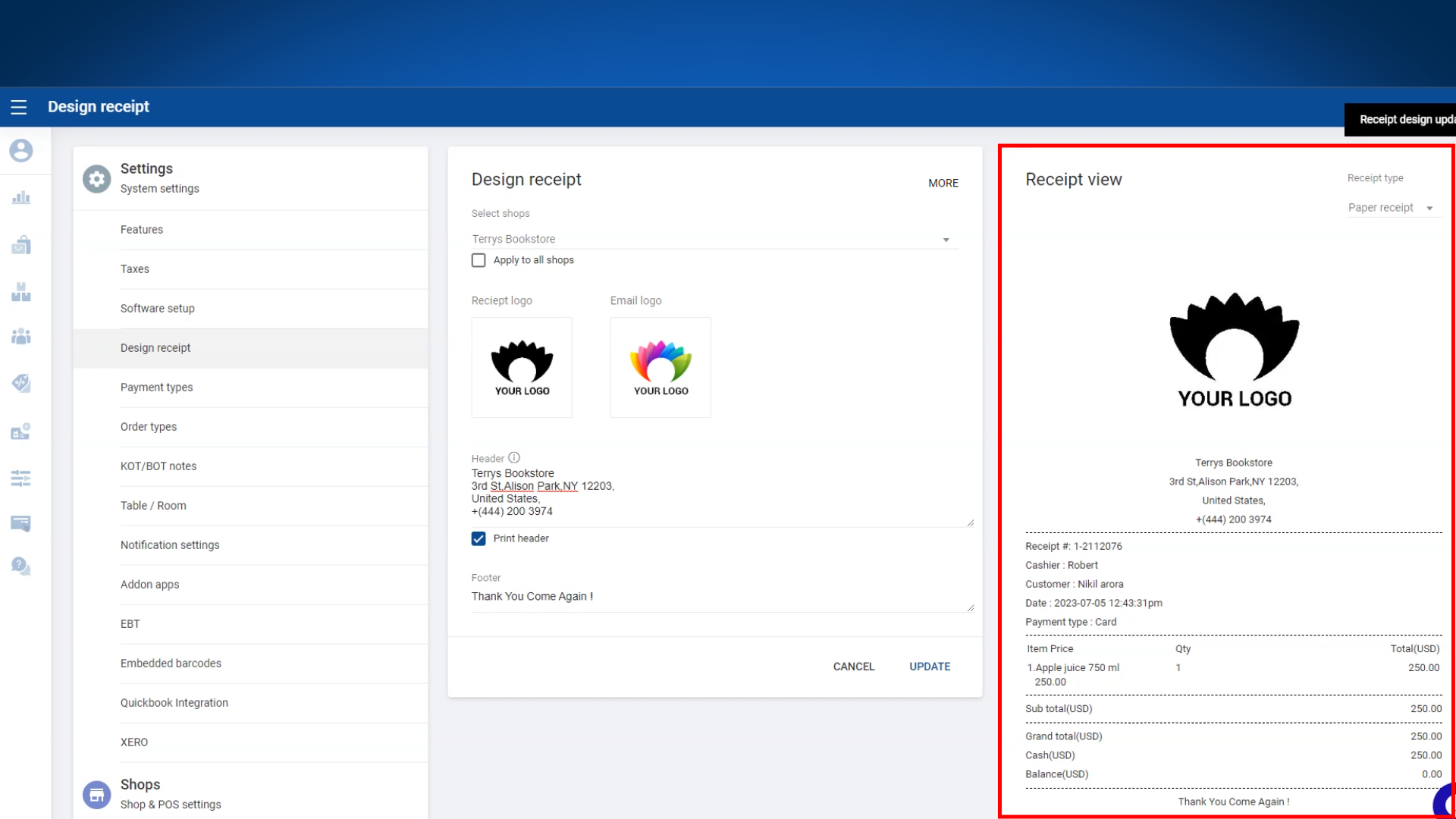
Paper Receipt View
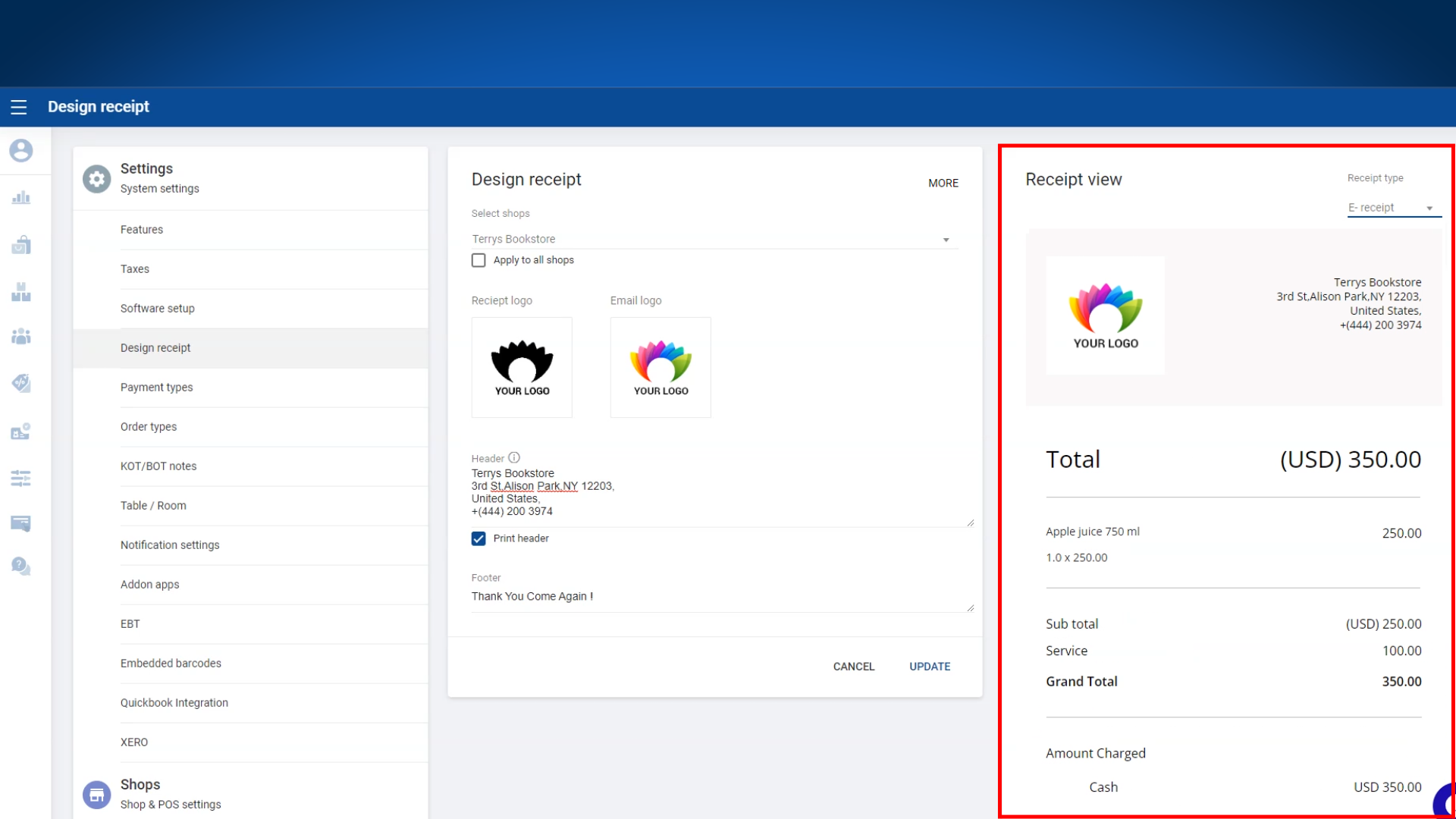
E-Receipt View
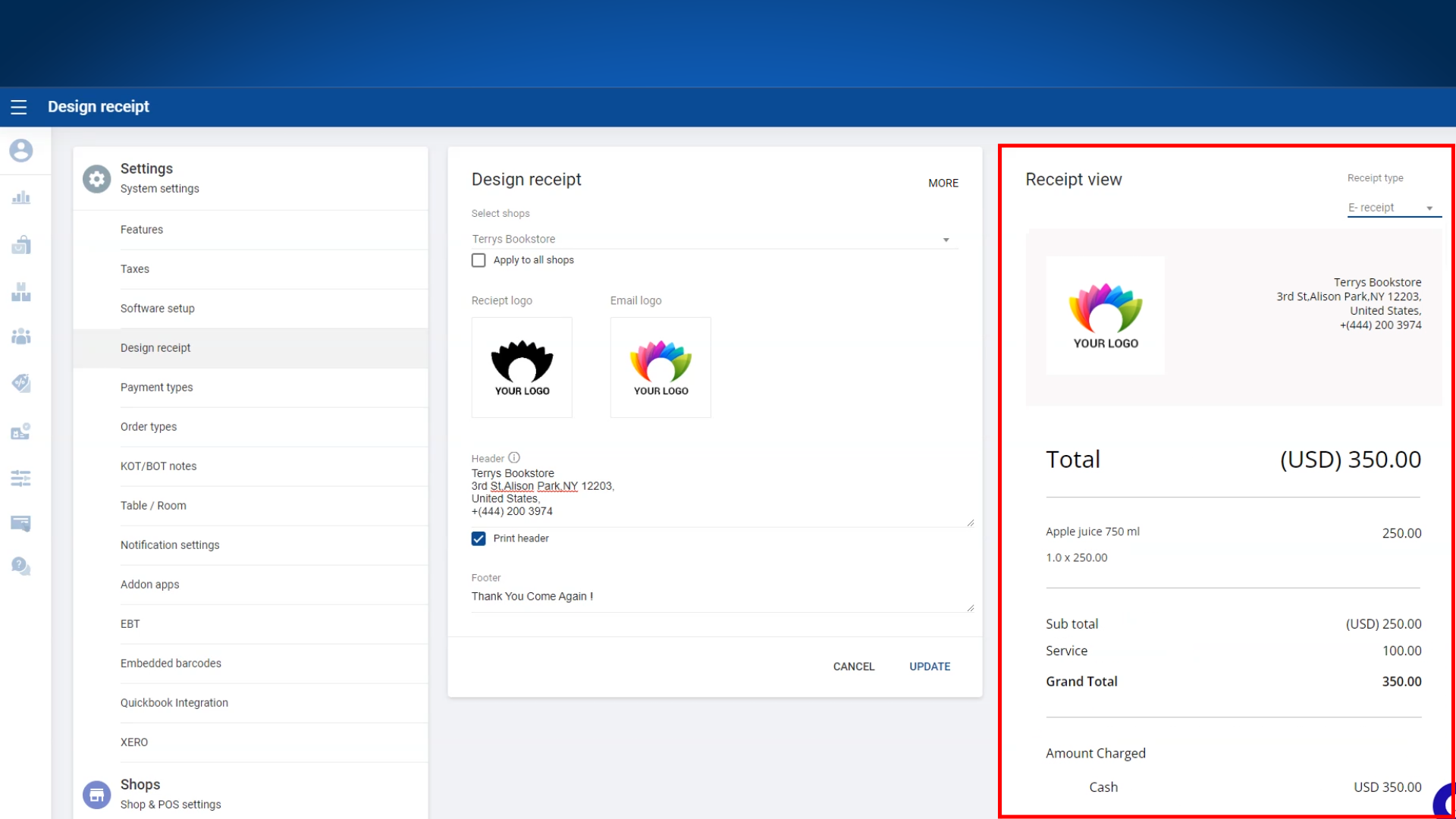
E-Receipt View
Related Articles
How to Set Up Design Receipts
How to Set Up Design Receipts Vendtill Back Office .1 Log in to Back Office > Select “Settings” from main menu > Go to the “Design receipt” .2 Click the “More” button near “Design receipt” 7. Tick On “Space for receipt comment” button: Add an ...Add Comment Notes or Messages to Receipts
How to Add Personalized Notes / Comment or Messages to Receipts Step-by-step The Custom Comment/Remark feature in the Vendtill POS system allows cashiers to include personalized messages or important remarks on the receipt. This is useful for ...Receipts Report
Receipts Report Vendtill Back Office > Receipts 1. Receipts Report Vendtill receipt report provides a comprehensive record of all transactions processed through the POS system, capturing critical information such as transaction details, customer ...How to Delete Receipts
How to Delete Receipts Vendtill Back Office 1. Vendtill allows you to delete receipts in case of billing mistakes. To perform this task, you need the Admin Password and the user approval level 2.1 POS App main menu Manage Sales Select “Receipts”. 2.2 ...Deleted Receipts Report
Deleted Receipts Report Vendtill Back Office Description Deleted Receipt Report in Vendtill POS is a valuable asset for business owners looking to maintain control over their financial transactions, prevent fraud, and ensure the highest standards of ...