How To Make Sales And View Past Receipts
How To Make Sales And View Past Receipts

Vendtill POS App > 'START NEW SALE'
1. As your product list is ready, now let's move to make sales.
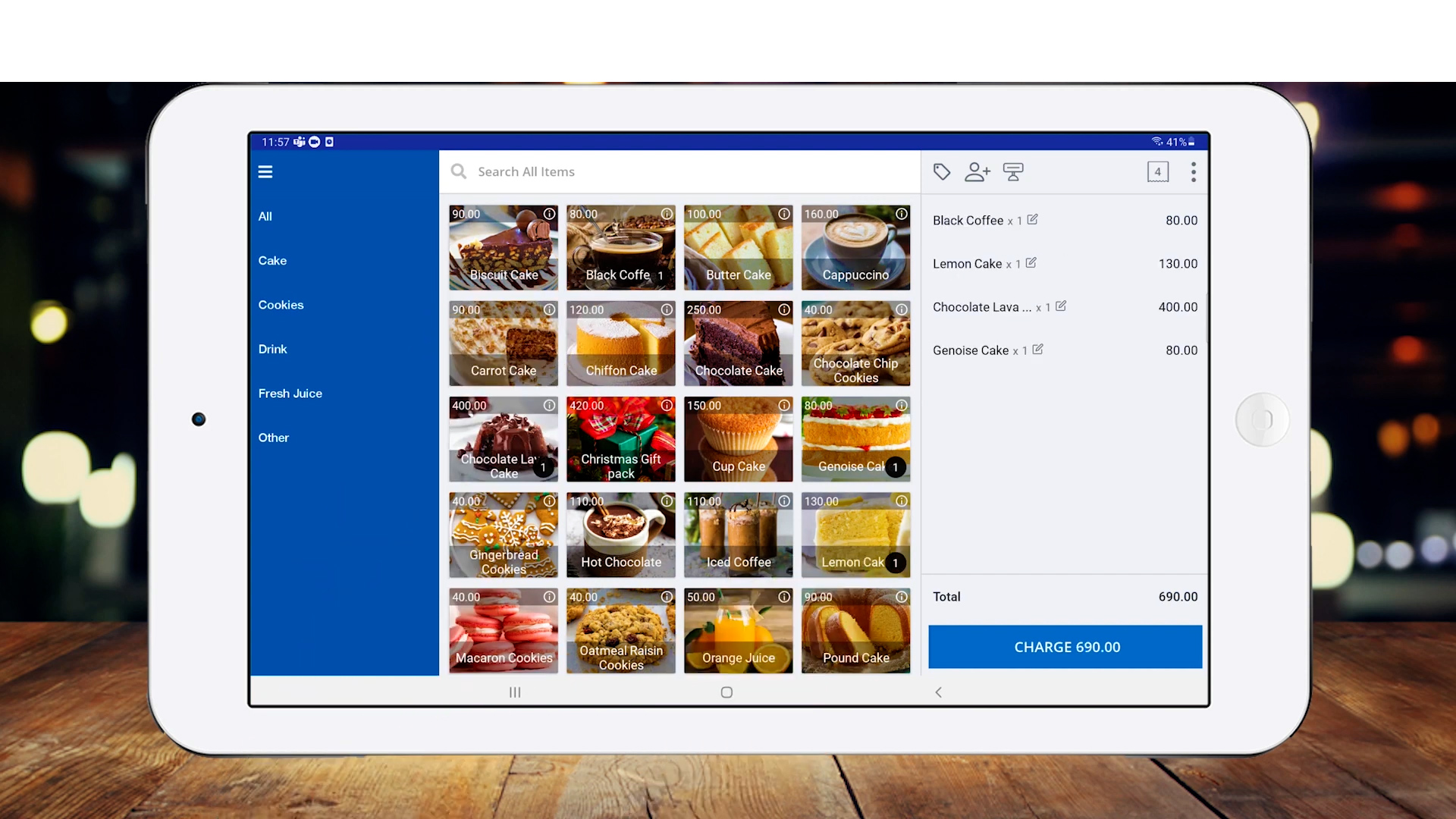
- You can simply click on the product to add it to the cart.
- If you need to check the product's information during checkout, tap on the Info icon ( in the top right corner of the product in the 'Grid layout', or in the right corner in 'list layout').
Tips : Find products quickly and easily
- Use 'Categories' in the left to select products.
- Use the search bar and enter the product name.
2. After you add products to the cart, you can change the detalls in the cart before charge.
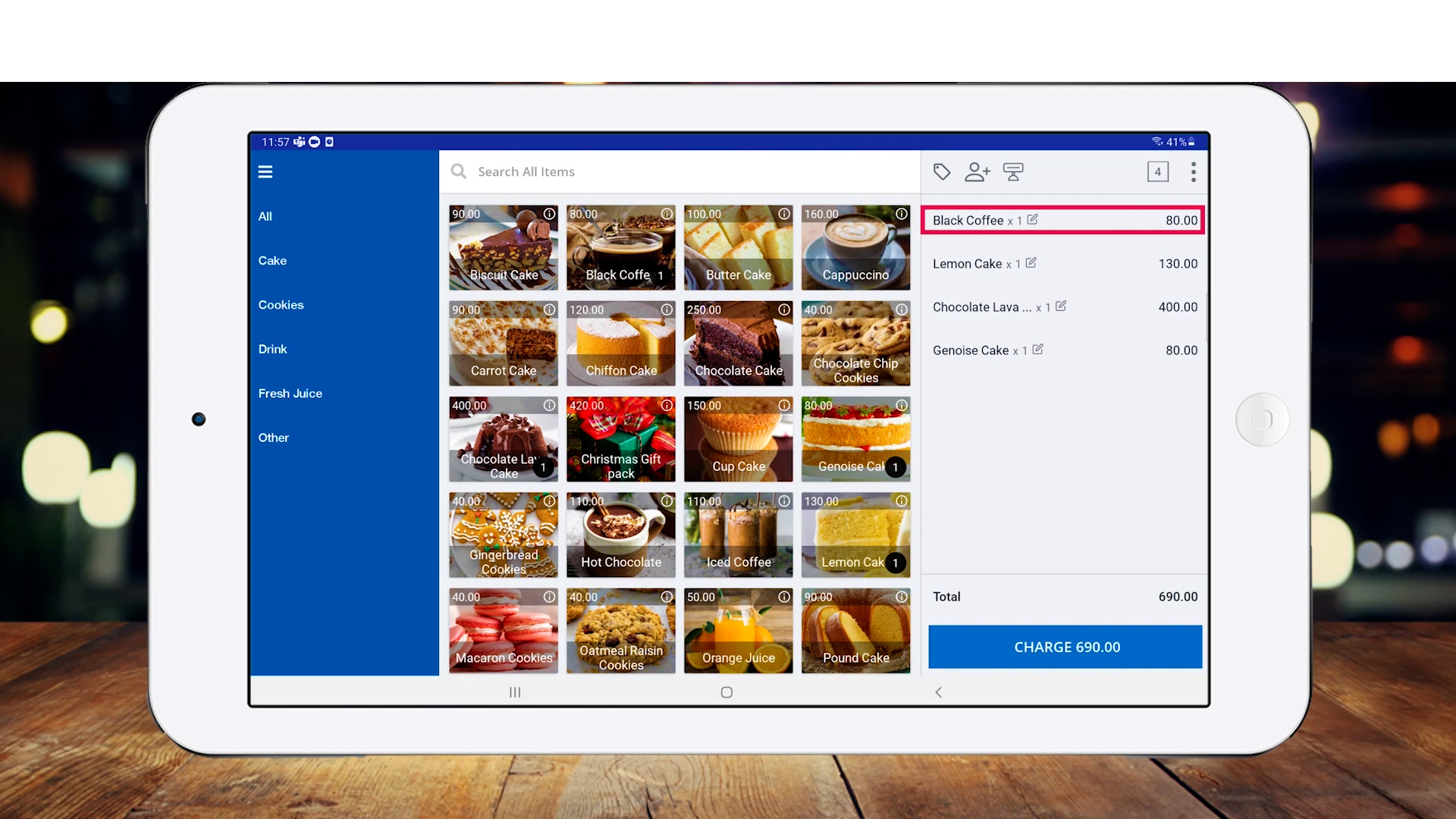
- Simply tap on the product you need to chage the quantity or delete.
3. You can change the quantity of the product by clicking the plus-minus icons or by typing the number.
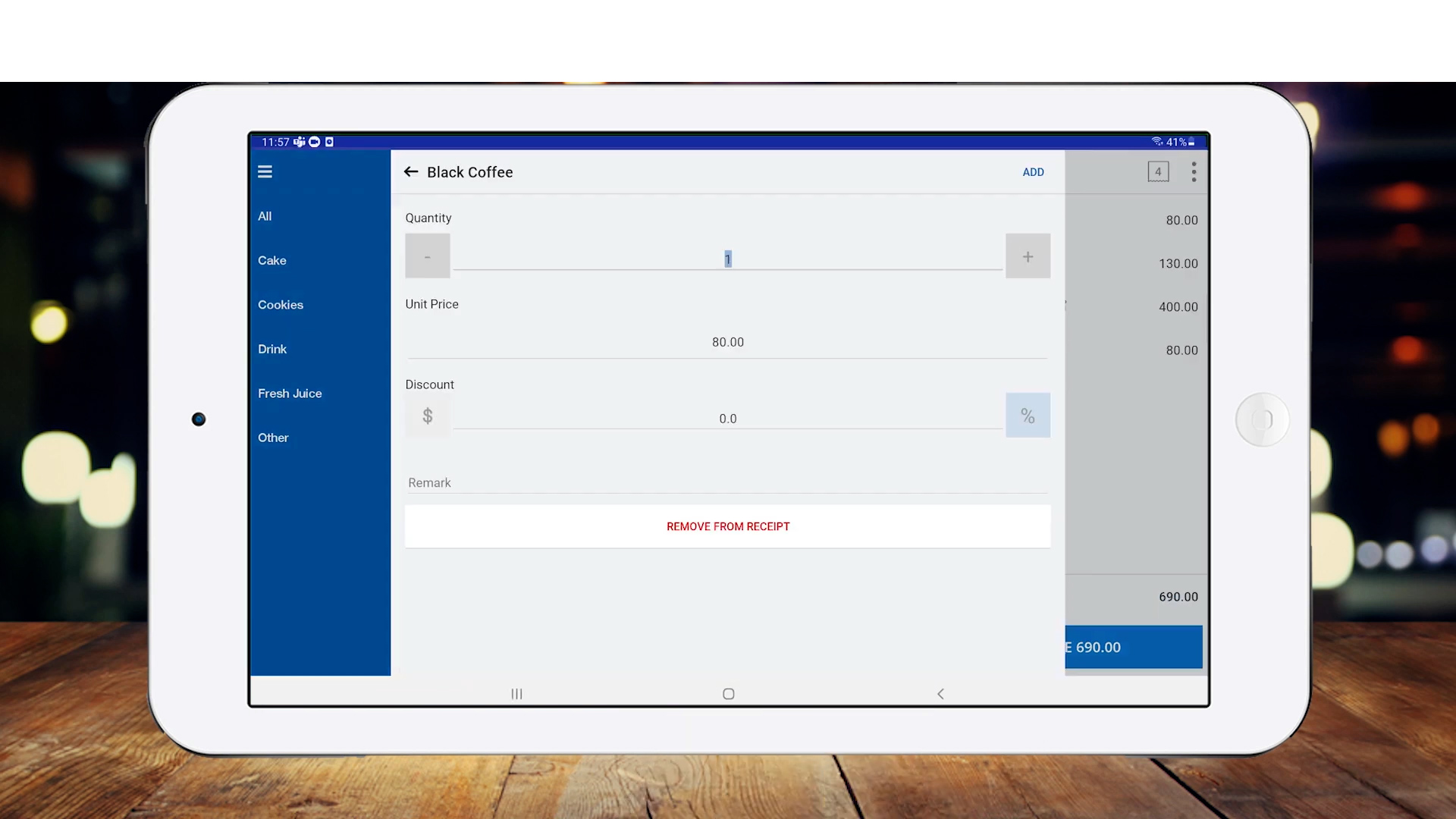
- Enter the amount if there's discount available for the product.
- You can use the Remark feature to add a special note about the product. The 'remark' will be included in the receipt with the product details.
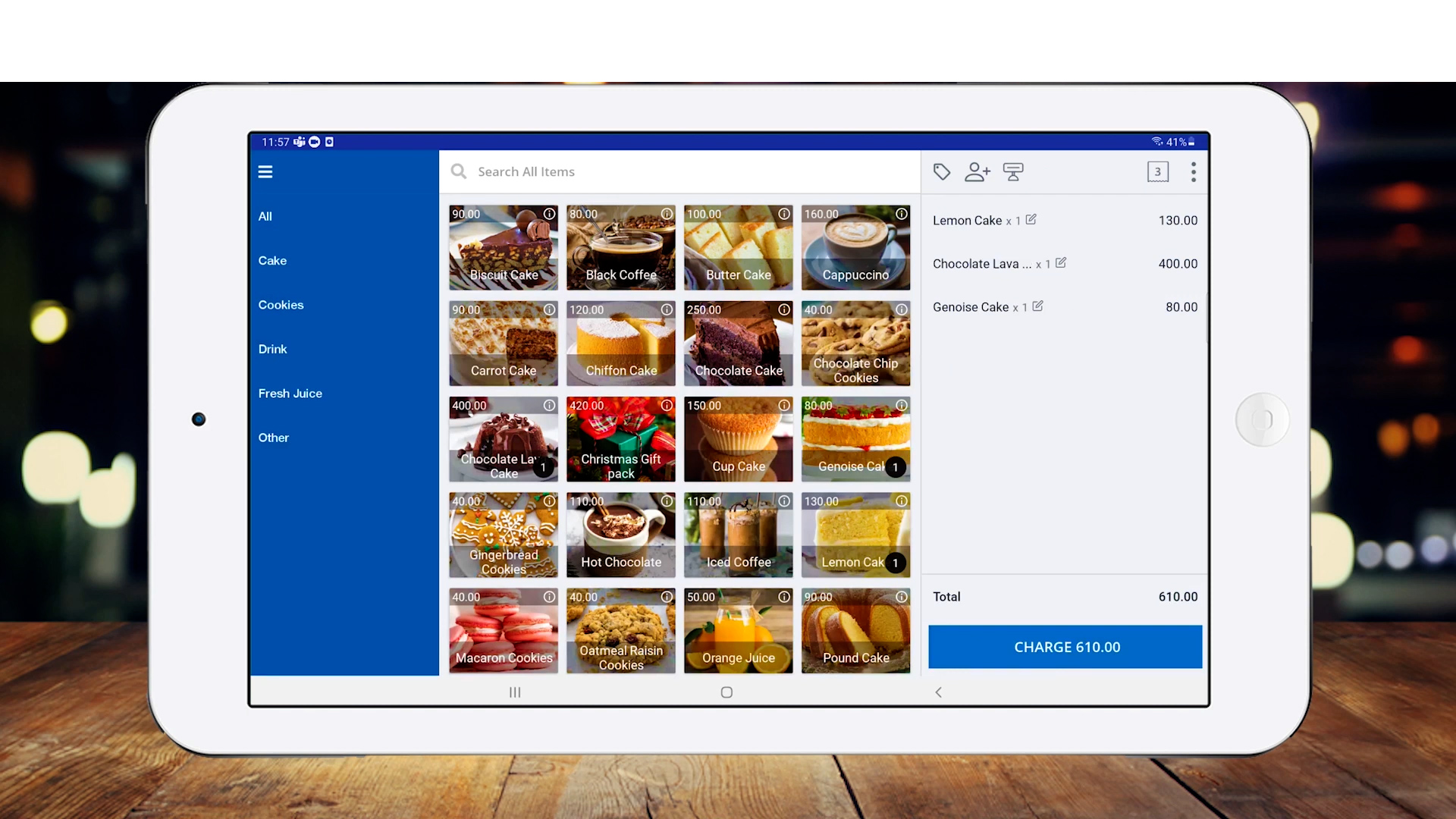
- Click 'REMOVE FROM RECEIPT' to remove the product.
4. If the cart is ready to checkout, click 'CHARGE'
5. Vendtill allows you to select a type of payment during checkout
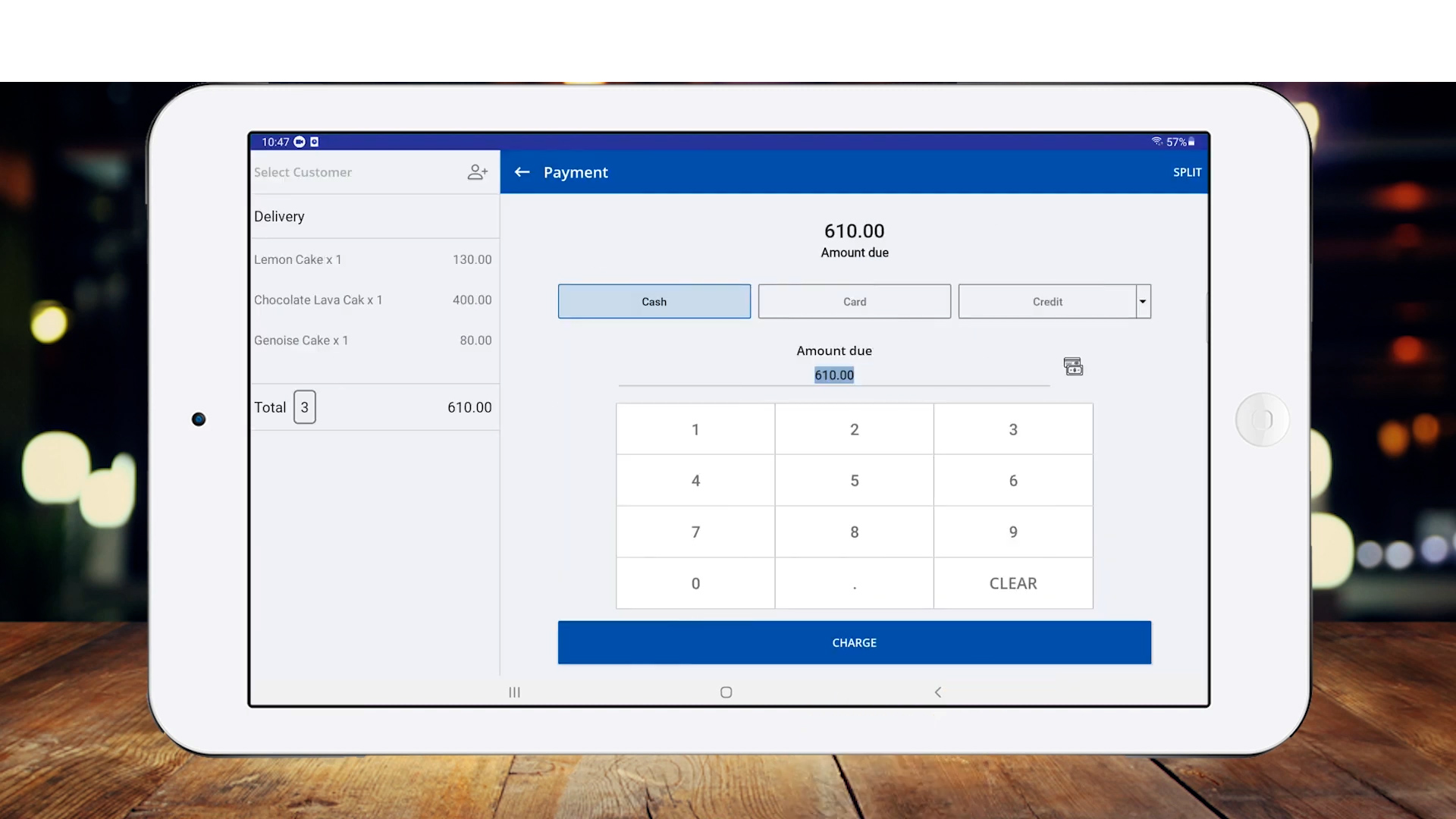
- If the customer pays in cash. you can type the received amount in the given space for 'Amount due'.
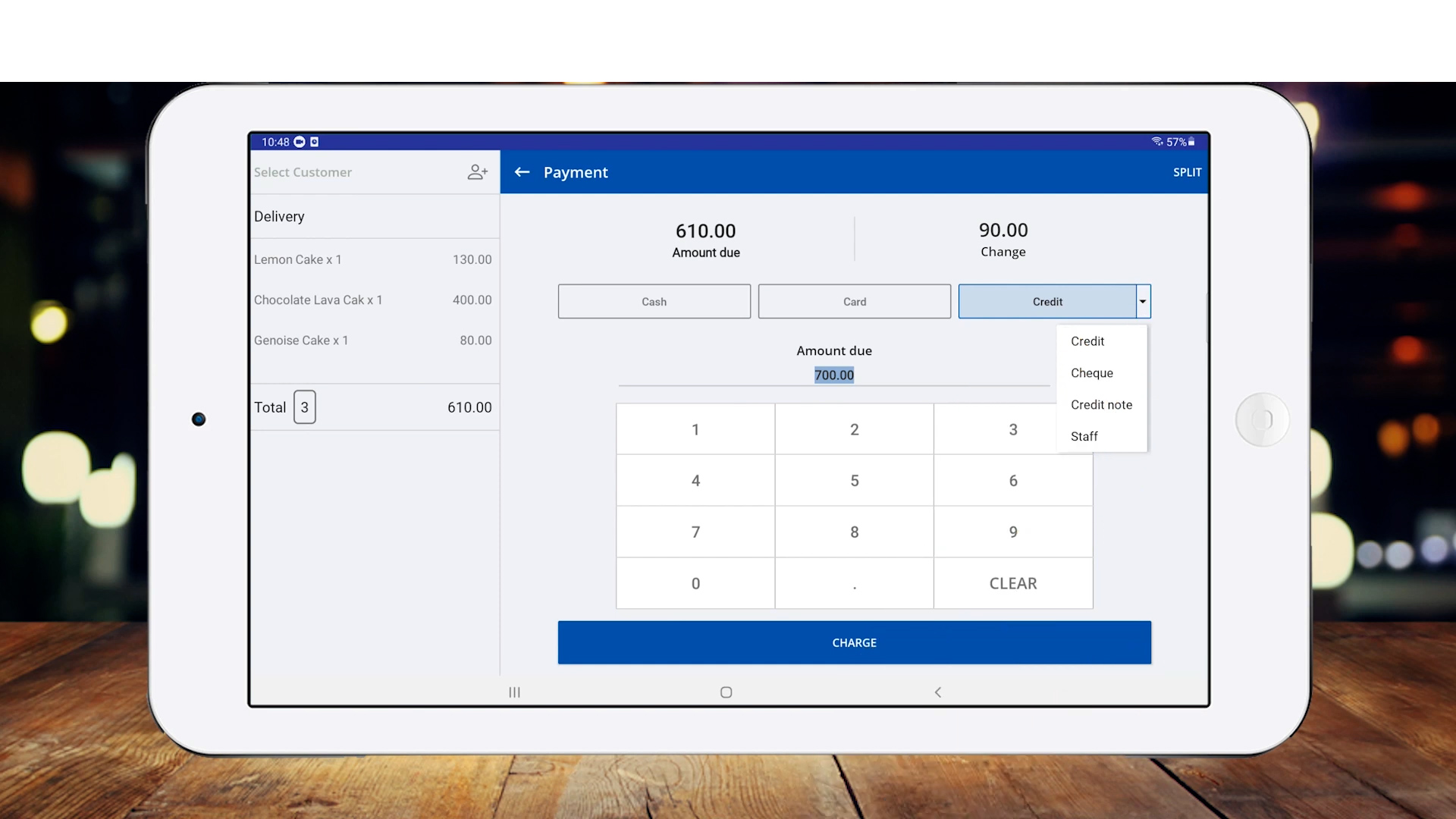
6. To select other payment types select the drop down menu in 'Credit'.
7. You can view past receipts from both Vendtill POS app and Back Office
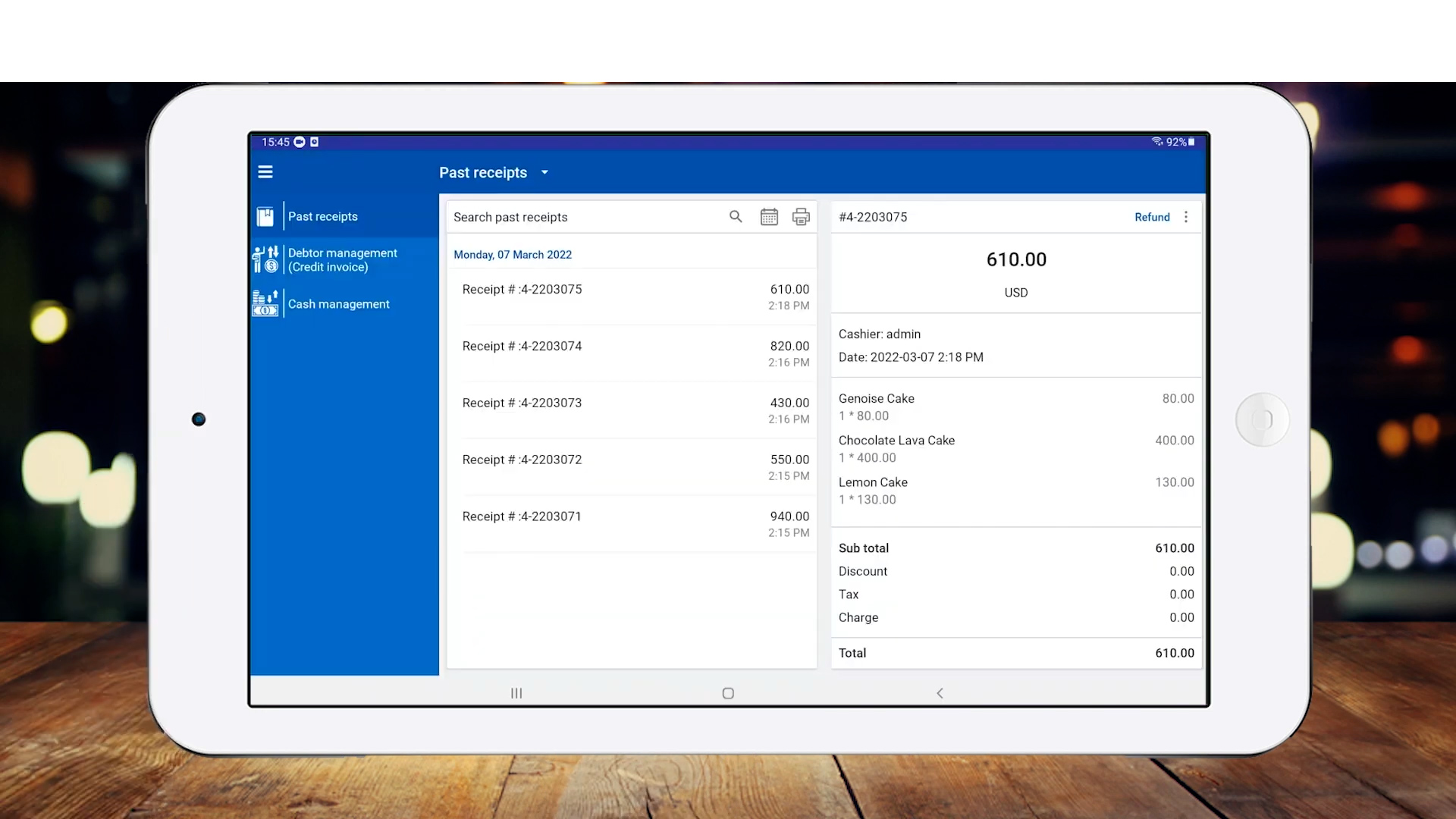
- To view past receipt from POS App, Select the Three line - menu icon, go to 'Manage Sales' and click 'Past receipts'.
- Here you can perform refunds and delete, print or share the receipts.
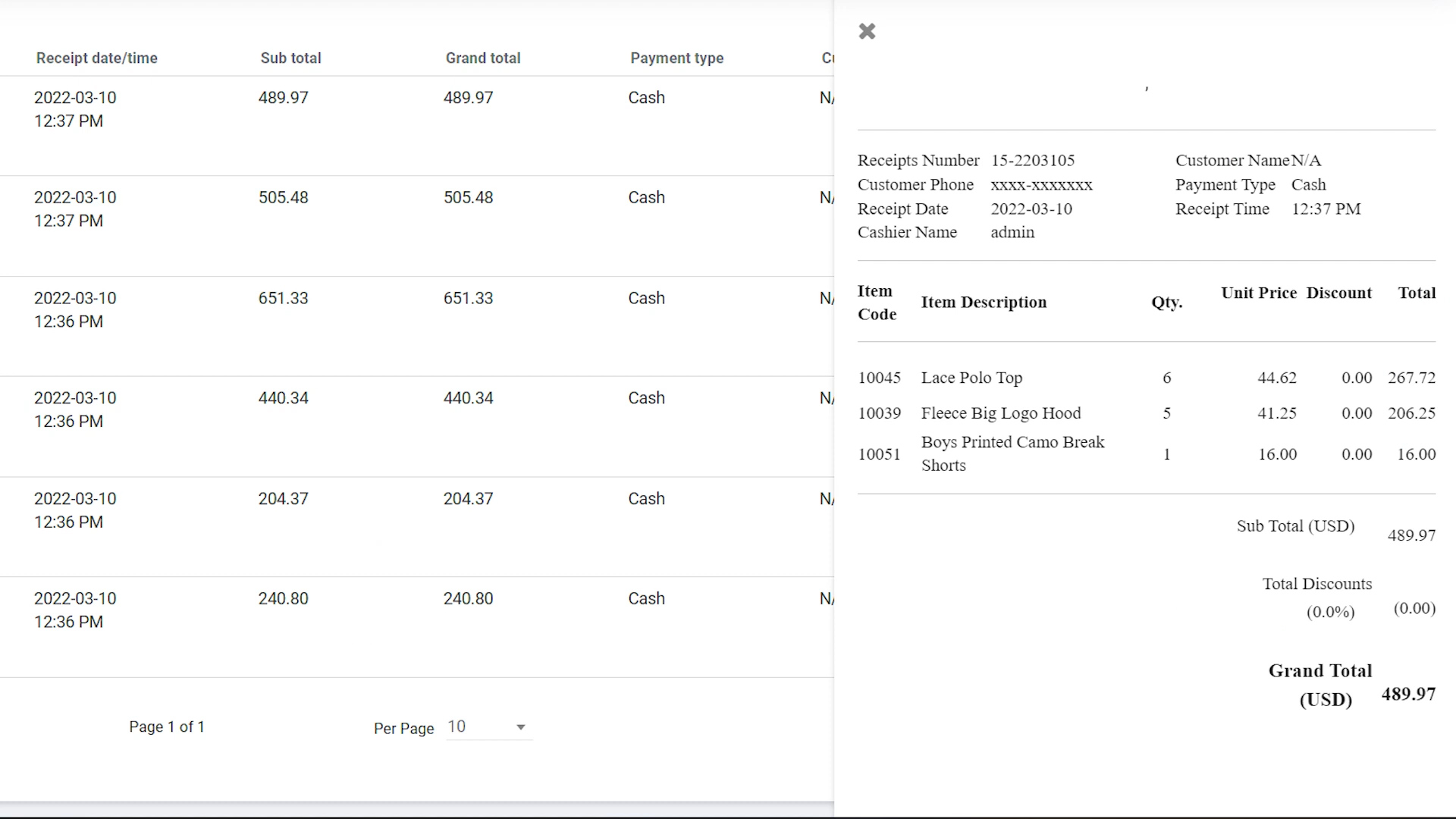
8. To view the past receipts from Back Office, go to Vendtill Back Office → Dashboard → Receipts.
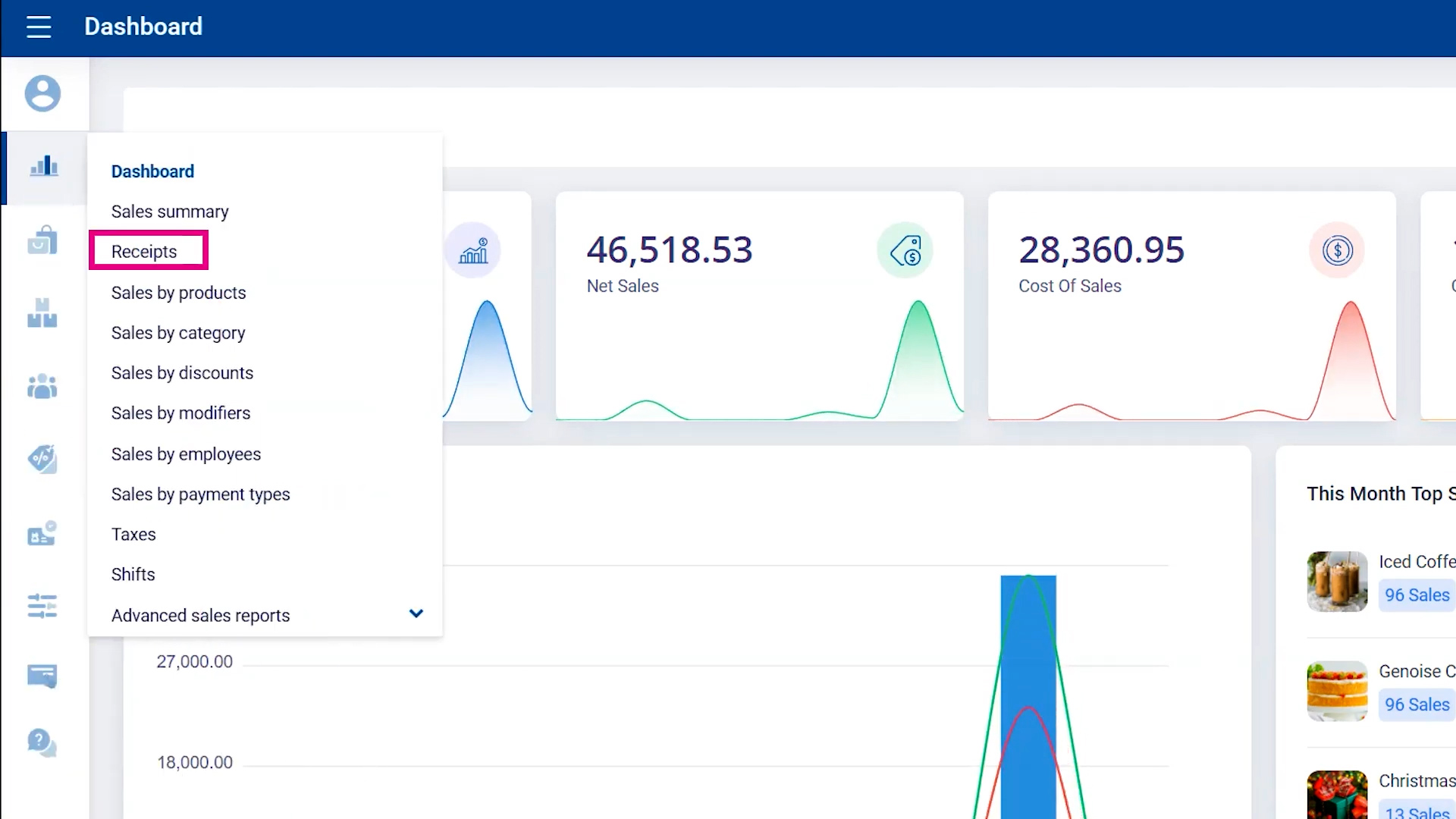
9. You can have real time access to receipt reports from Back Office and filter them by date (range), shop(s), customer(s) or cashier(s).
Related Articles
Let's Make Your First Sale and View Past Receipts
1. Let’s get started with your first sale and learn how to view past receipts! Vendtill POS App 2. Edit product details You can now: Adjust the product quantity Apply a discount Remove items from the cart Let us know if you have any questions! 3.Once ...Receipts Report
Receipts Report Vendtill Back Office > Receipts 1. Receipts Report Vendtill receipt report provides a comprehensive record of all transactions processed through the POS system, capturing critical information such as transaction details, customer ...How to Delete Receipts
How to Delete Receipts Vendtill Back Office 1. Vendtill allows you to delete receipts in case of billing mistakes. To perform this task, you need the Admin Password and the user approval level 2.1 POS App main menu Manage Sales Select “Receipts”. 2.2 ...How to Sync Offline Receipts
How to Sync Offline Receipts Vendtill Web App How to Sync Offline Receipts in Vendtill POS Vendtill POS allows you to continue billing even without an internet connection using Offline Mode. Follow these steps to sync your offline receipts once ...Sales Summary Report
Sales Summary Report Vendtill Back Office 1. Sales Summary Report Vendtill sales summary report provides an overview of the sales activities and performance of a business over a specific period of time. It consolidates and presents key sales data and ...