How to Add Tips for Card Payments
How to Add Tips for Card Payments

Vendtill Back Office
How to Add Tips for Card Payments
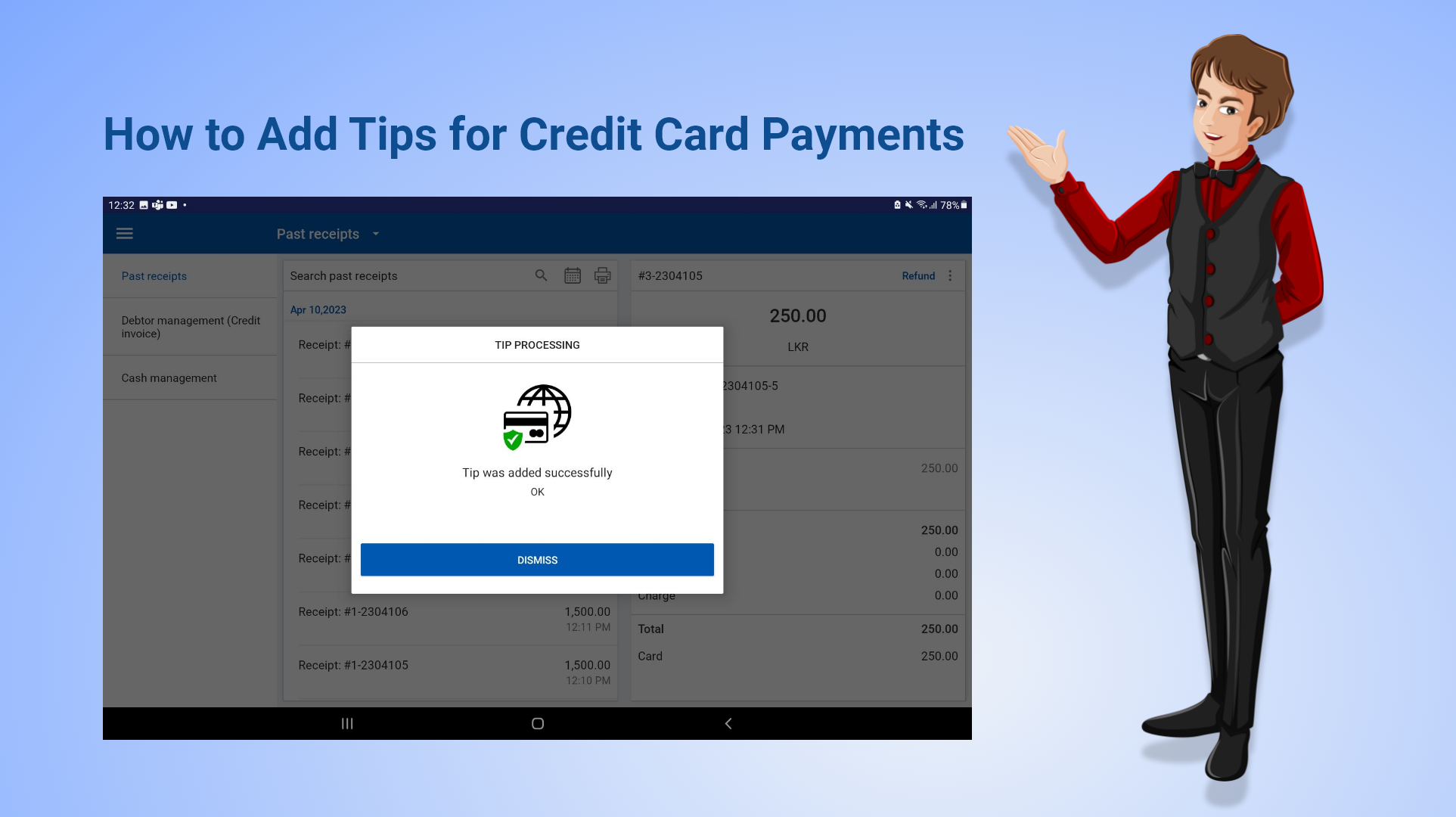
- Adding tips for credit card payments is a critical feature in a point-of-sale (POS) software, and it can enhance customer experience and increase revenue for businesses. Wallee and Pax Payments are two payment gateway providers that can help simplify the process of credit card payments in a POS software.
- Now you can add tips for credit card payments using Wallee and PAX payment gateways.
1. How to Add Tips for Card Payments
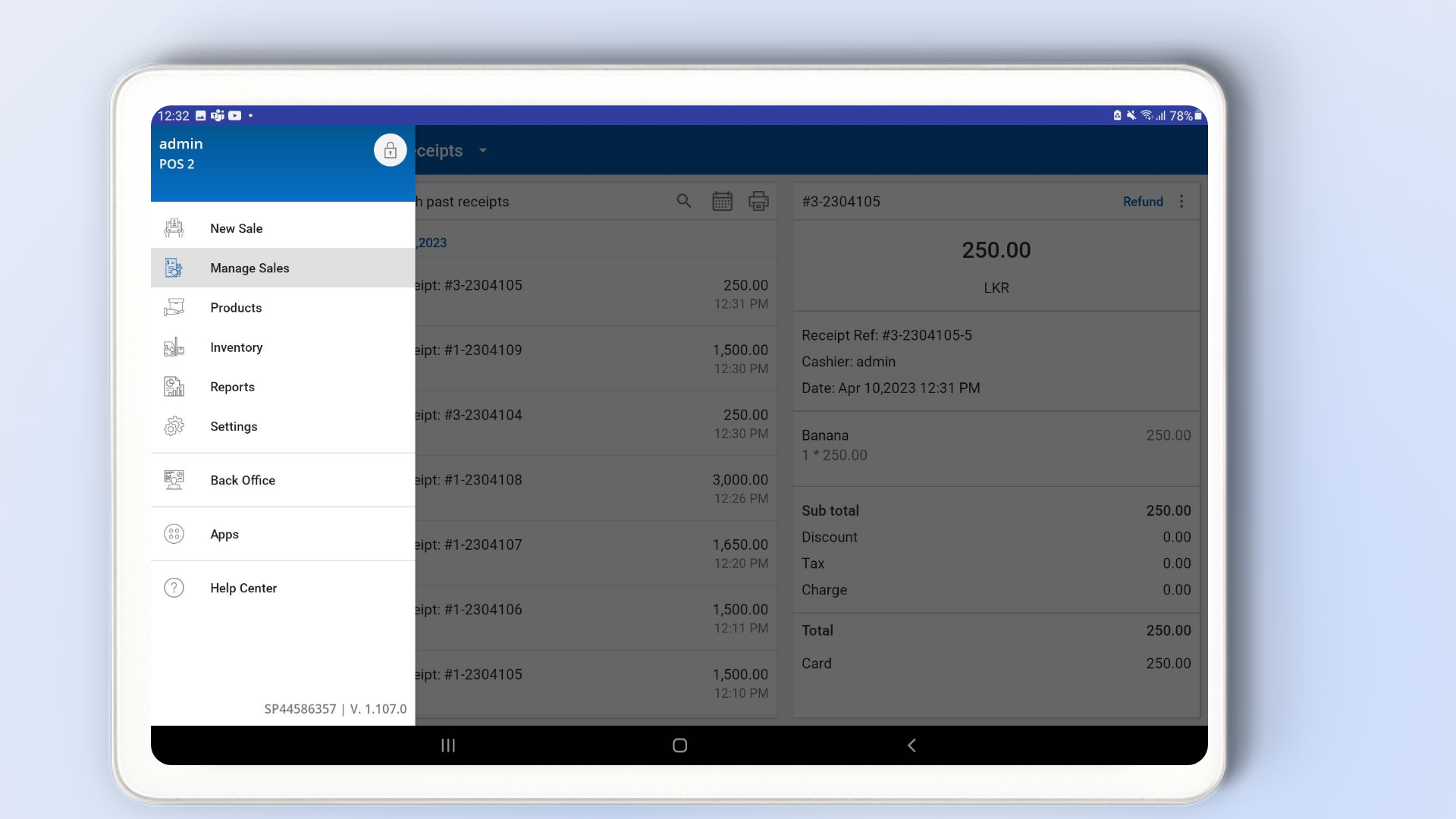
- first, make sure that you have enabled payment gateways for card payments.
- Open Vendtill POS app > Main Menu > Manage Sales .
- Select 'Past receipts' .
2. How to Add Tips for Card Payments
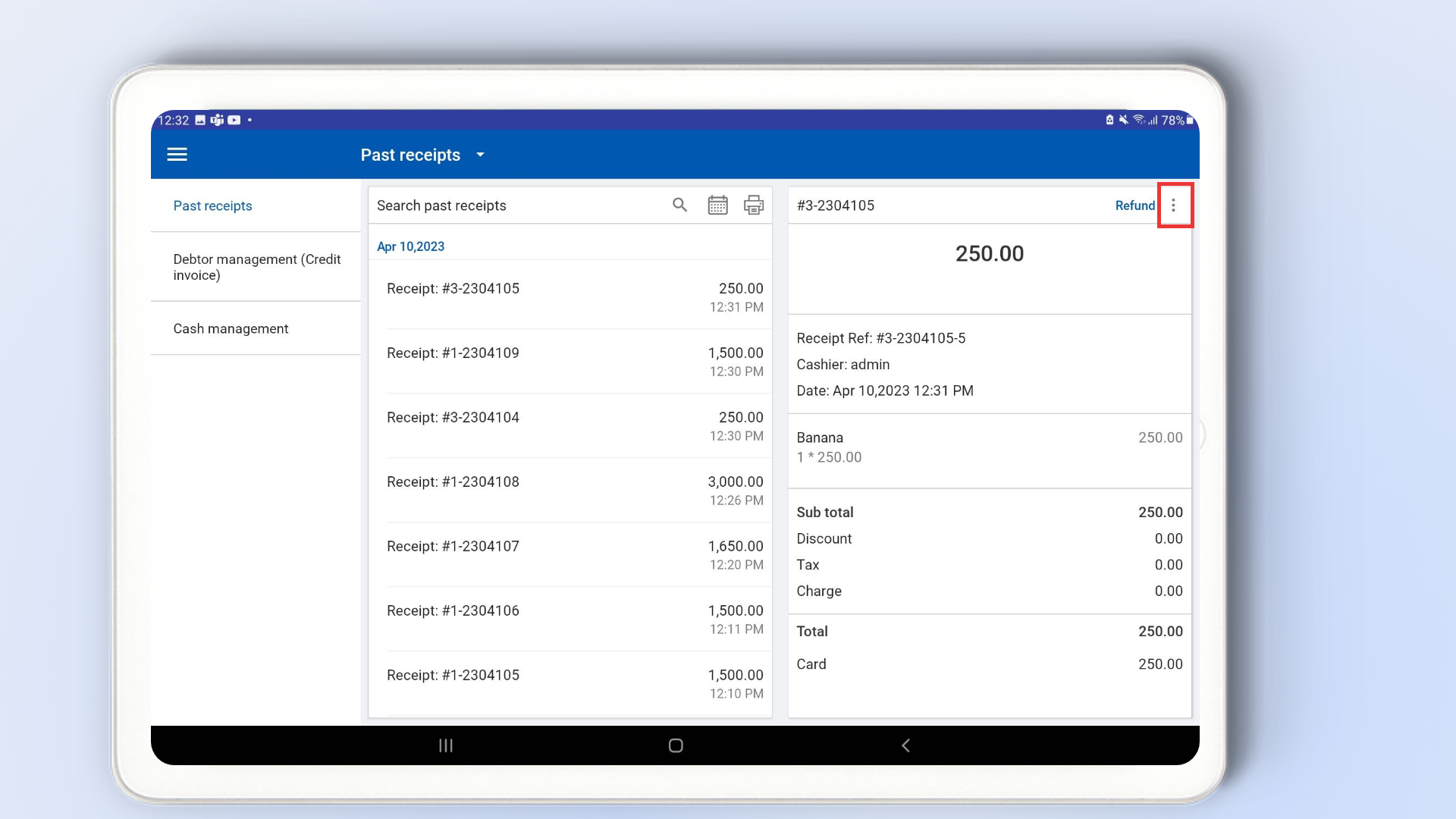
- Select the 3-dot button icon in the top right corner.
3. How to Add Tips for Card Payments
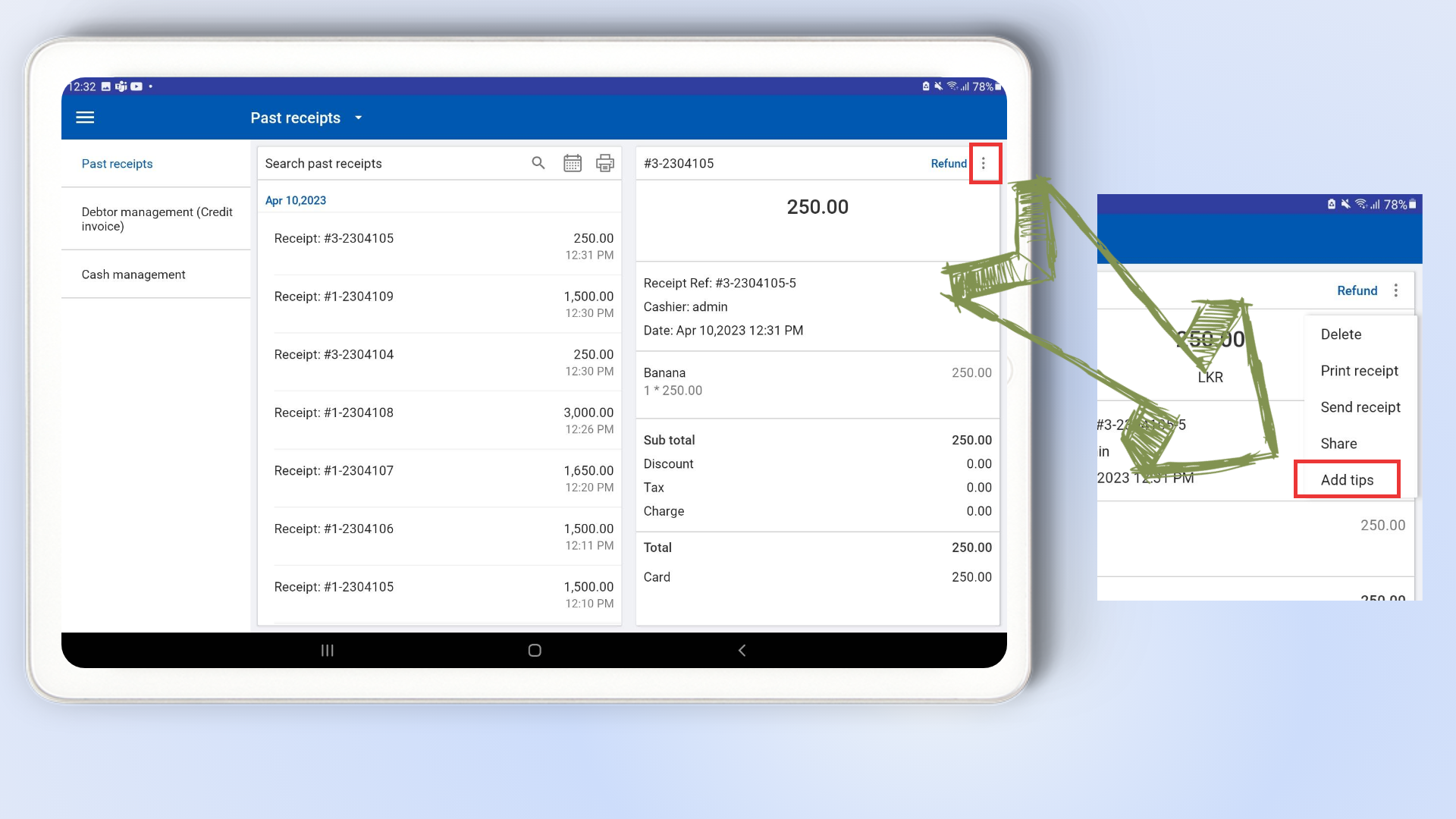
- Select 'Add tips' from the drop down menu.
4. How to Add Tips for Card Payments
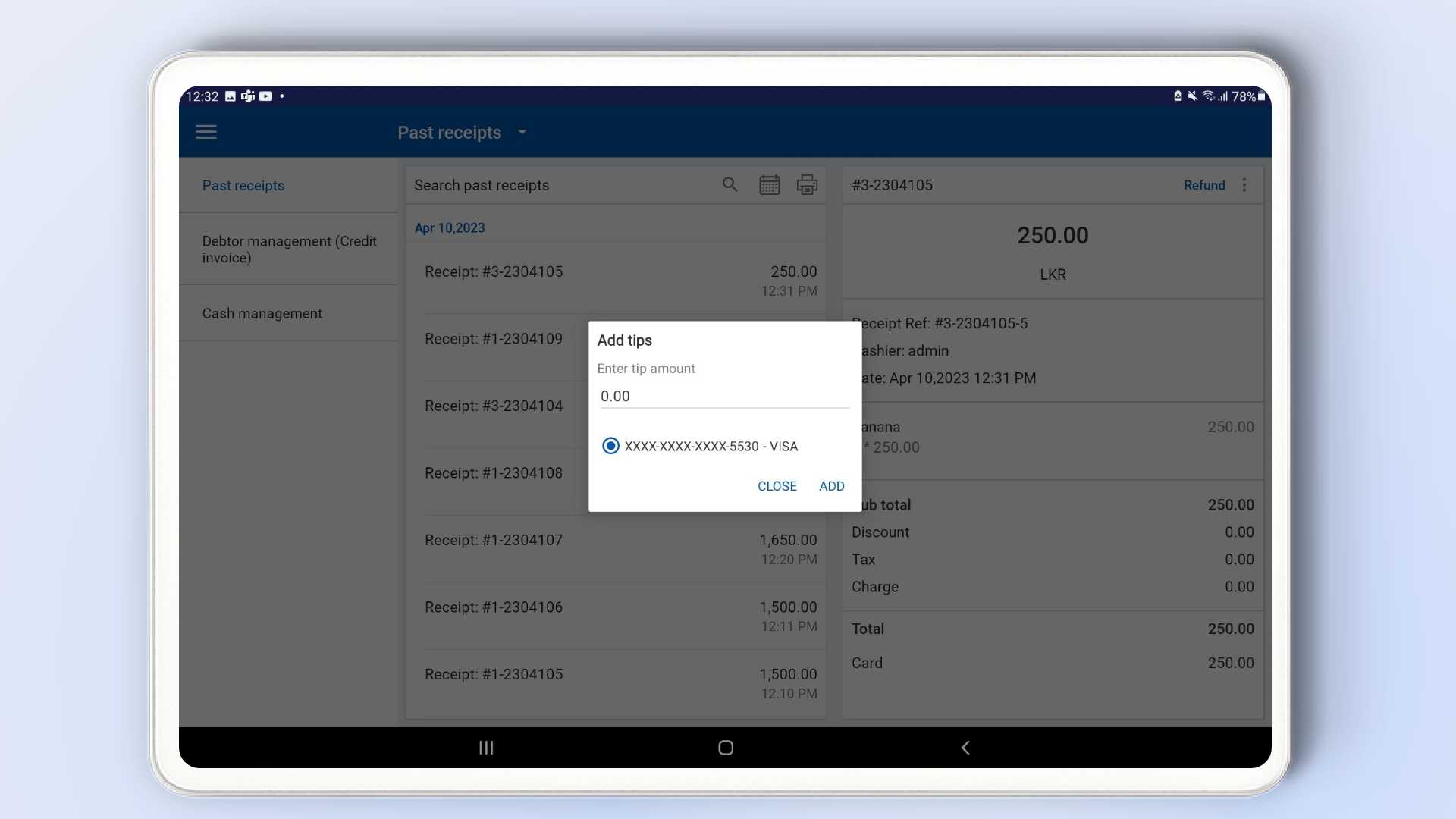
- Tips can be added to the completed transactions. First go to 'Manage Sales' and select the past receipts.
5. How to Add Tips for Card Payments
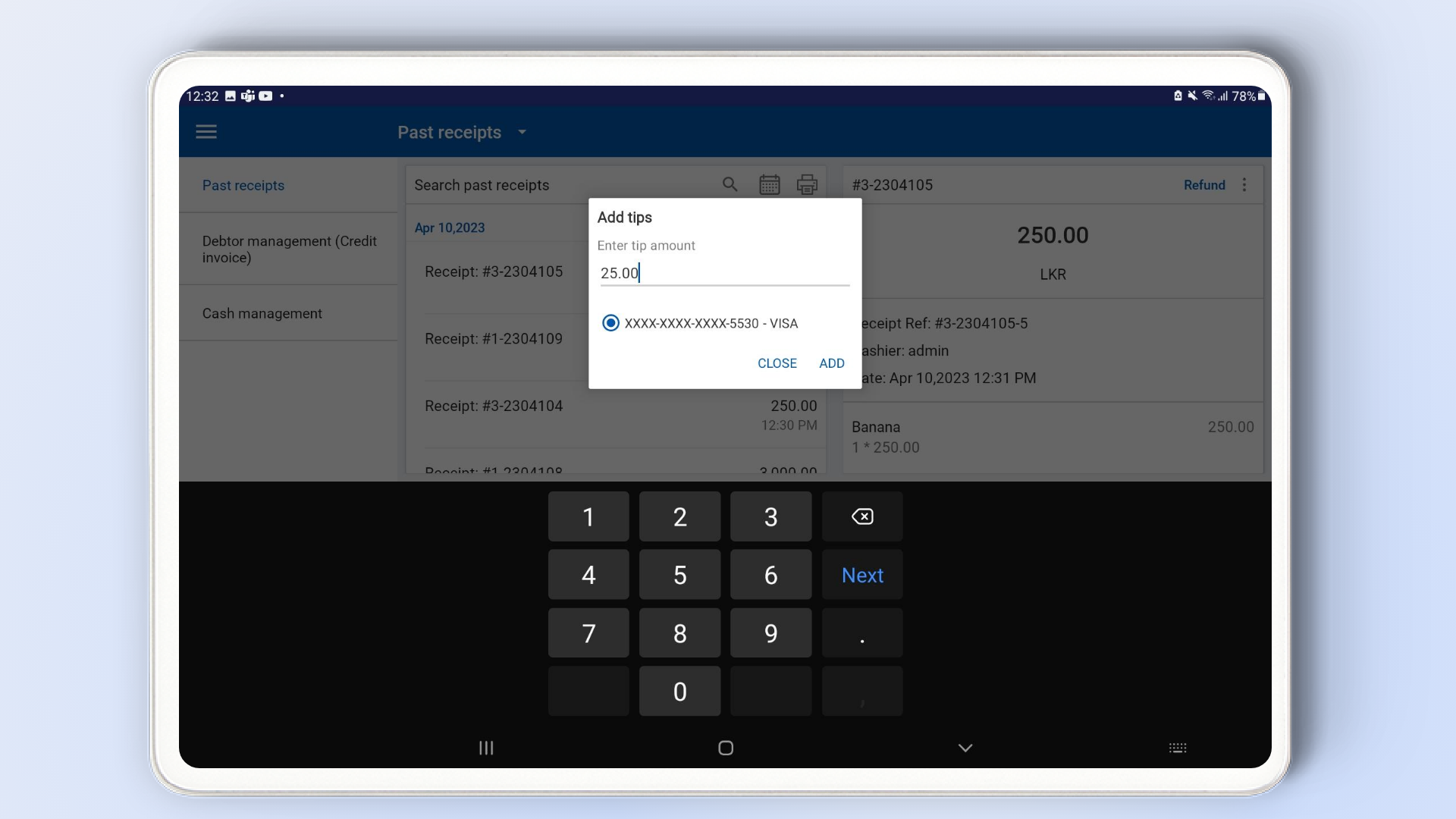
- Then it will pop up the window as below to add the tip value.
- The tip is charged to the same credit card that was used for the purchase.
- Here, you can enter the tip amount.
- Then, click 'Add'.
6. How to Add Tips for Card Payments
Related Articles
How to Add Tips to the Receipts
How to Add Tips to the Receipts Vendtill Back Ofiice 1. How to Add Tips - Back Office In some countries including in the United States, the "Tips" function in a POS system is an essential feature for businesses that rely on tips, such as restaurants ...How to Add Subscription Payment Methods
How to Add Subscription Payment Methods Vendtill Back Office Special Notes If you wish to delete your card information entirely, please use the "My Profile" section in your backoffice. If you choose to delete your profile, please be aware that your ...How to Subscribe Add-ons Advanced Inventory
How to Subscribe Add-ons / Modules Advanced Inventory Vendtill Back Office Subscription for Advanced Inventory The Advanced Inventory module is one of our add-ons, allowing you to perform various tasks such as creating Purchase Orders PO, generating ...How to Add a Payment Gateway
How to Add a Payment Gateway Vendtill Back Office 1. Login to POS Back Office > Select “ Settings ” from main menu > Go to the “ Payment Types” Click on “Add Payment Type” and create a new payment type Tick On “Payment gateway enable” Select PAX or ...How to Subscribe Add-ons Employee Management
How to Subscribe Add-ons / Modules Employee Management Vendtill Back Office Subscription to Employee management In Vendtill billing and subscription, the Employee Management module offers the capability to create employees (users and cashiers), ...