How to Apply Discounts
How to Apply Discounts

Step-by-step process
Discount types
- Vendtill POS (Point of Sale) system includes two types of discount functions: "total discount" and "line/item discount."
- The "total discount" function allows businesses to apply a discount to the entire purchase or transaction. This type of discount is usually expressed as a percentage or a fixed amount and is applied to the total bill at the end of the transaction. It is a great way for businesses to offer promotions, sales, or special discounts to their customers.
- On the other hand, the "line/item discount" function allows businesses to apply discounts to specific products or items within a transaction. With this function, businesses can offer discounts on individual items, specific categories, or even a combination of products. Line/item discounts can be expressed as a percentage off, a fixed amount reduction. (
With the latest update (version 114.5), the Line/Item Discount function has been enhanced to offer more accurate and meaningful discounting, especially when you give a “Value-based” discount for multiple quantities of the same product.
1. Apply Discount for the Total Receipt Value
Add items to the cart and click the “Discount” icon (near the customer icon)
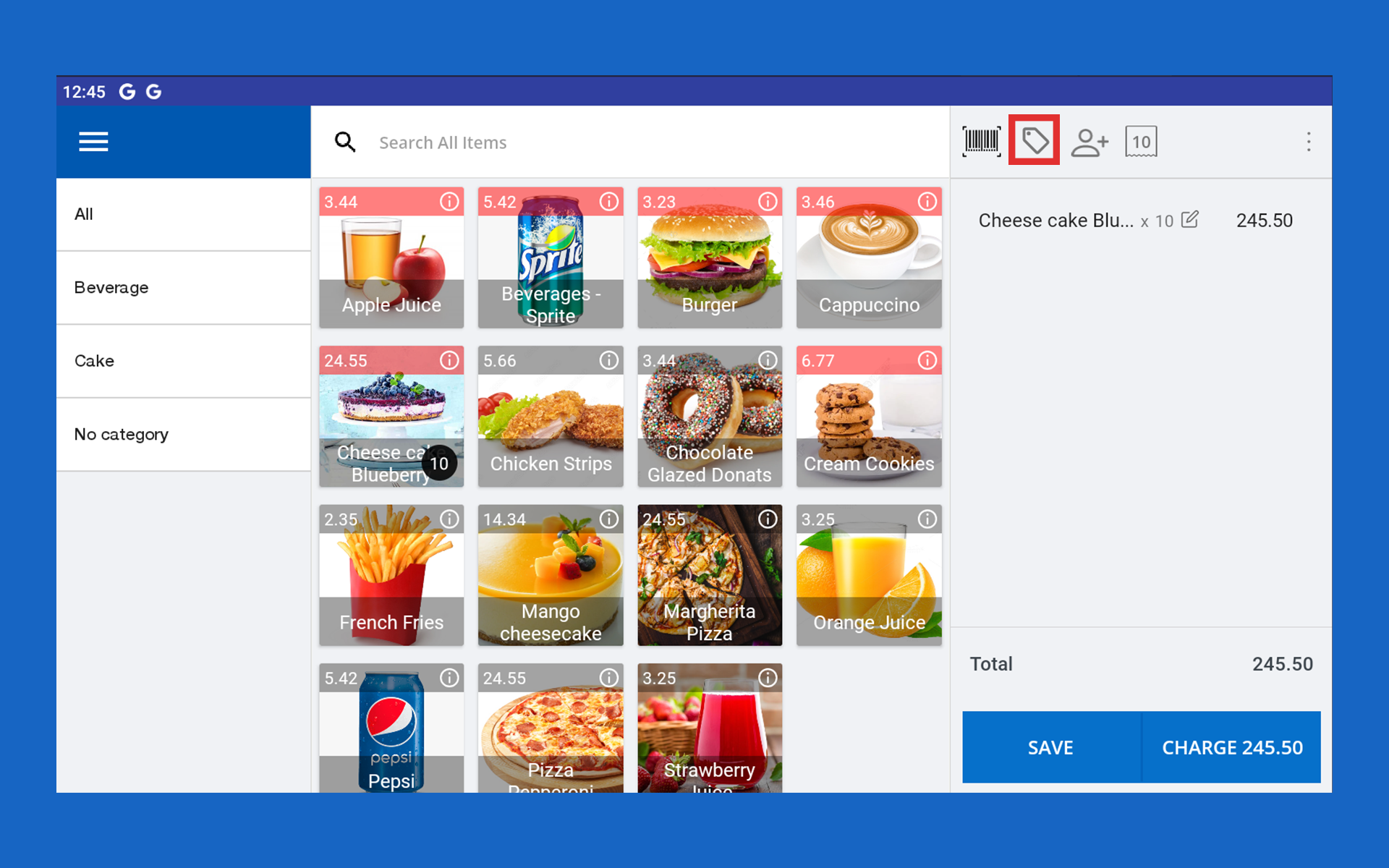
Tick value or percentage (default Percentage) and enter the discount percentage or value
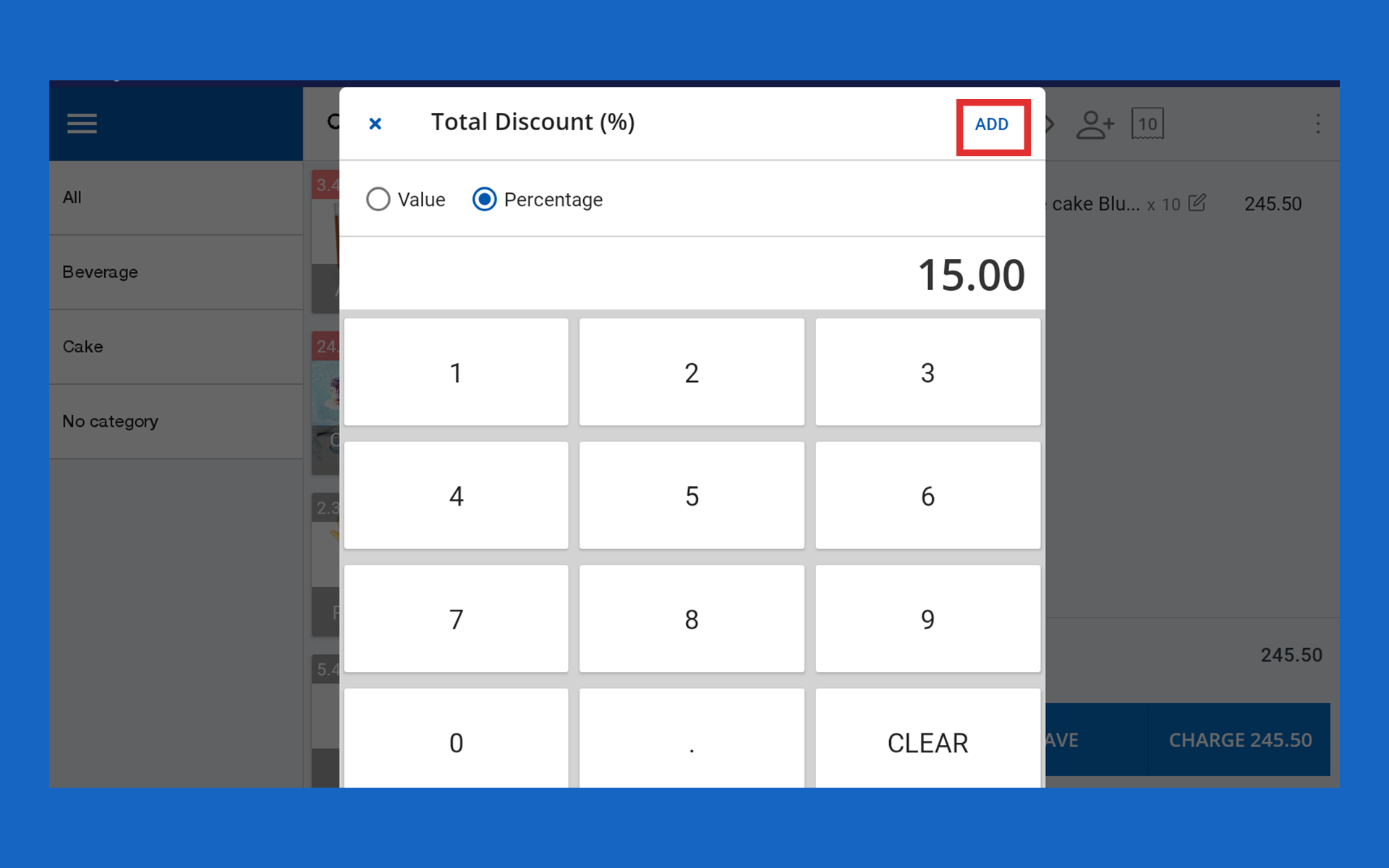
- Click the “Add” button
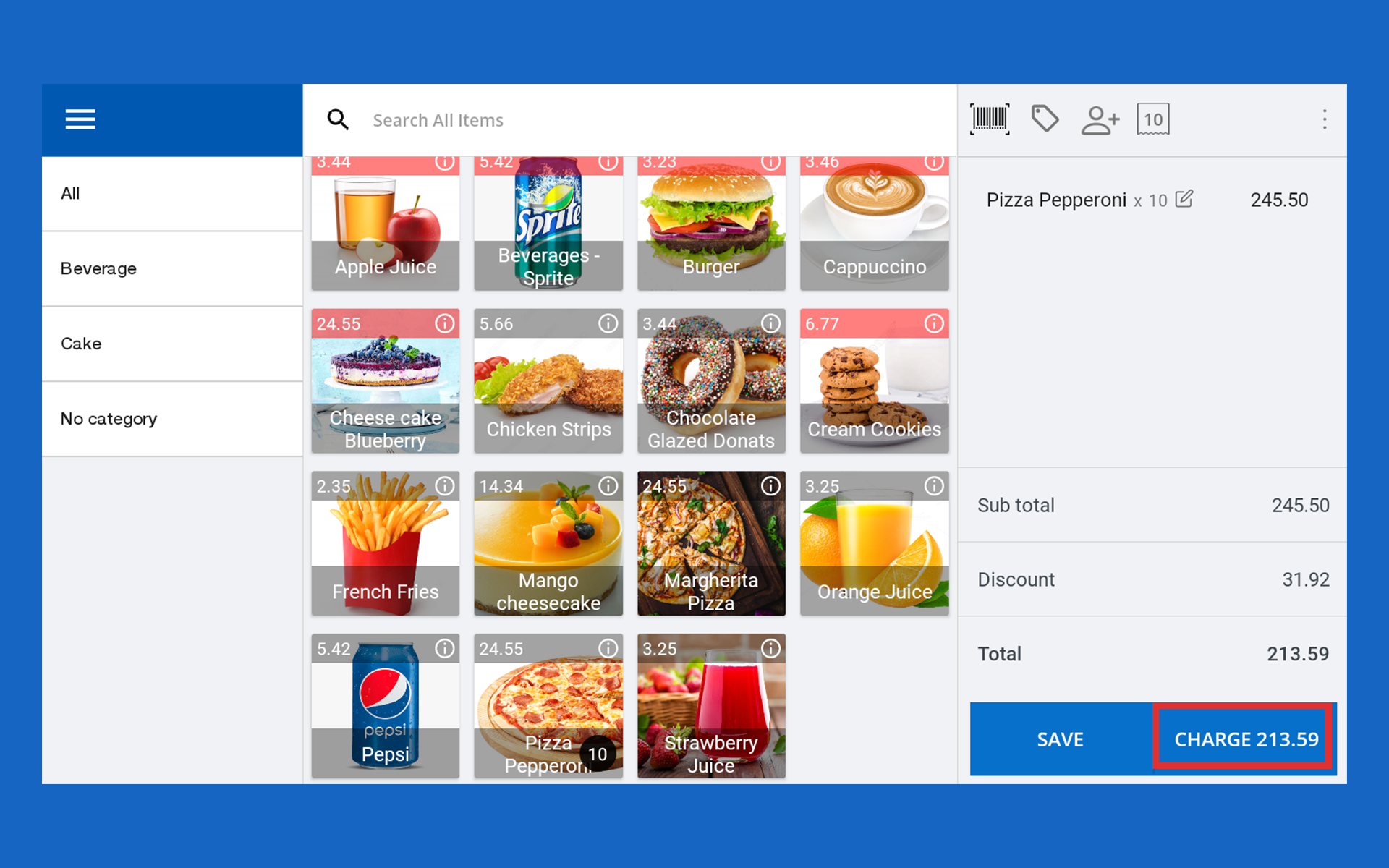
Click the “CHARGE” button and proceed
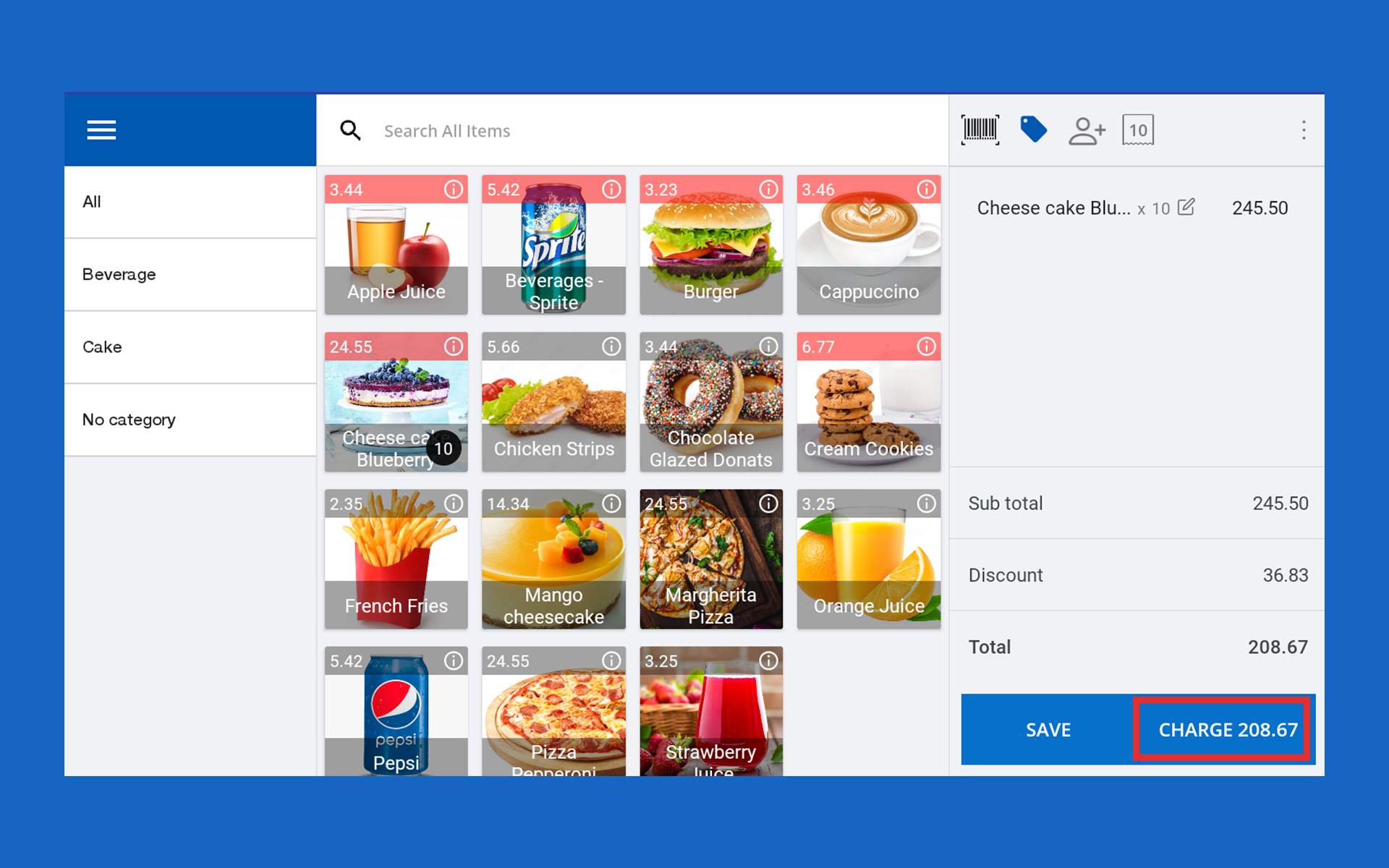
2. Apply Line / Item Discount
Add item(s) to the cart, then click the item in the ITEM CART (Views Item) area
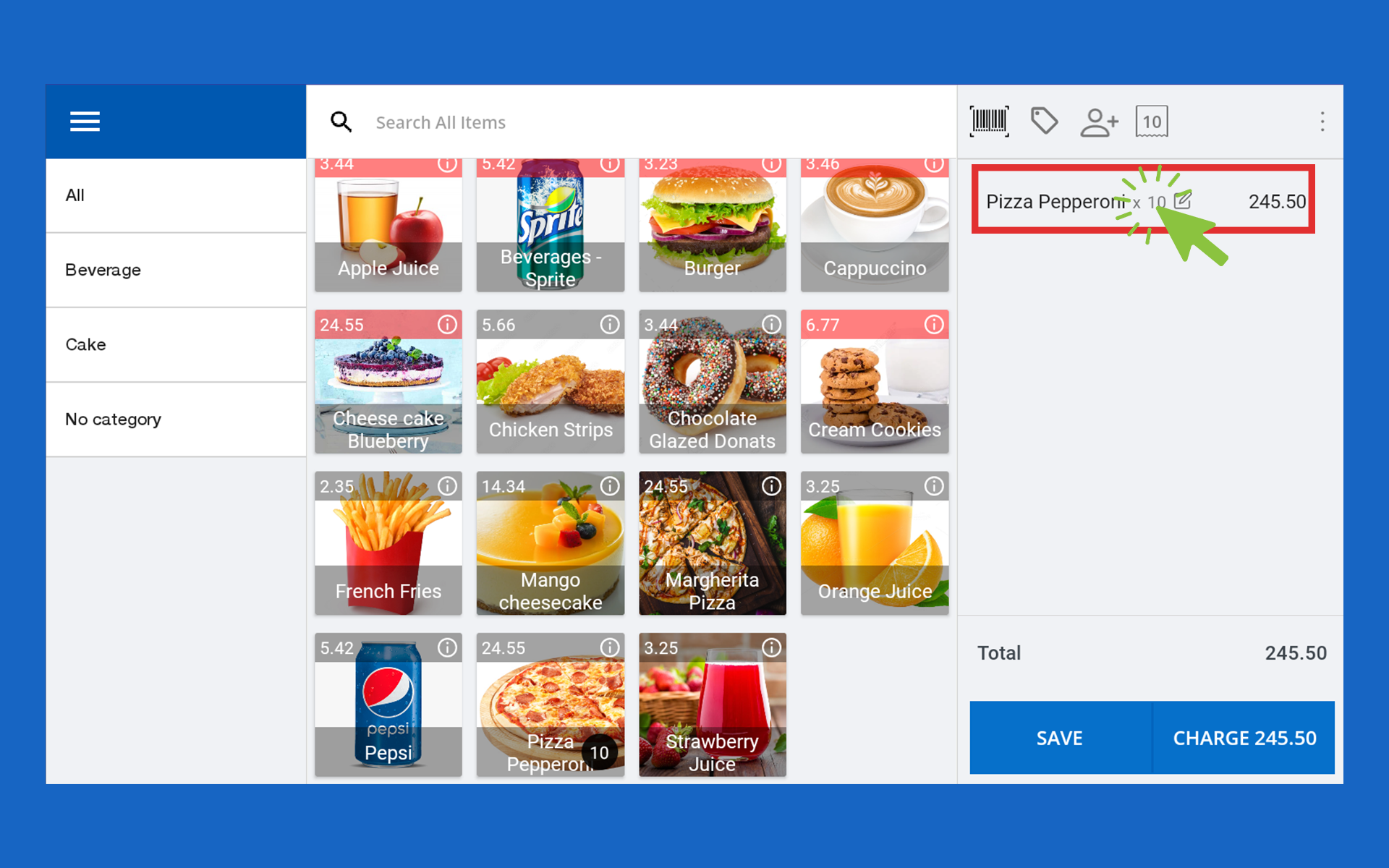
Go to the discount area and enter the discount value or percentage
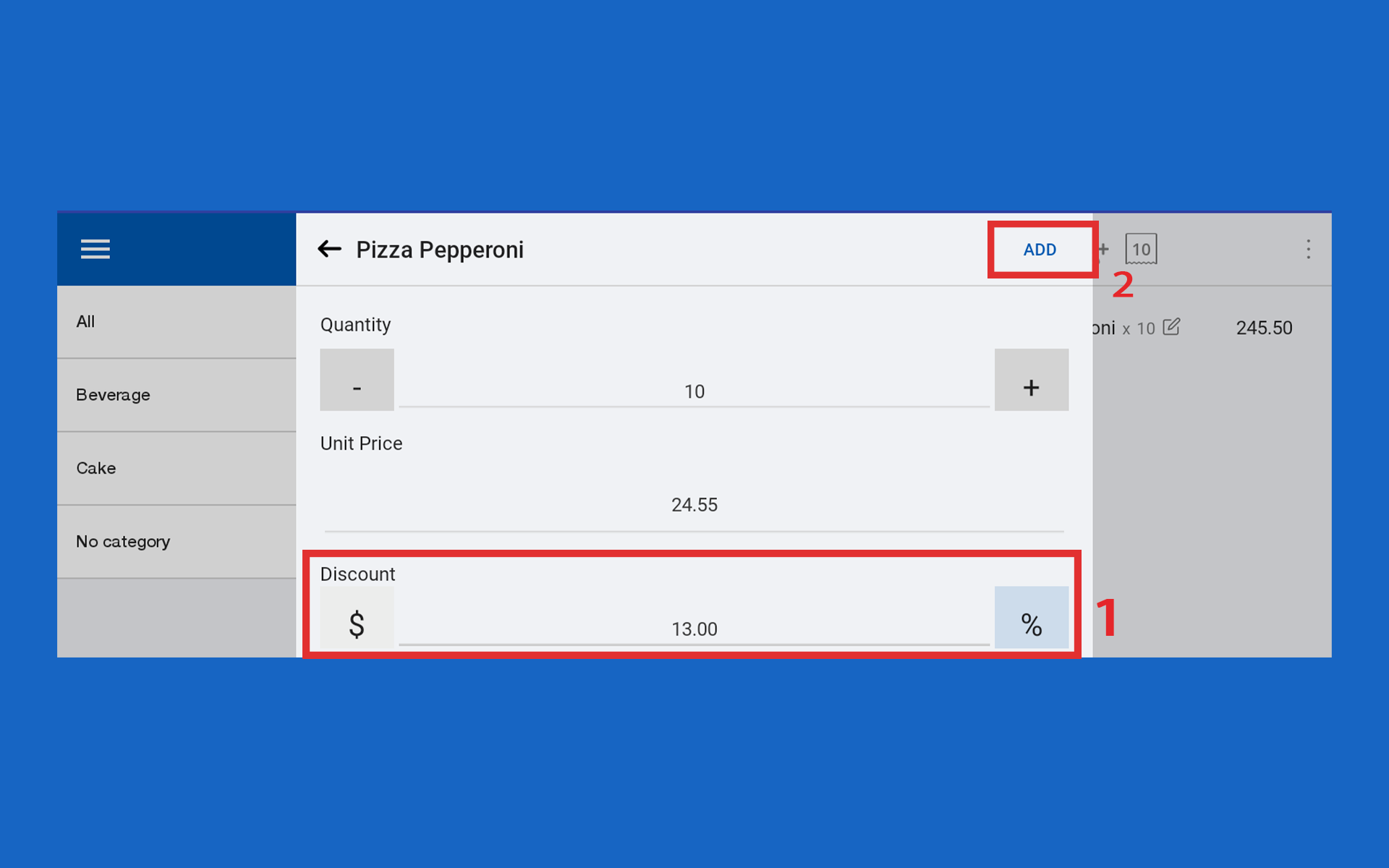
- Click “Add”
Click
Line/Item Discount Process Improvement
With the latest update (version 114.5), the Line/Item Discount function has been enhanced to offer more accurate and meaningful discounting, especially when you give a “Value-based” discount for multiple quantities of the same product.
What’s New in Version 114.5
Line/Item Discounts can be given in two ways: as a value or a percentage.
The latest update (version 114.5) improves how value discounts work.
Before the Update:
When you added a value discount to a product line, it was applied just once, no matter how many units of that product were in the cart.
After the Update:
Now, the value discount is applied per unit and then multiplied by the quantity.
This means the total discount will be more accurate when you're selling multiple units of the same product.
Example:
If you give a value discount of 2 and the customer buys 3 units, the total discount will now be 6 instead of 2.
⚠️ Note: This change only affects value discounts. Percentage discounts already work correctly and are not affected by this update.
Important Notes
- Line/Item Discounts are only available for products with the measurement type “Sold by Each.”
If the product uses any other measurement type (like weight or volume), the value discount option will not appear.
Related Articles
How to Create Discount Plans Attached to the Receipt
Special Note As part of the restructuring process, the Product-wise Discount plan options are now accessible within the item customization dialog, while Receipt-wise Discount plans are under a discount icon in the main receipt interface. You can ...How to Create Pricing Plans
Special Note Important: With the updated pricing plan method, clicking on a Price Plan item in the POS App opens an item customization dialog box. From this dialog box, users can: Select the required pricing plan Add quantities Apply discounts All ...How to Delete Item(s) from Product Cart
1. Add Products to the Cart Click on a product to add it to the cart. To check product information during checkout, tap the Info icon (top-right in Grid layout or right corner in List layout). Tips for finding products quickly: Use Categories on the ...Gross Total
Gross Total Line on Receipt Step-by-step process The Gross Total Enable option in POS allows you to show a complete price breakdown on every receipt, making it easier for customers to understand the billing details. Why Use Gross Total • ...How to Add Multiple Taxes or Other Charges
How to Add Multiple Taxes or Other Charges Vendtill Back Office Understanding Multiple Tax Calculations in Vendtill This feature enables precise and compliant tax calculations for businesses dealing with Service Charges and Goods and Services Tax ...