How to Setup USB & Bluetooth Printers
How to Setup Printers

Vendtill POS app
Vendtill supports a wide range of printer brands, including popular models like EPSON, ZEBRA, Star Printer, Xprinter, SUNMI, Blue Bamboo, BIXOLON, SCANGLE, and more.
If you're using a different thermal printer model or brand, please select the "OTHER MODEL" option during the setup process. Supported connection types include Wi-Fi, Network, USB, and Bluetooth.
Setting Up the Printer in POS App
- Open the POS App.
- Go to the Main Menu.
- Select Settings.
- Tap Printers.
- Click the Add (+) button to add a new printer.
- Enter a printer name.
- Choose the printer model from the list (If your brand is not listed, select Other Model).
- Select the connection mode (USB, Bluetooth, Wi-Fi, or Network).
- Choose the paper size.
- Enter the printer IP address (for Wi-Fi and Network connections) or select the USB path.
- Tick the option to print receipts and bills.
- Click Save.
Connect printer to the USB Cable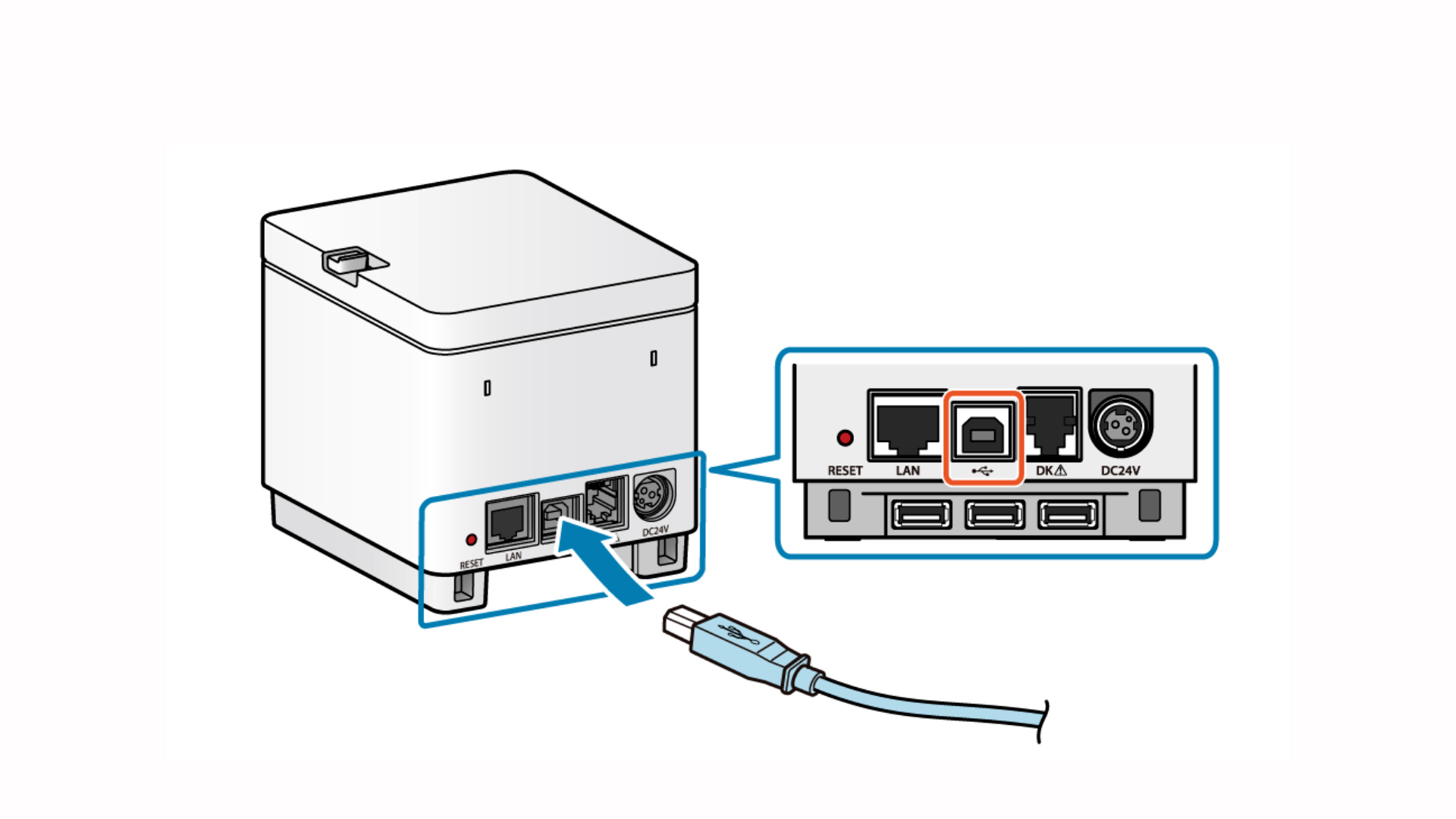
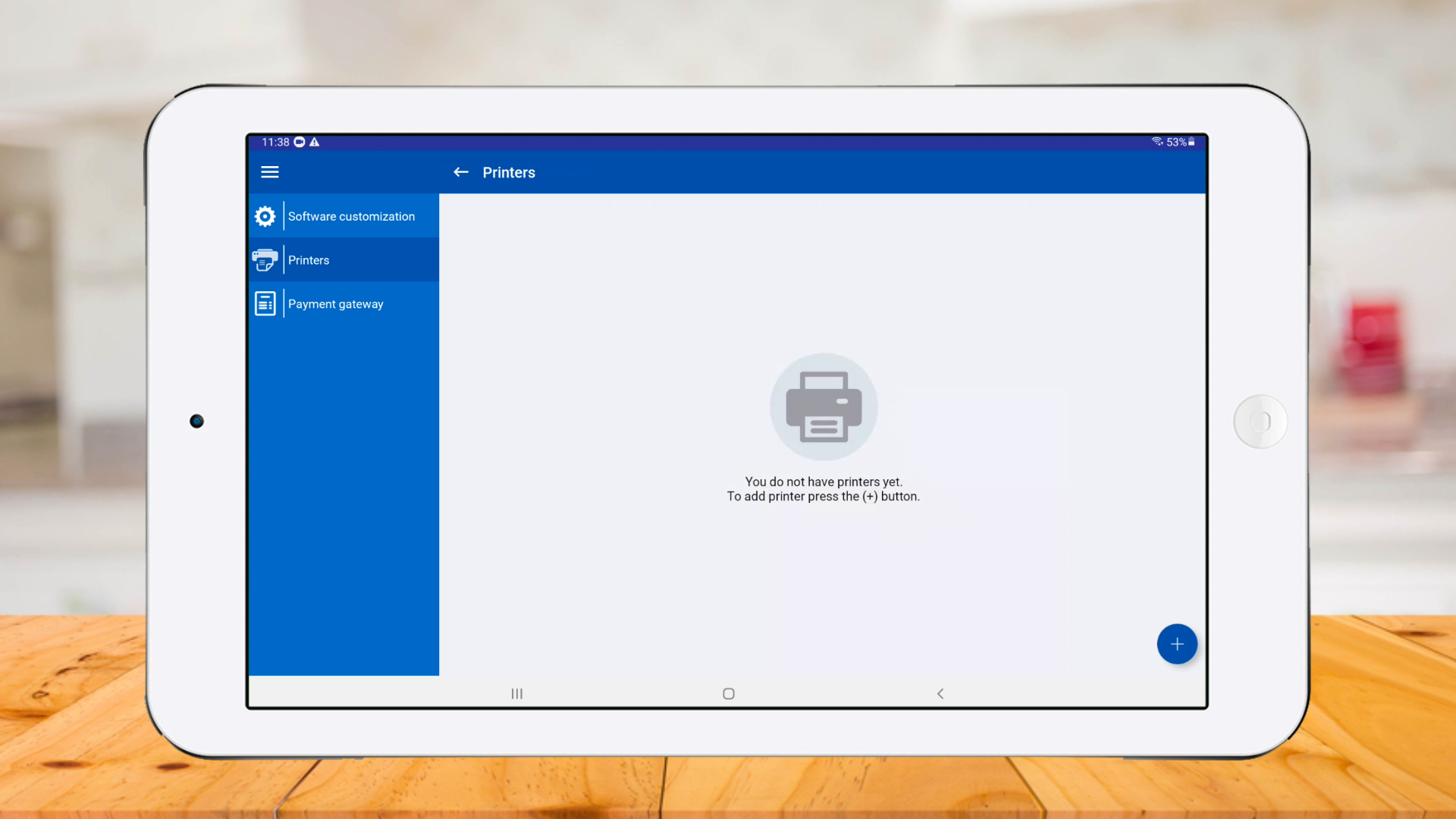
Go to Vendtill POS app > Settings > Printers and click 'plus button'
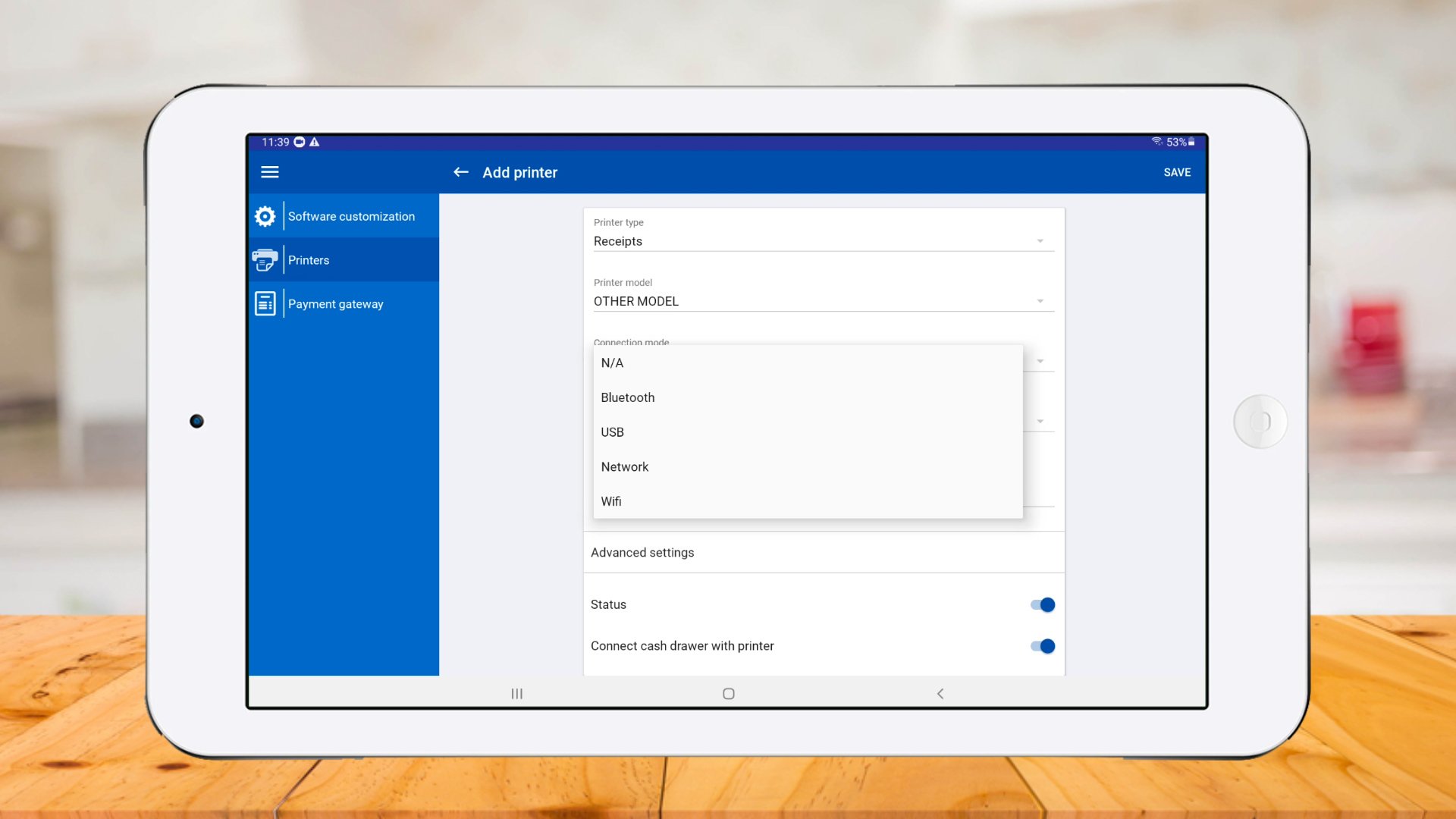
Select a 'Printer model' and select 'USB' as 'Connection mode'
Select 'Paper size' and click 'Search'

Printer connected successfully
Click 'Bluetooth'
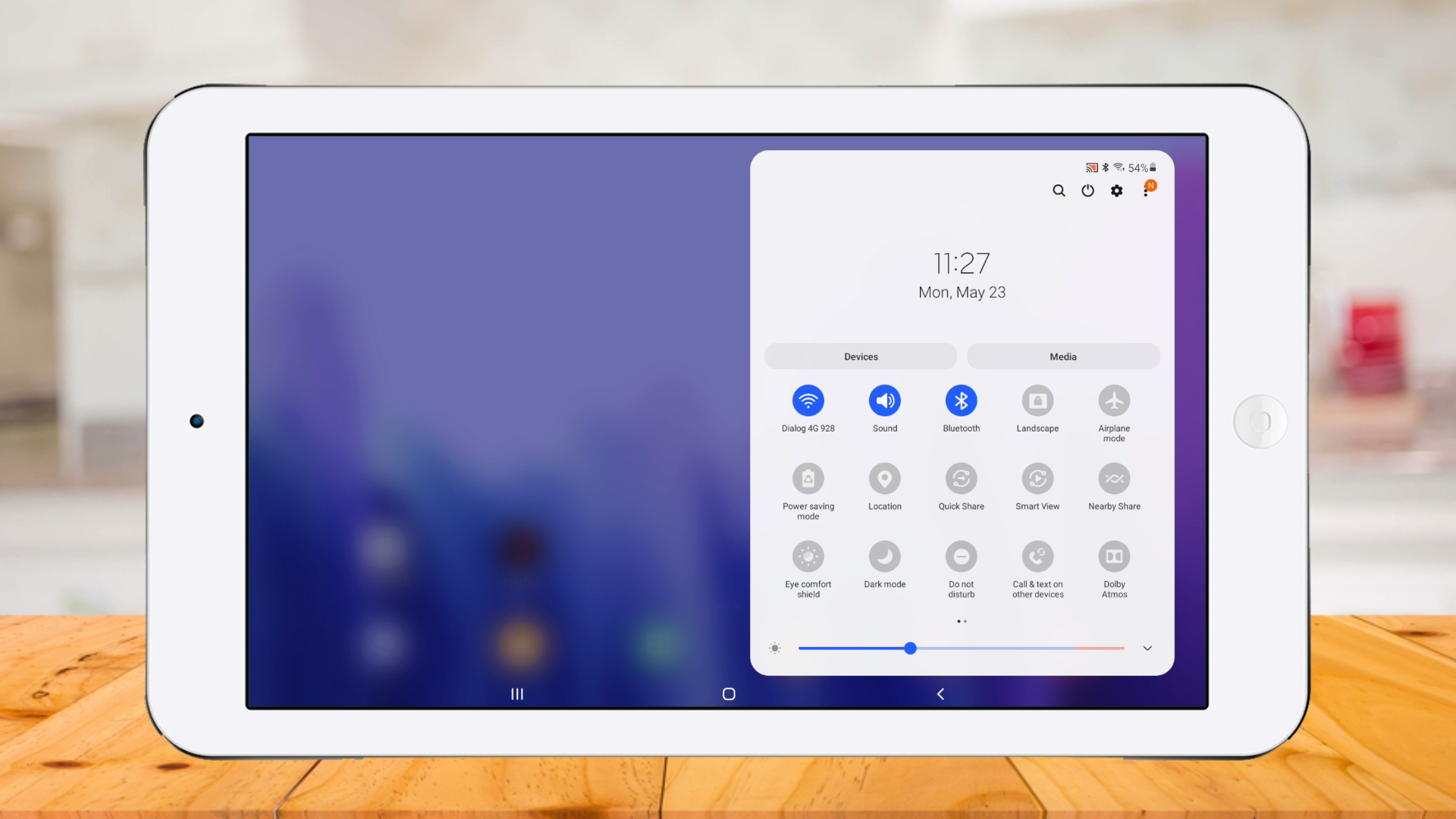
Click on Bluetooth printer.
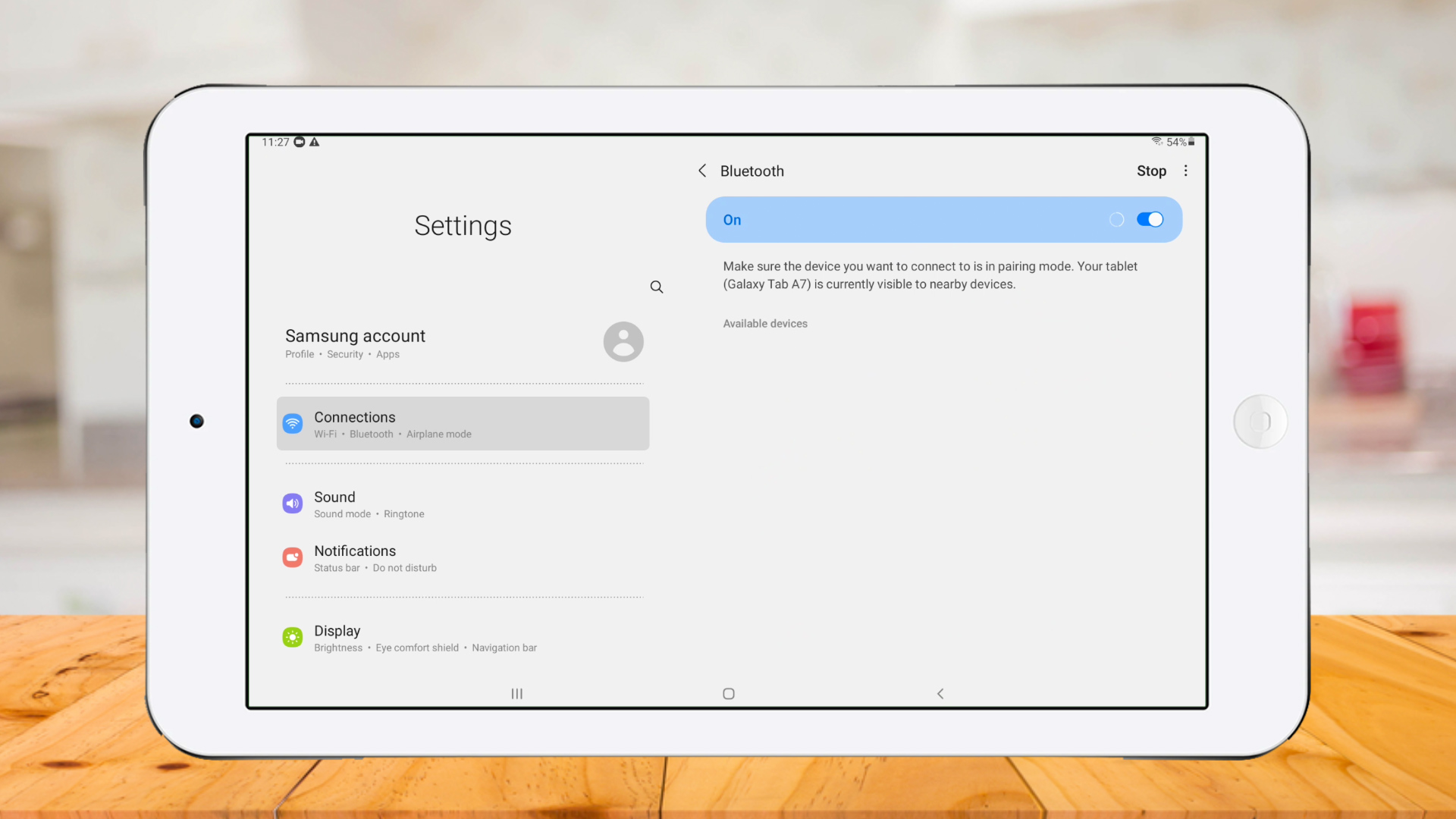
Add Pin number
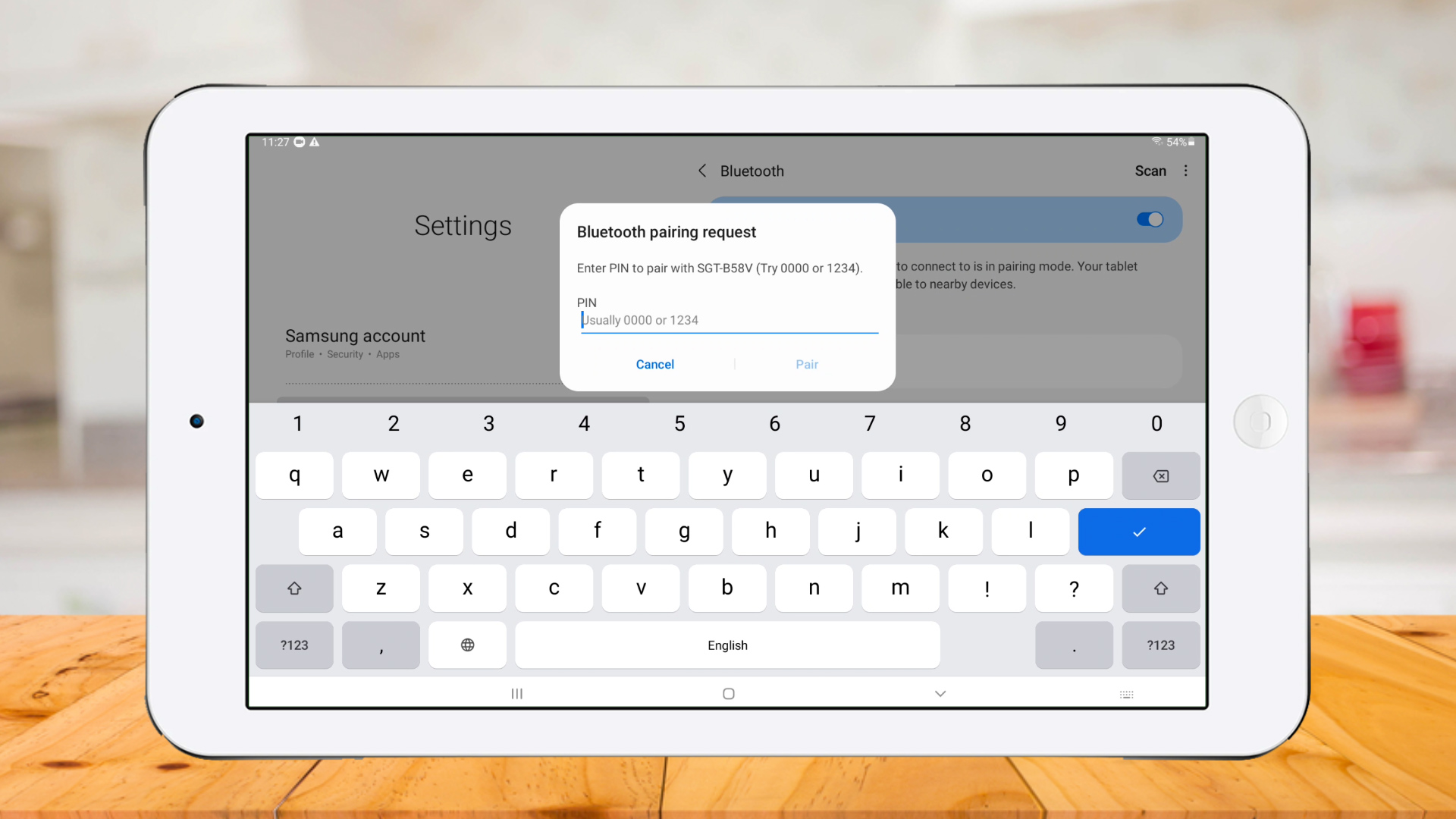
Printer paired successfully
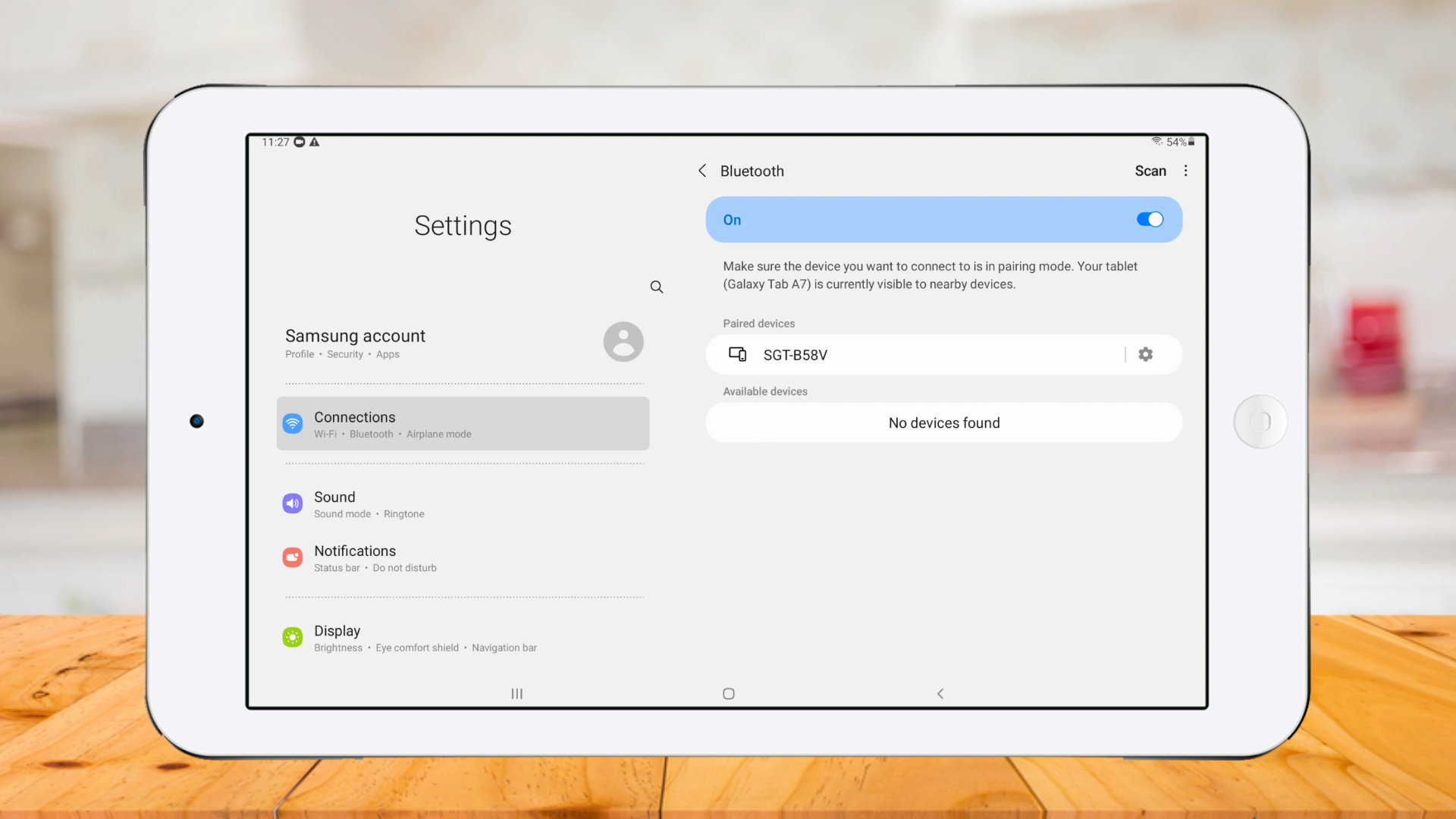
Go to POS App and click 'Settings'
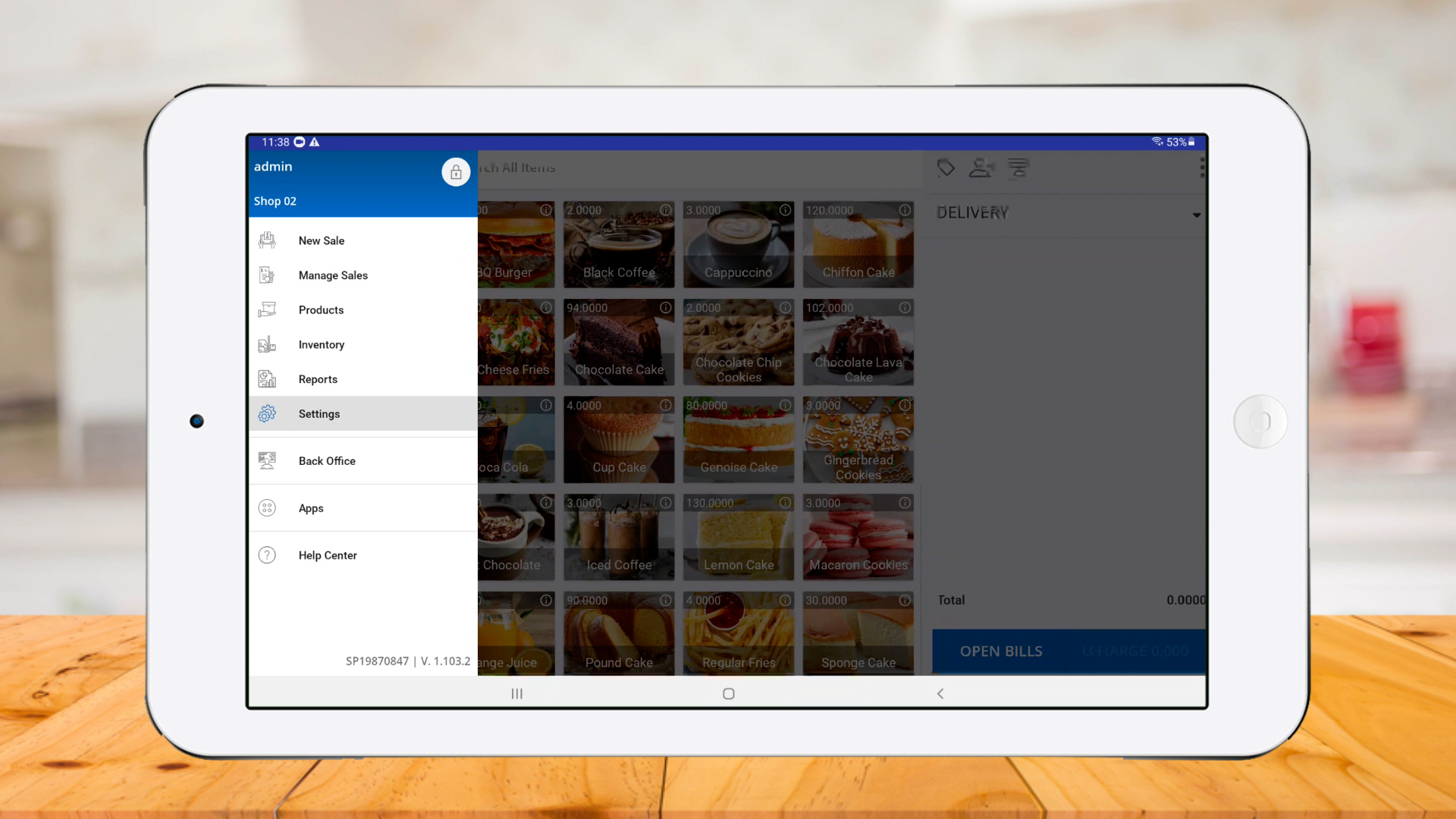
Select 'Printers' and click 'Plus button'
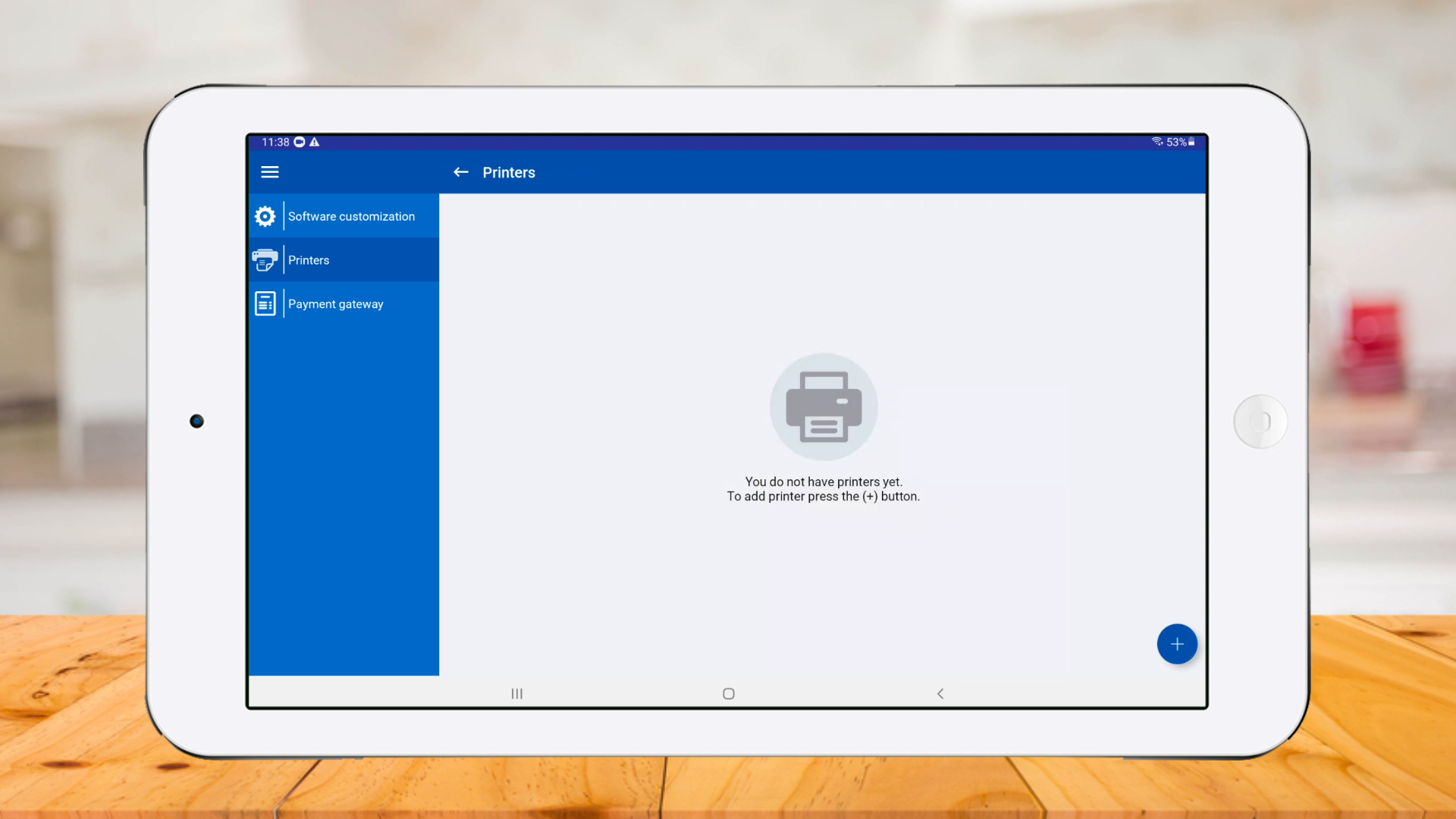
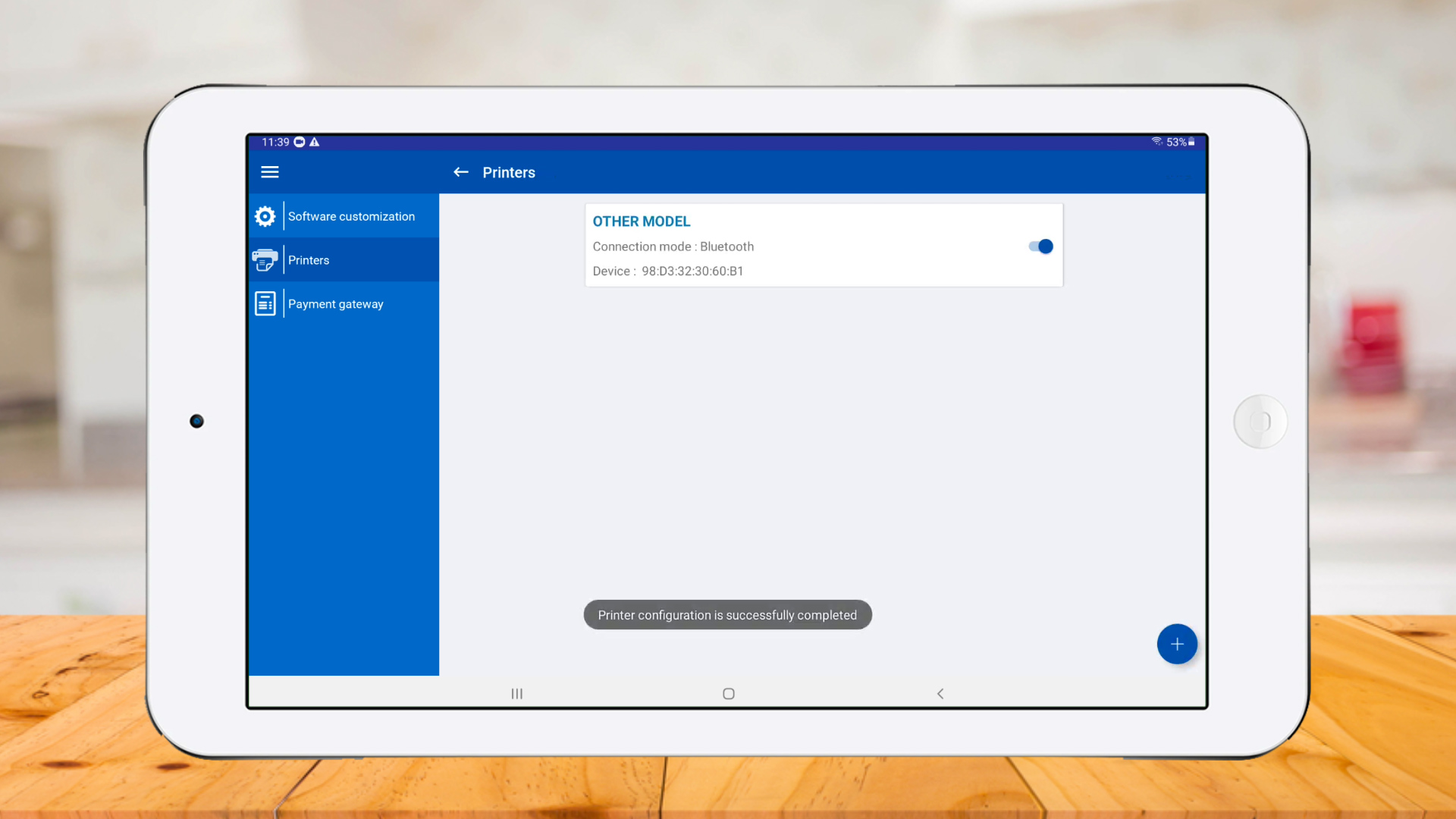
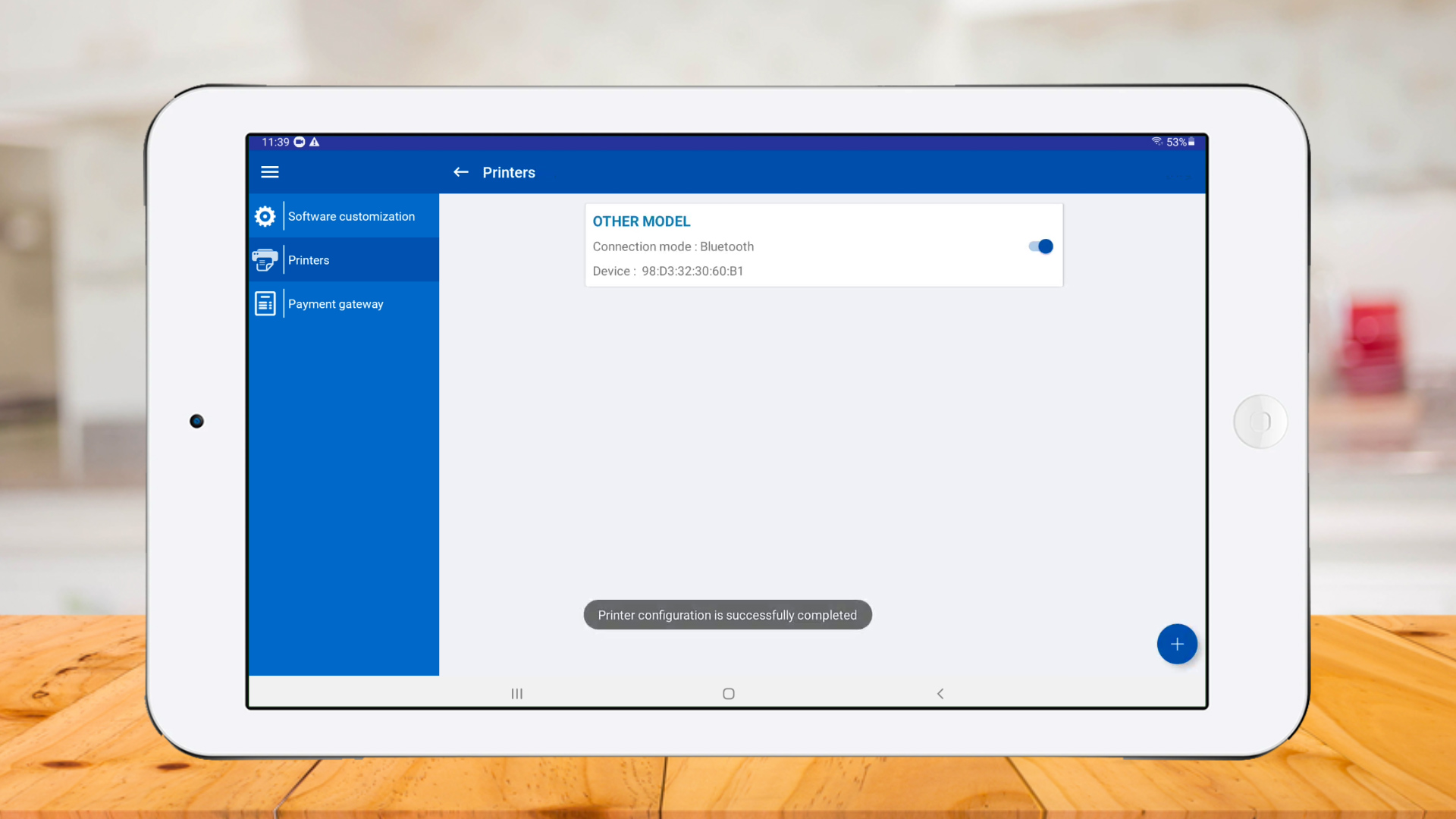
Select a 'Printer model' and select 'Bluetooth' as 'Connection mode'

Select 'Paper size' and click 'Search'

Printer connected successfully
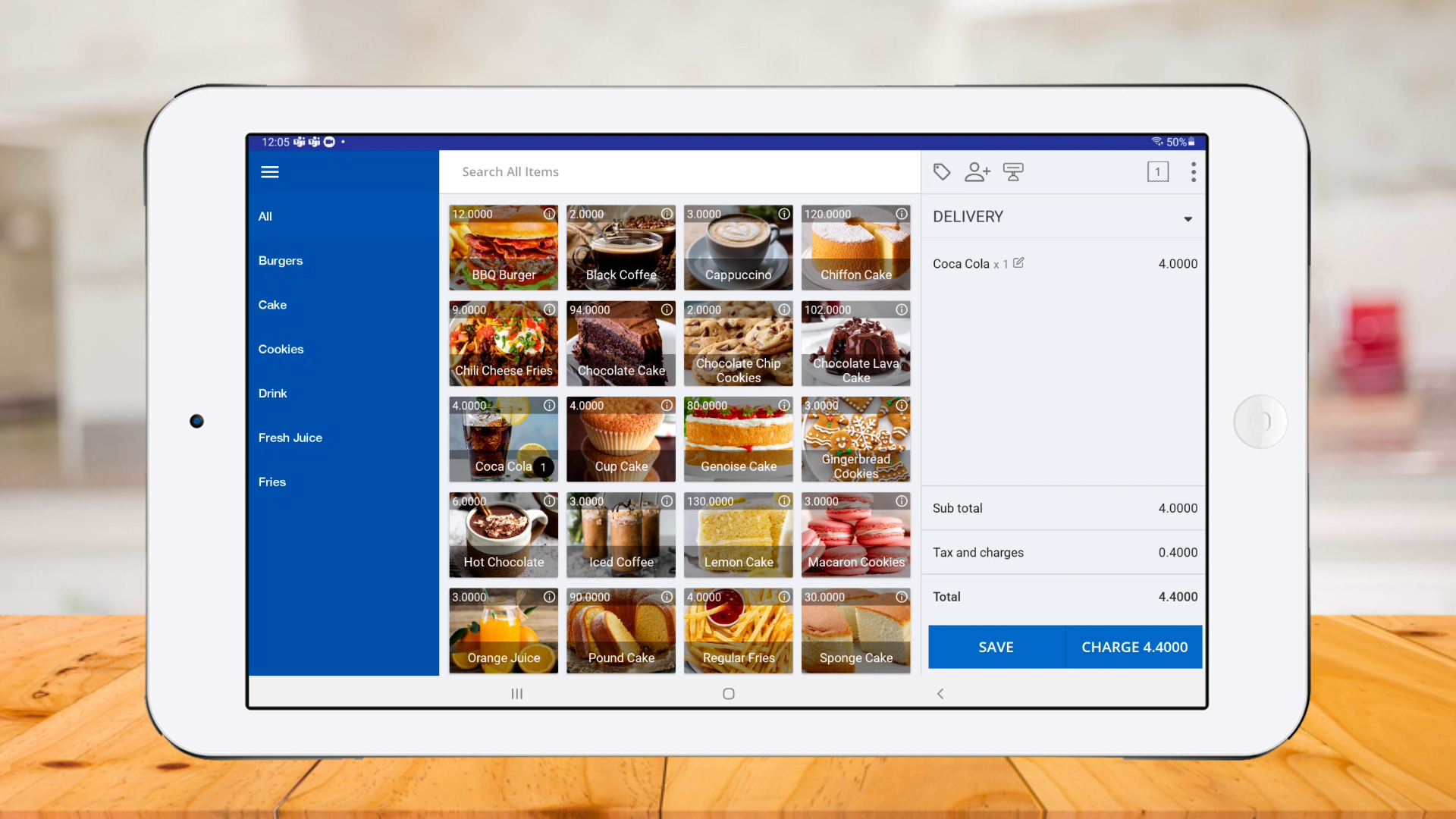
Click 'New Sale' , select products and click 'CHARGE'
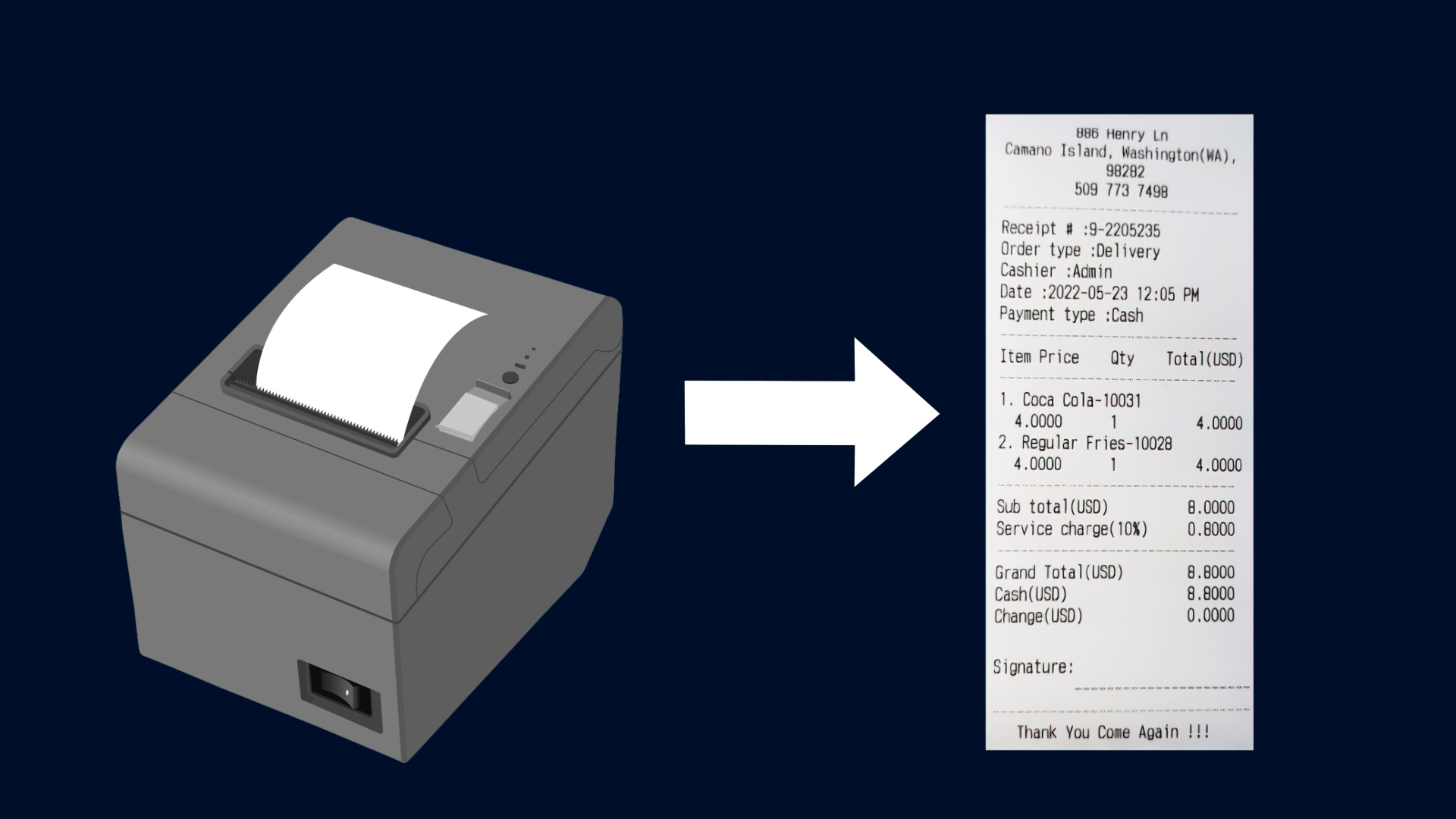
Receipt printed successfully
Related Articles
How to Setup KOT Printers
How to Setup KOT Printers Step-by-step Process 1. Key considerations You can setup several Kitchen Order Ticket KOT / BOT Printers in the POS system. If your business has several POS Terminals, we recommend that you use more than one KOT printers. ...How to Setup Tablet Ordering System
How to Setup Tablet Ordering System Steps-by-step What is the Vendtill Tablet Ordering App? The Vendtill POS Tablet Ordering App is a user-friendly digital solution designed to streamline the order-taking process using a tablet. Ideal for ...MyInvoice2u e-invoicing setup
MyInvoice2u e-invoicing setup Step-by-step process Vendtill POS now integrates with MyInvoice2U, a leading e-invoicing platform in Malaysia. This integration helps businesses comply with Malaysia’s LHDN e-invoicing regulations by automatically ...How to Setup Dual Display
How to Setup Dual Display Vendtill POS How to Setup Dual Display A Dual Display or second screen in a Point of Sale (POS) system is the incorporation of an extra screen that faces the customer during the checkout process. This customer-facing display ...How to Setup Kitchen Display
How to Setup Kitchen Display (OLD) Vendtill Back Office The Vendtill KOT / BOT Display App helps kitchen and bar staff view customer orders clearly. It connects with the Vendtill POS system and makes food and drink preparation faster and more ...