Time Clock Report
Time Clock Report

Vendtill Back Office
How to use “ Time Clock” Reports
Vendtill time clock feature and reporting brings significant advantages for businesses by enabling the tracking of employees' attendance time and working hours.
The associated reports, available in the backoffice web portal under the "User" section, namely "Timecards" and "Total Hours Worked," serve as invaluable tools for management and HR departments. Here's why these reports are important:
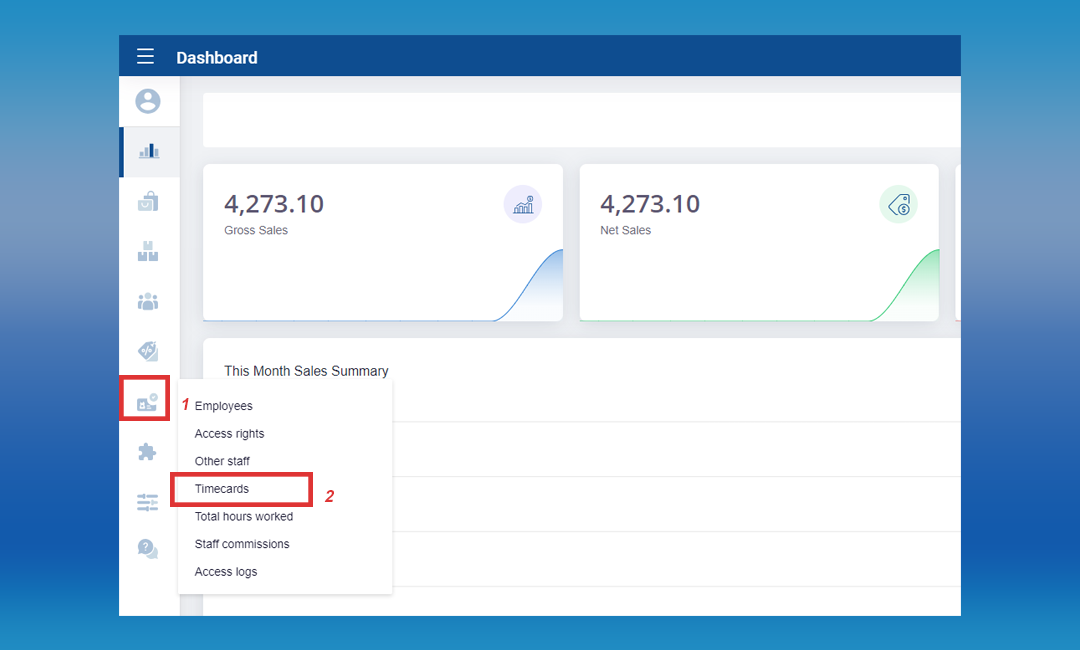
1. Timecards Report
- Clock-In and Clock-Out Details: The Timecards report provides a detailed record of each employee's Clock-In and Clock-Out times. This information helps managers monitor punctuality and attendance, ensuring that employees adhere to their scheduled work hours.
How to get timecard report
Login to POS Back Office > Select “ Users” from the main menu > Go to the “Timecards”
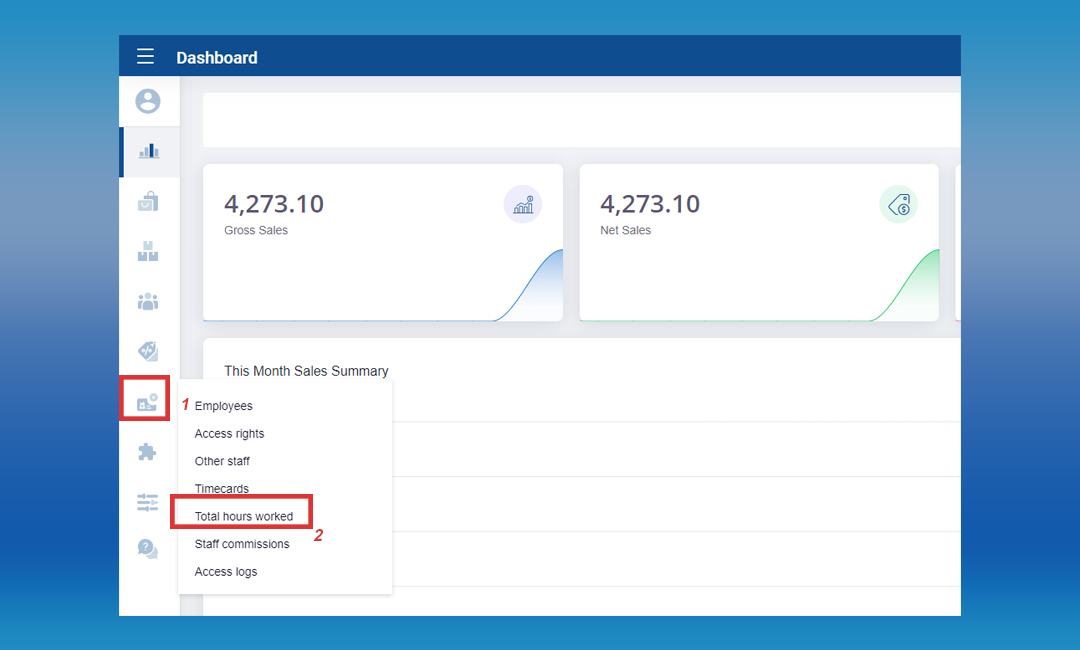
2. Total Hours Worked Report
Employee-Specific Overview: The Total Hours Worked report offers a summarized view of the total hours worked by each employee. This allows for quick assessments of overall employee productivity and dedication.
Efficient Payroll Processing: For payroll purposes, having a report that specifically outlines the total hours worked streamlines the payroll processing workflow. This ensures that employees are compensated accurately for their time and effort.
Employee Performance: The reports enable managers to assess employee performance based on attendance and working hours. This information can be valuable for performance evaluations, recognizing top performers, and addressing any attendance-related concerns.
How to get the 'total hours worked' report
Login to POS Back Office > Select “Users” from the main menu > Go to the “Total hours worked”
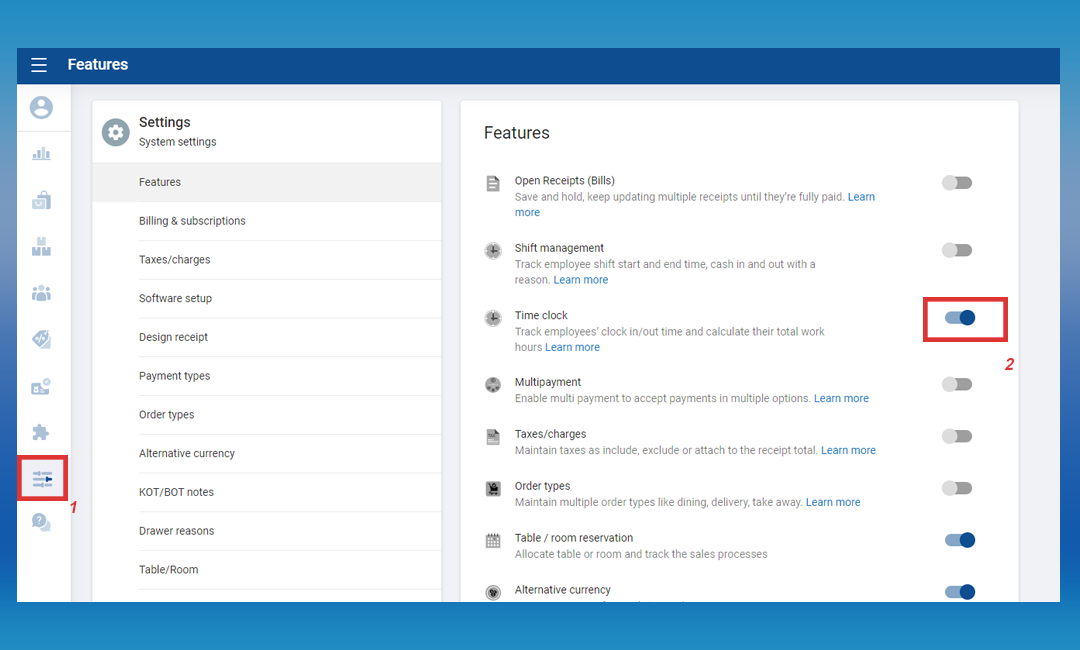
How to activate and run the “ Time Clock” feature
Login to POS Back Office > Select “ Settings ” from main menu > Go to the “ Feature” >Tick ON “Timeclock” button
Click “ Save”
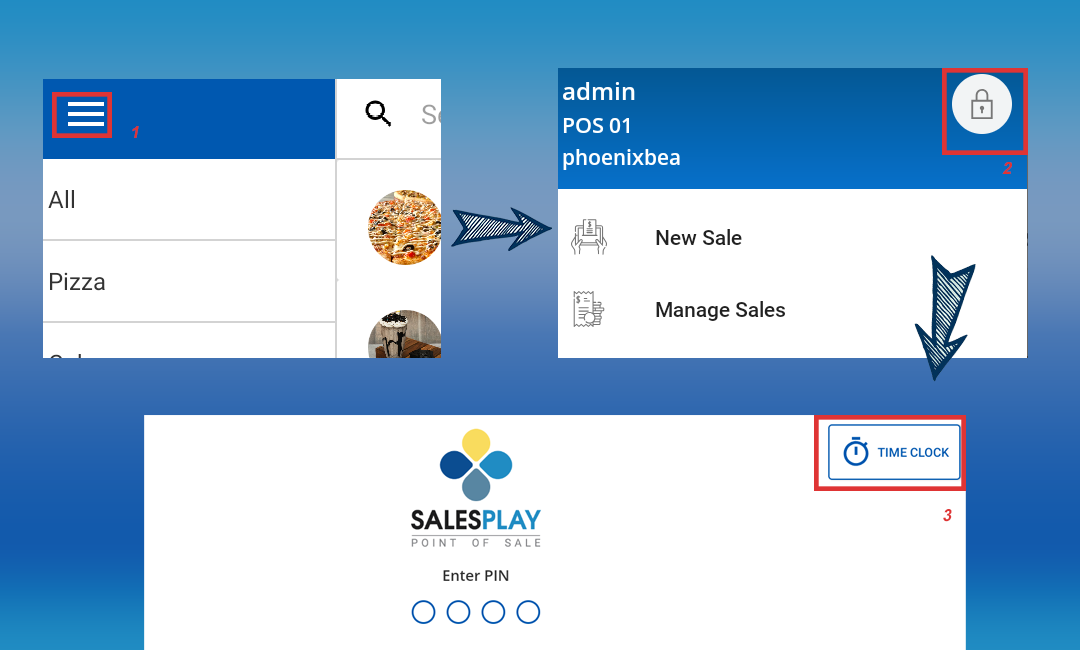
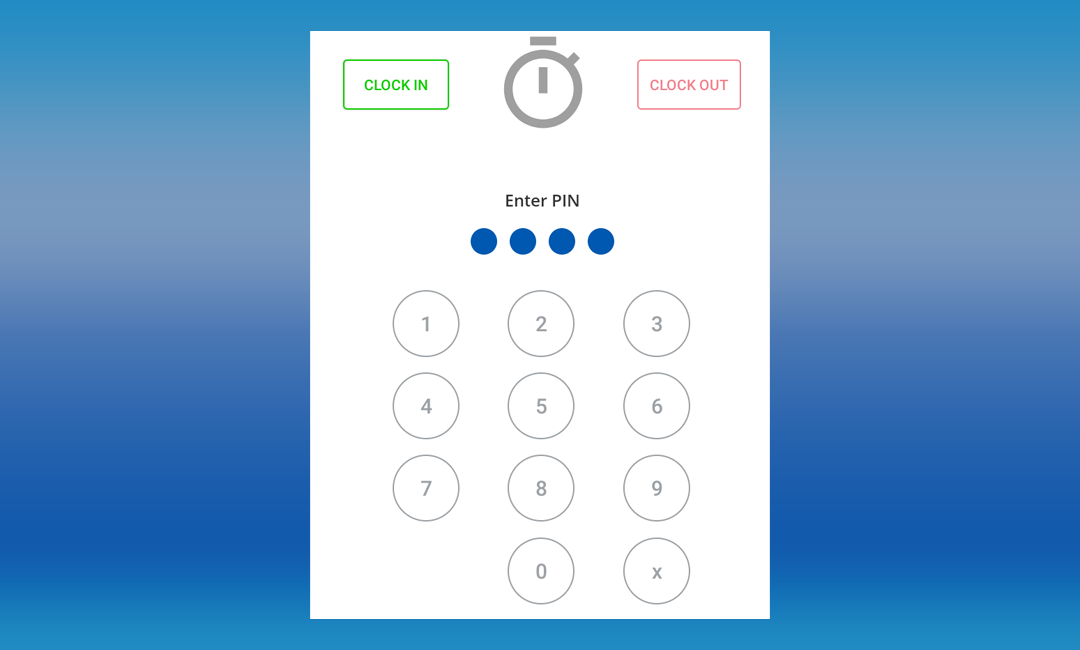
Enter PIN of the employee > Click “Clock-In”
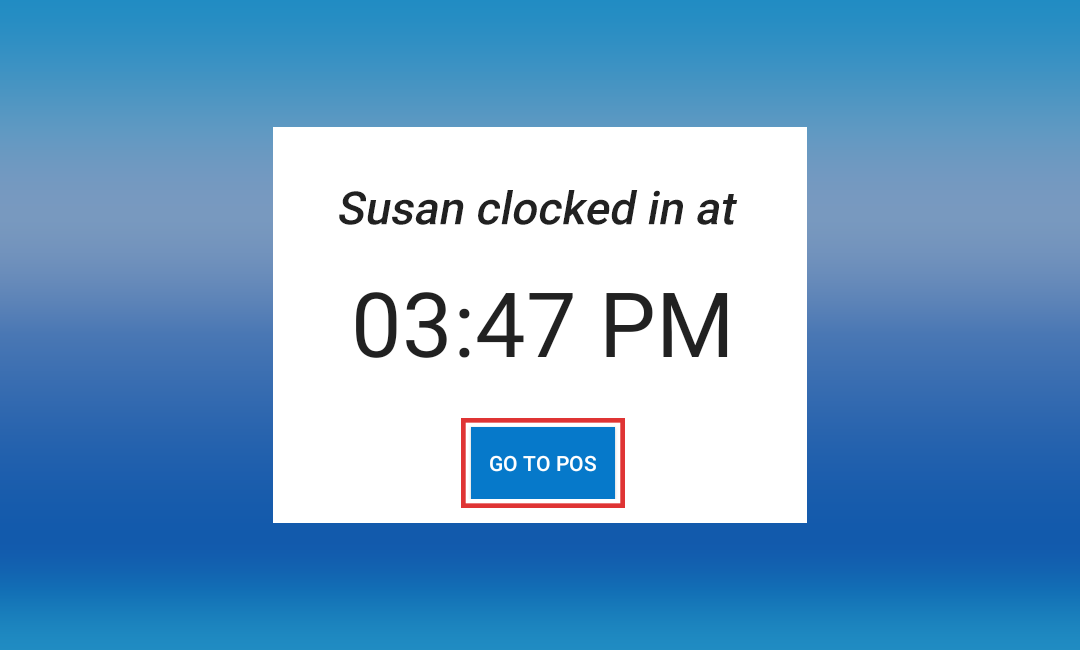
Click “Go To POS” if the time is correct.
Related Articles
How to Use Time Clock
How to Use Time Clock Vendtill Back office Main Menu > Settings > Features What is the Time Clock Feature in Vendtill? The Time Clock feature in Vendtill helps you track employee attendance and working hours. It allows staff to Clock In at the start ...Sales Summary Report
Sales Summary Report Vendtill Back Office 1. Sales Summary Report Vendtill sales summary report provides an overview of the sales activities and performance of a business over a specific period of time. It consolidates and presents key sales data and ...Shift History Report
Shift History Report Vendtill POS App POS App main menu > Select “ Manage Sale ” Click “Cash Management” Select the “Clock” icon right-hand upper corner Click the “clock” icon and select the dateShift Report with Sales Summary
Shift Report with Sales Summary Vendtill Back Office 1. The shift report with sales summary is a crucial component for any type of business. It provides a concise overview of sales data, capturing important information from a specific shift. 2. The ...Receipts Report
Receipts Report Vendtill Back Office > Receipts 1. Receipts Report Vendtill receipt report provides a comprehensive record of all transactions processed through the POS system, capturing critical information such as transaction details, customer ...