Weight and Price Embedded Barcodes
How to Add Weight Embedded Barcodes

Step By Step Process
What is an Embedded Barcode
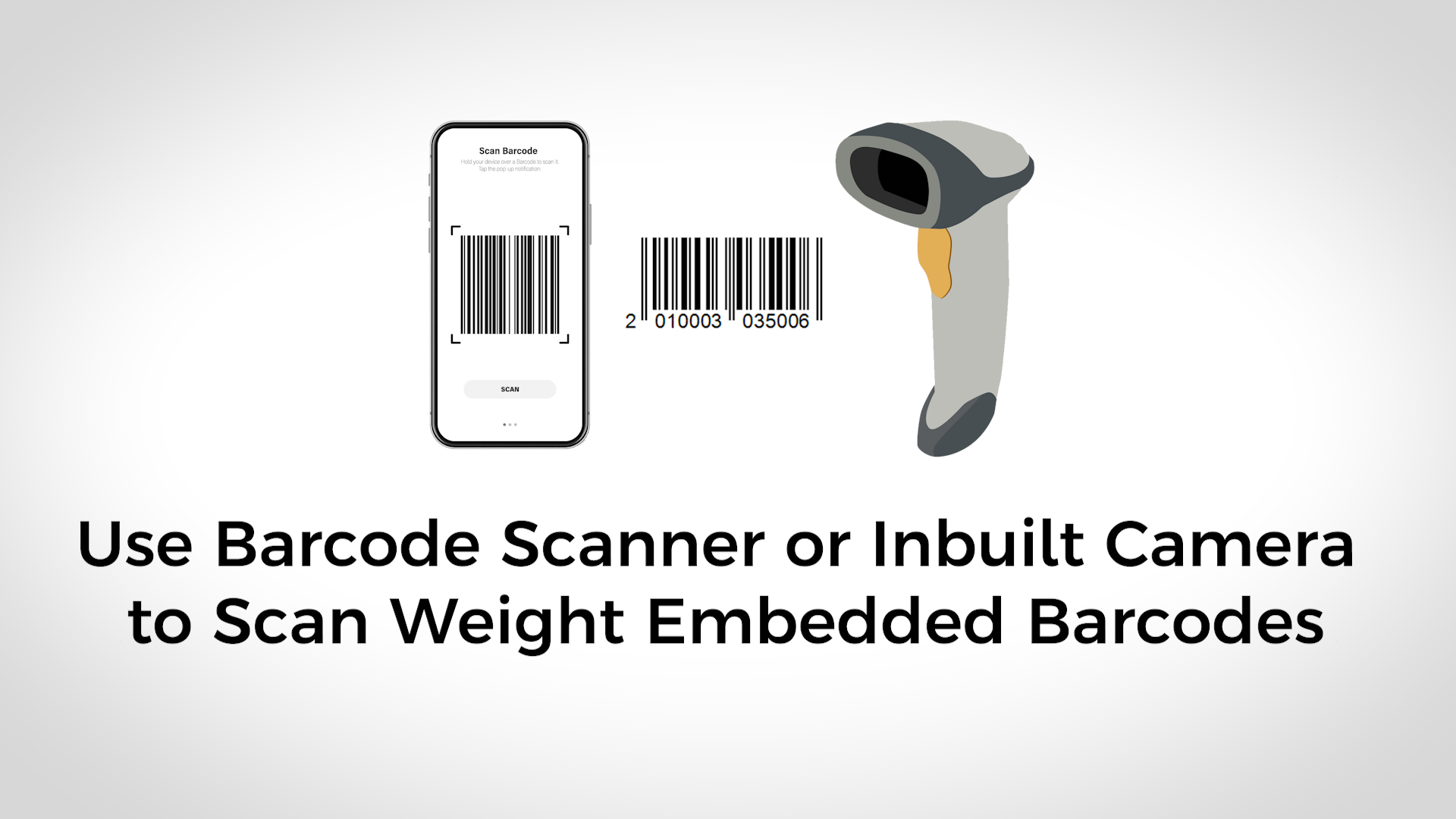
- Embedded barcodes carry extra product information such as price, quantity, or weight.
- Example: Weighing vegetables at checkout.
- Weight scales print barcodes with product name, quantity, and price.
Types of Embedded Barcodes
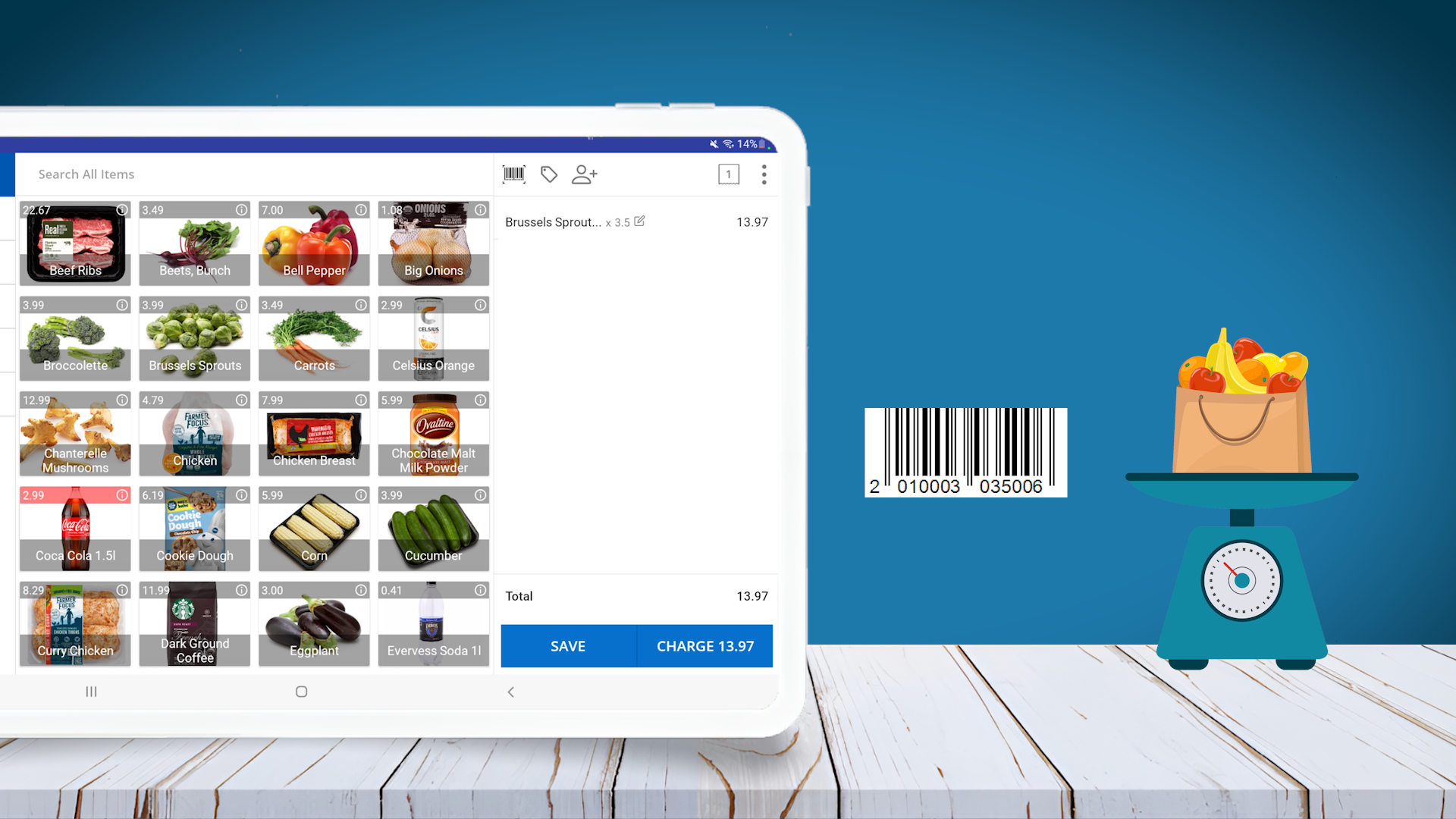
There are two types of embedded barcodes:
- Weight-based:
- Barcode includes product code/SKU and weight information.
- Price-based:
- Barcode includes product code/SKU and product price.
Barcode Profiles
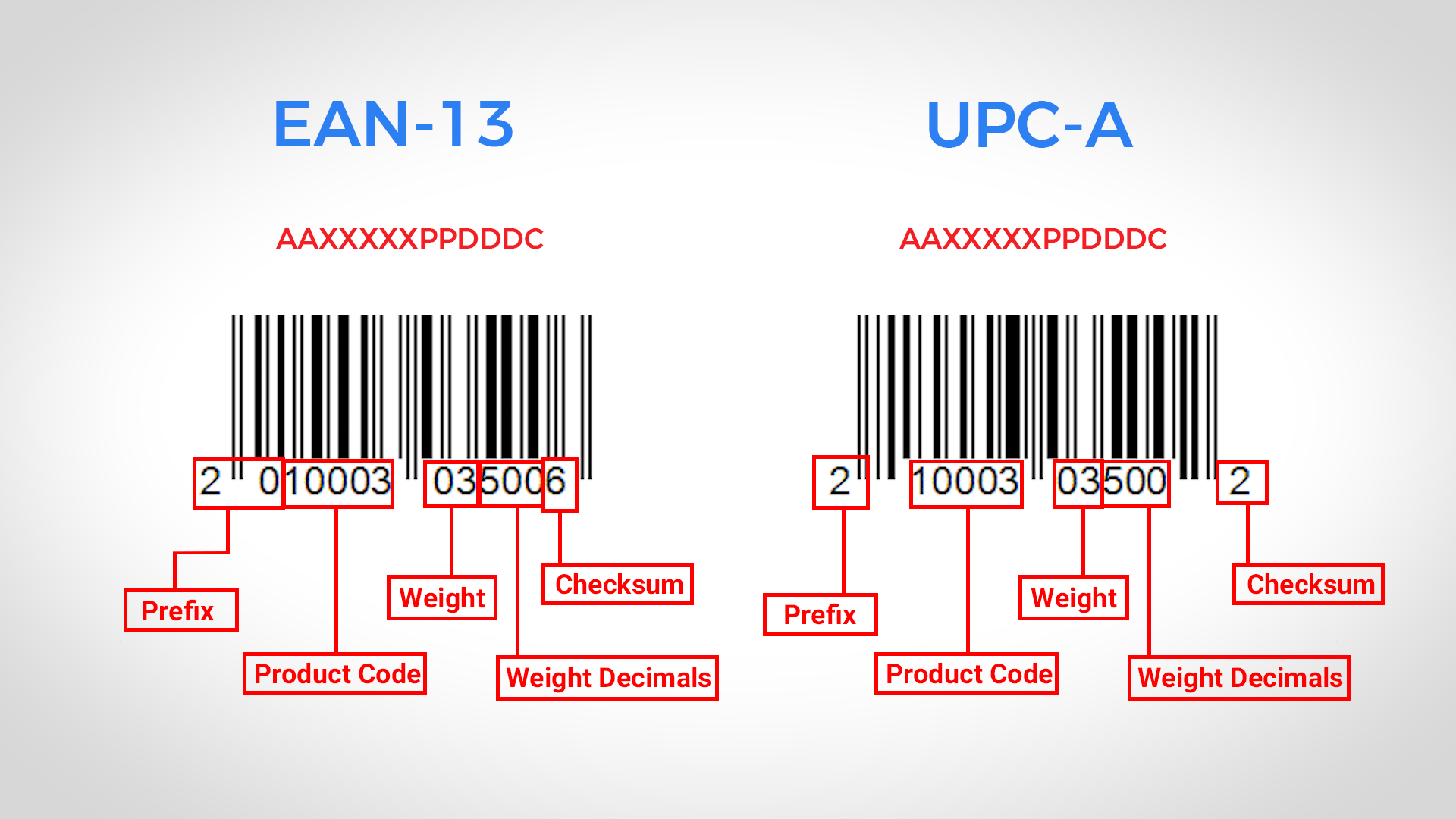
- Two common barcode profiles: EAN 13 and UPC-A.
EAN 13 Setup (13 digits)
- Format: ‘AAXXXXXPPDDDC’
- ‘AA’ – prefix, ‘XXXXX’ – product code, ‘PP’ – weight, ‘DDD’ – weight decimals, ‘C’ – checksum.
UPC-A Setup (12 digits)
- Format: ‘AXXXXXPPDDDC’
- ‘A’ – prefix, ‘XXXXX’ – product code, ‘PP’ – weight, ‘DDD’ – weight decimals, ‘C’ – checksum.
Steps to Add Weight Embedded Barcodes
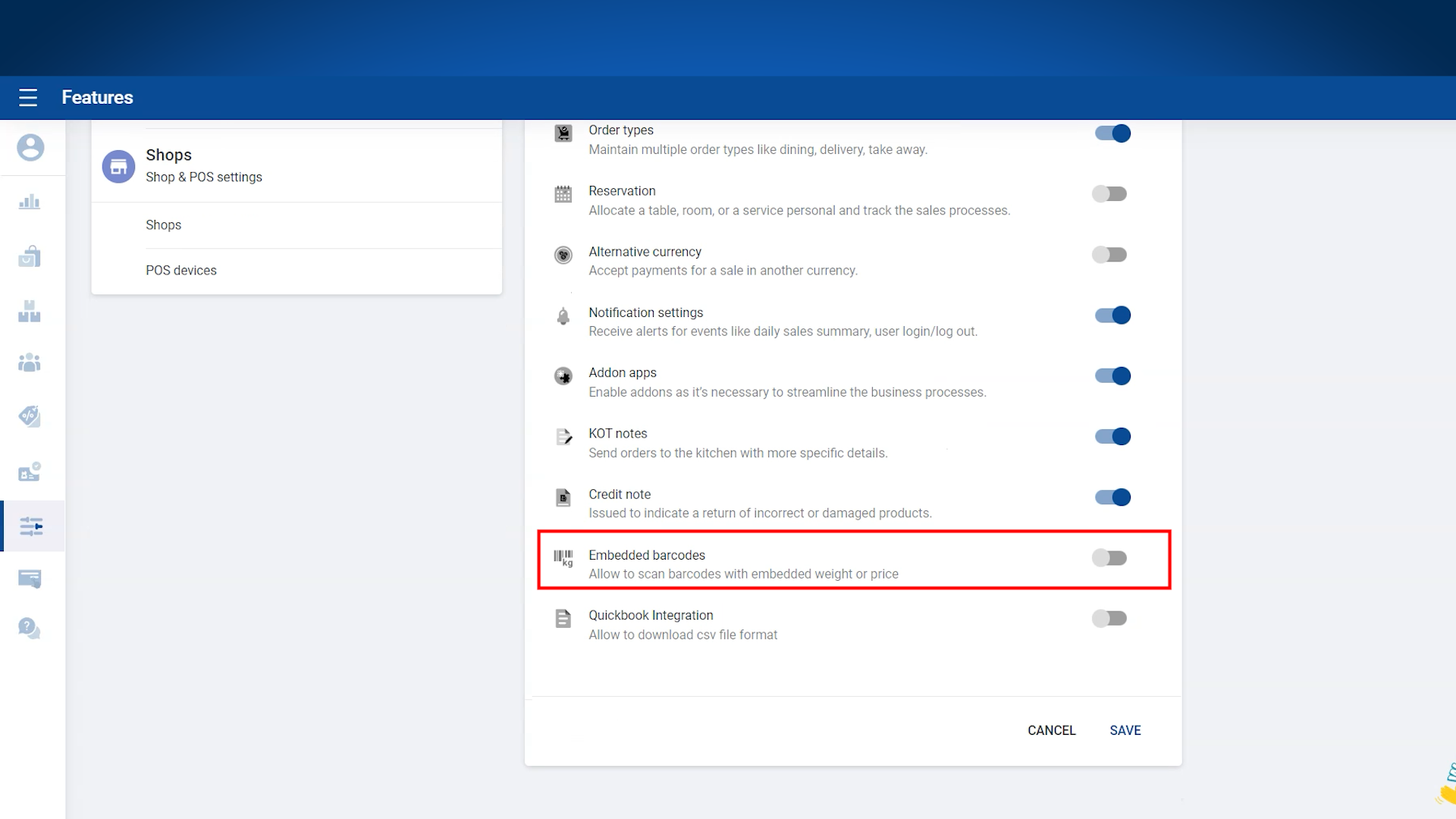
- Login to POS Back Office Web Portal.
- Select Settings from the main menu.
- Go to Features.
- Enable Embedded Barcode section.
- Click Save (Embedded Barcode appears as sub-menu in Settings).
- Click Embedded Barcodes from the sub-menu.
- Select a Barcode profile (EAN 13 or UPC-A).
- Select Barcode type as Weight Embedded.
- Enter the correct barcode digits. (Set PLU value to 0 or leave empty if product codes have 5 digits)
- Enable Status.
- Click Save.
Notes:
- If your product codes are less than 5 digits, configure the PLU value based on the number of digits.
Updating Product Measurements and Prices for Weighted Barcode Scanning
After setting up the weight-embedded barcode profile, update your products accordingly.
Steps:
- Edit the product details in POS system.
- Change Measurement from “Sold by Each” to the appropriate unit (Kg, Litre, etc.).
- Set Regular Unit Price based on the chosen measurement unit.
Examples:
- Beans (Product Code: 10003)
- Measurement: Kg
- Regular Unit Price: 20 per Kg
- Sunflower Oil
- Measurement: Litre
- Regular Unit Price: 50 per Litre
This ensures POS correctly calculates prices for items sold by weight or volume.
What is PLU
PLU (Price Look-Up code) helps identify product codes with fewer than 5 digits. The “Number of Digits for PLU” tells POS how many digits in the barcode are the product code.
When to use PLU:
If product codes are less than 5 digits, adjust the PLU setting accordingly.
Example 1: 3-digit Product Codes
- Product: Pumpkin
- Product Code: 145
- Set PLU as 2
Example 2: 4-digit Product Codes
- Product: Tomato
- Product Code: 1005
- Set PLU as 1
Important Notes:
- If product codes are 5 digits or more, set PLU as 0.
- For custom barcode formats, go to Settings > Barcode Profile > Add New.
- Default formats (EAN-13, UPC-A) cannot be edited; create new profile for custom formats.
Troubleshooting Weight Embedded Barcodes
If you’re facing issues, possible reasons include:
- Scale printing incorrect barcode format.
- Incorrect product codes in POS system.
- Product codes from scale do not match POS system.
- Barcode profile incorrectly configured in back office.
- Product measurement type not set correctly (still “Sold by Each”).
- Regular unit price entered incorrectly.
- Product still using default measurement instead of correct unit (Kg, Litre, etc.).
Related Articles
How to Add Price Embedded Barcodes
How to Add Price Embedded Barcodes Step By Step Process Vendtill POS allows you to use Embedded Barcodes which carry extra information about products, such as price or weight. Price-embedded barcodes simplify checkout, especially for weighted or ...How to Do Price Change
How to Do Price Change Vendtill Back Office 1. Vendtill allows you to do a price change. Product’s price change can be done via one-by-one using POS App and backoffice side. Bulk price change can be done via backoffice webportal under ‘Promotions” ...How to Use Barcodes and Find Products Easily, barcode, barcodes, Camera, Internal barcode
How to Use Barcodes and Find Products Easily Step-by-step Please note : Key Points to Remember To ensure proper functionality of the barcode features, it is important to configure the barcode terminal settings to include the use of "Enter" or "TAB" ...How to Do a bulk price change
How to Do a bulk price change Vendtill Back Office 1.How to Do Bulk Price Change POS System allows user to do a bulk price change. Product’s price change can be done via one-by-one using POS App and Back Office side. Bulk price change can be done via ...How to Adjust Quantity Based on the Price
How to Adjust Quantity Based on the Price Step-by-step guideline with example Introducing the "Adjust Quantity Based on Price" feature in our POS system. This new function makes selling easier by letting users decide how many products to sell based ...