How to Add Shops and Terminals In Back Office
How to Add Shops and Devices / Terminals In Back Office

Vendtill Back Office> Main Menu > Settings
In the Vendtill POS system, a SHOP represents a business branch or location, such as different stores in various cities. This allows for centralized management of multiple locations from a single Backoffice.
A Device refers to a POS terminal used within a specific SHOP to process transactions. Each SHOP can have multiple Devices to handle sales efficiently.
Example: If you own a retail chain with stores in London, New York, and Paris, each store is a SHOP, and each checkout counter in these stores is a Device. This setup ensures all sales and inventory data are synchronized and managed from a central dashboard.
1. To update shop details, select 'Settings' from main menu > Select 'Shops' from settings> Then select the particular shop.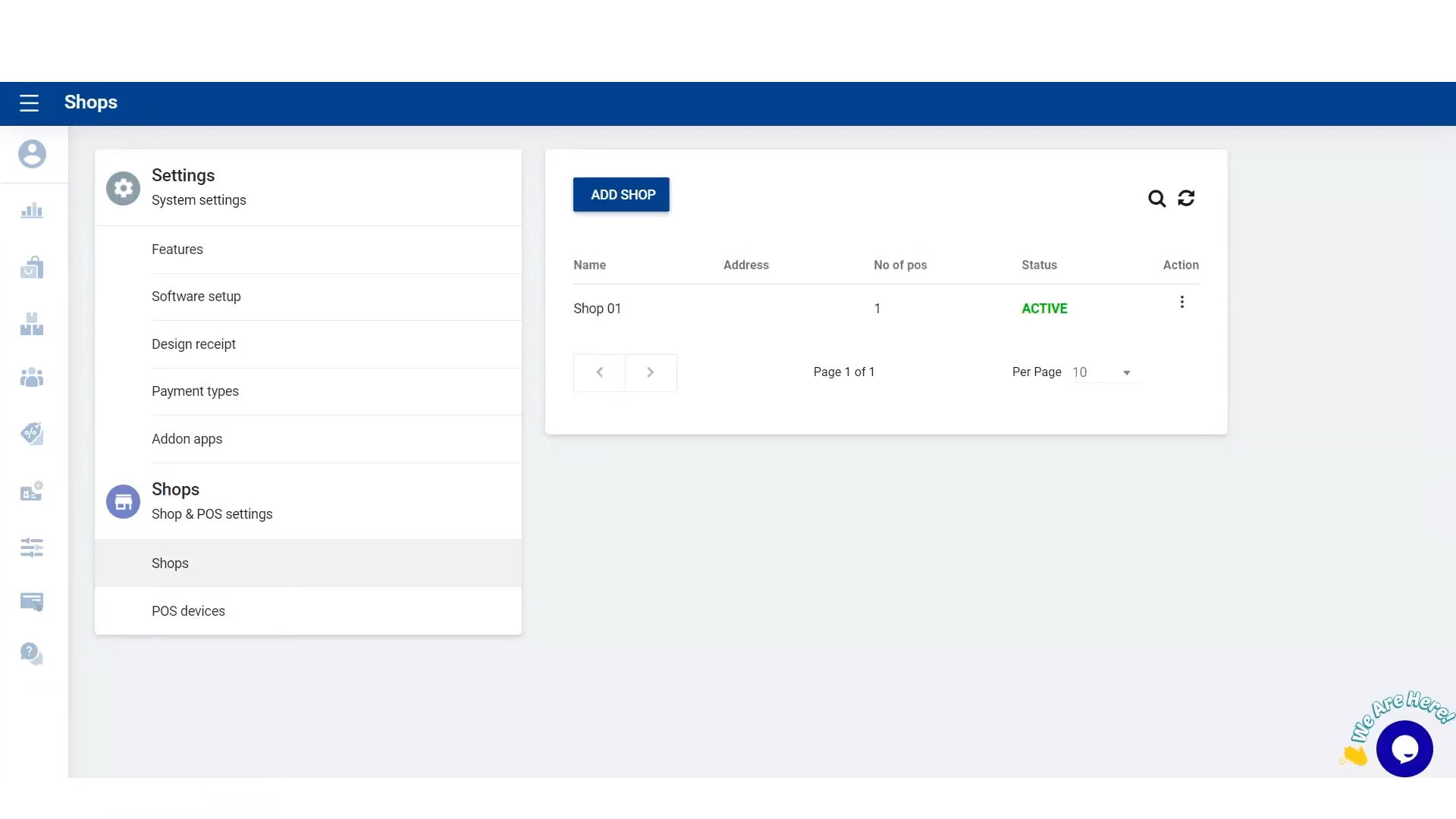
2. Fill in the details then click 'Update'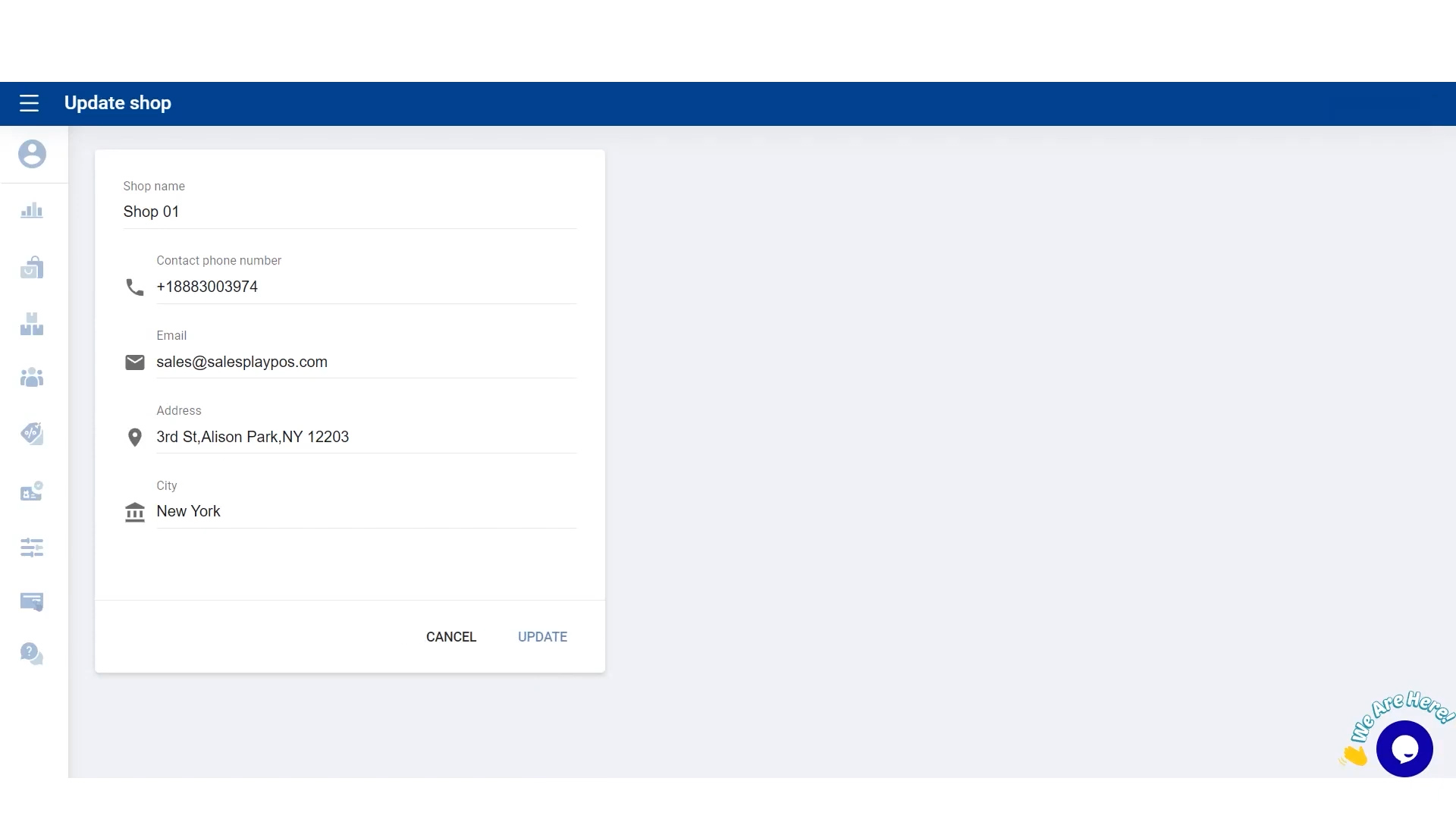
3. Details have been updated for shop 1.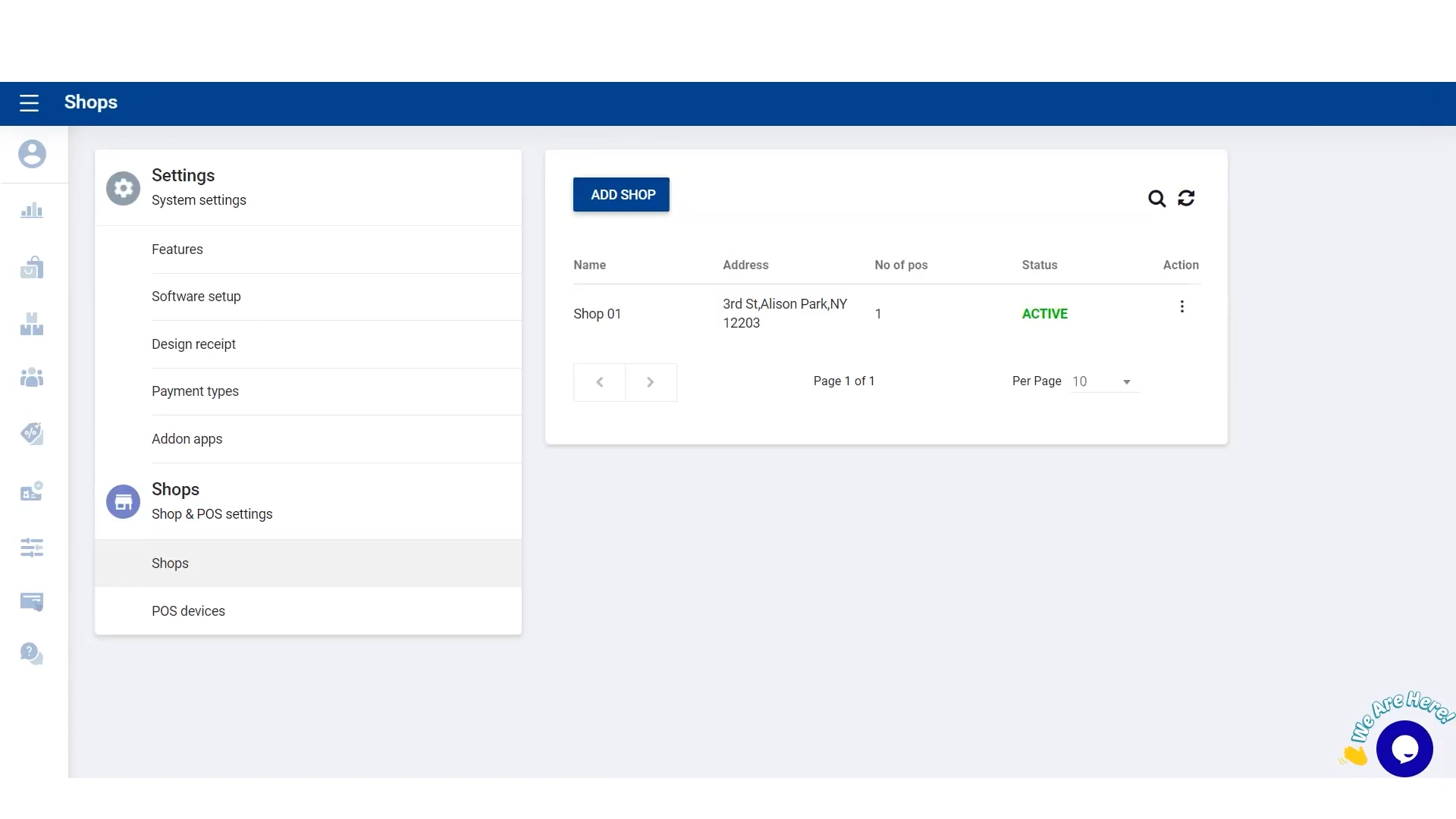
- To create a new shop click the 'ADD SHOP' button, fill in the details and click 'SAVE' button.
4. Now, select 'POS devices' in 'Shop and POS Settings' > Select the particular shop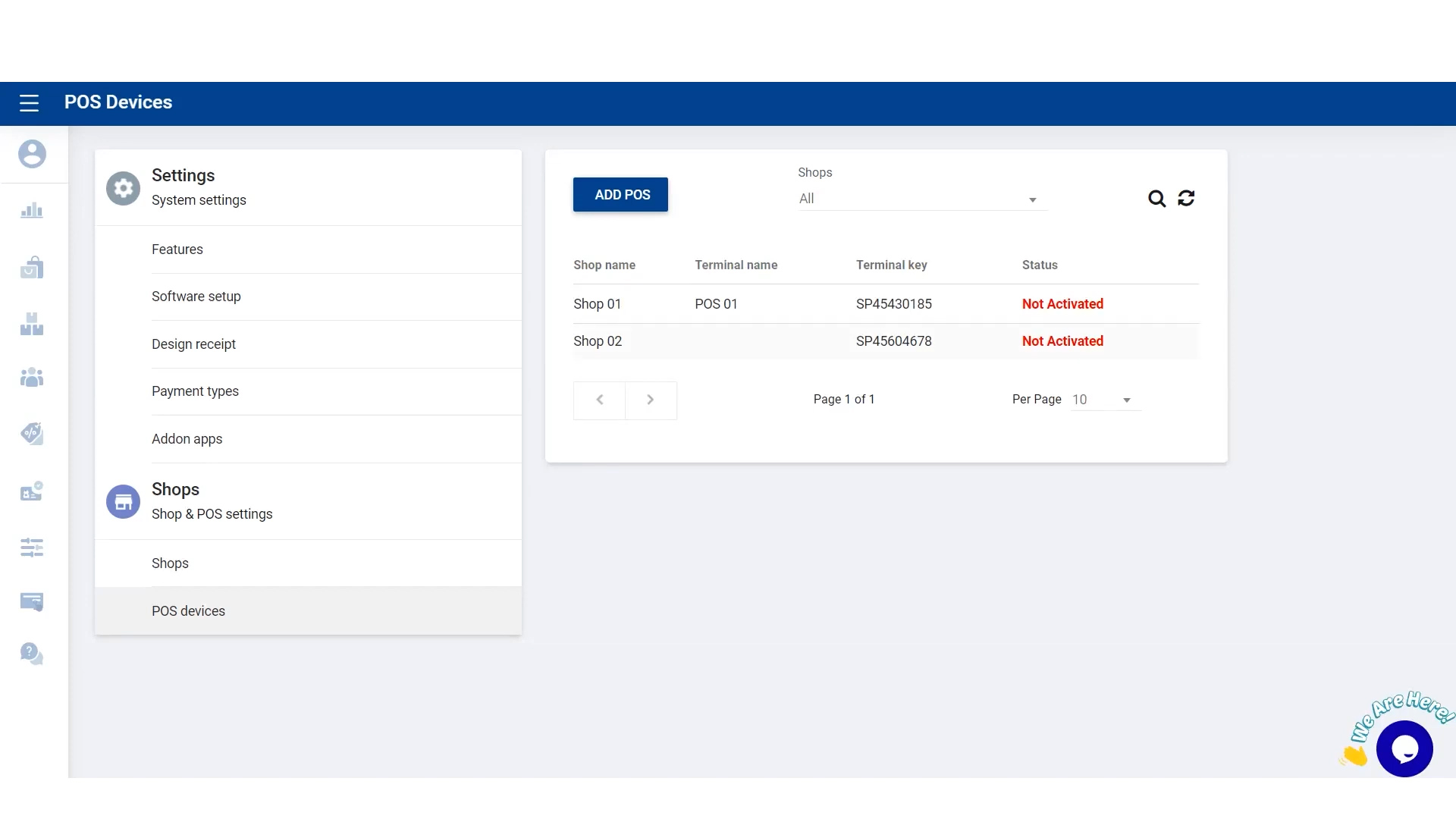
5. Add terminal name and click 'UPDATE'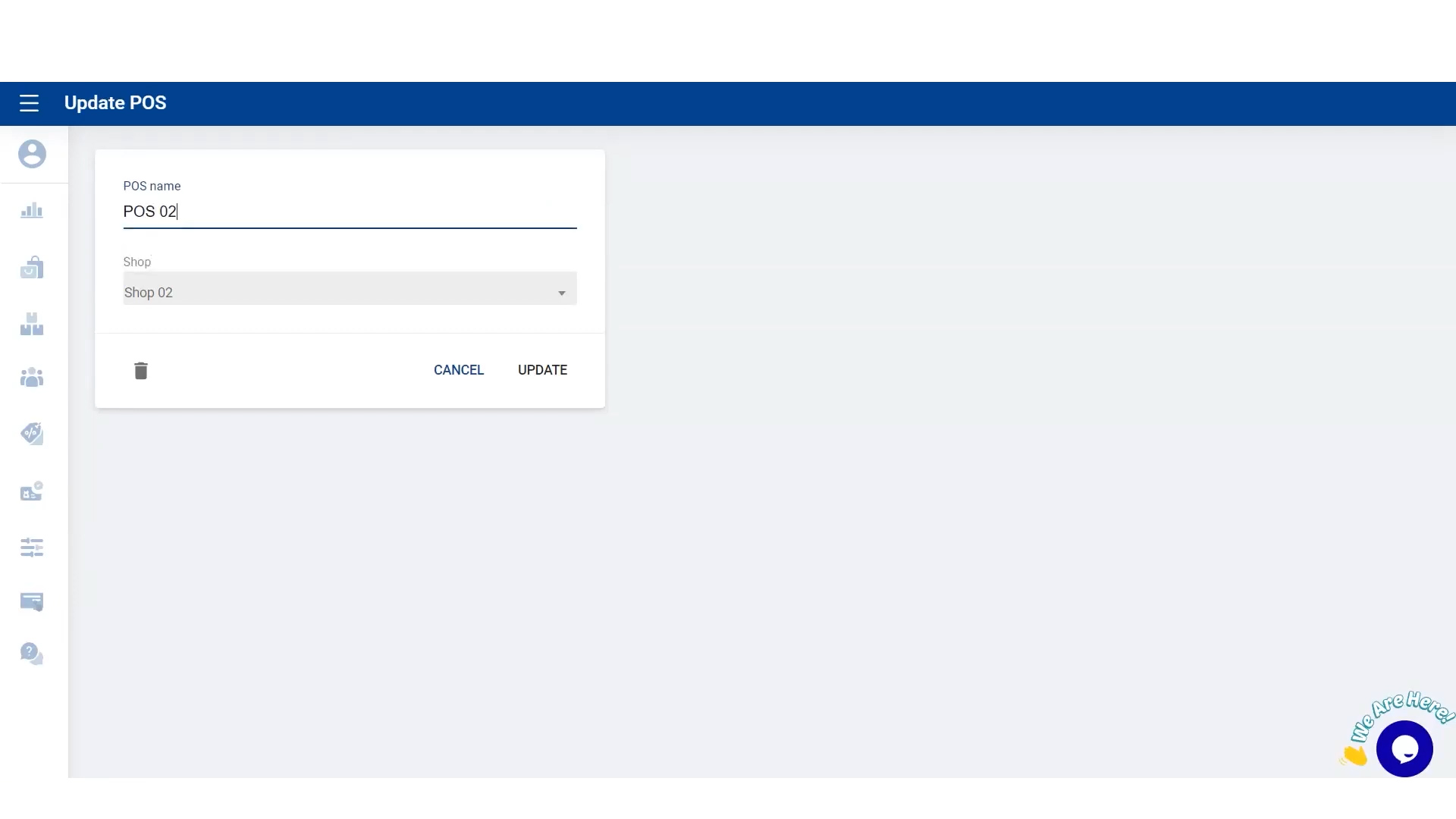
6. Now you can activate the terminal using the sign-in option.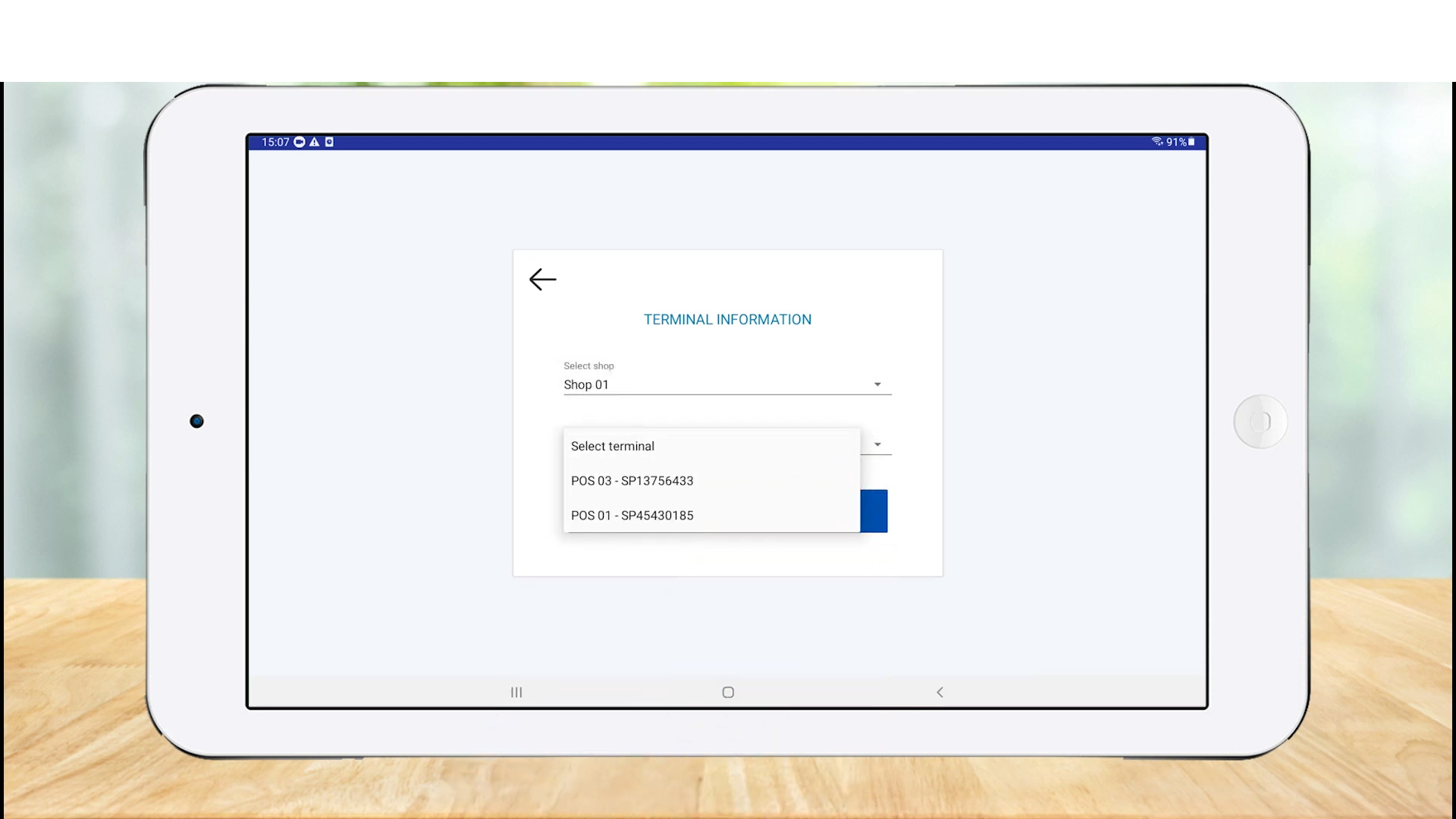
- In 'TERMINAL INFORMATION', select the particualr shop and terminal.
7. Successfully signed in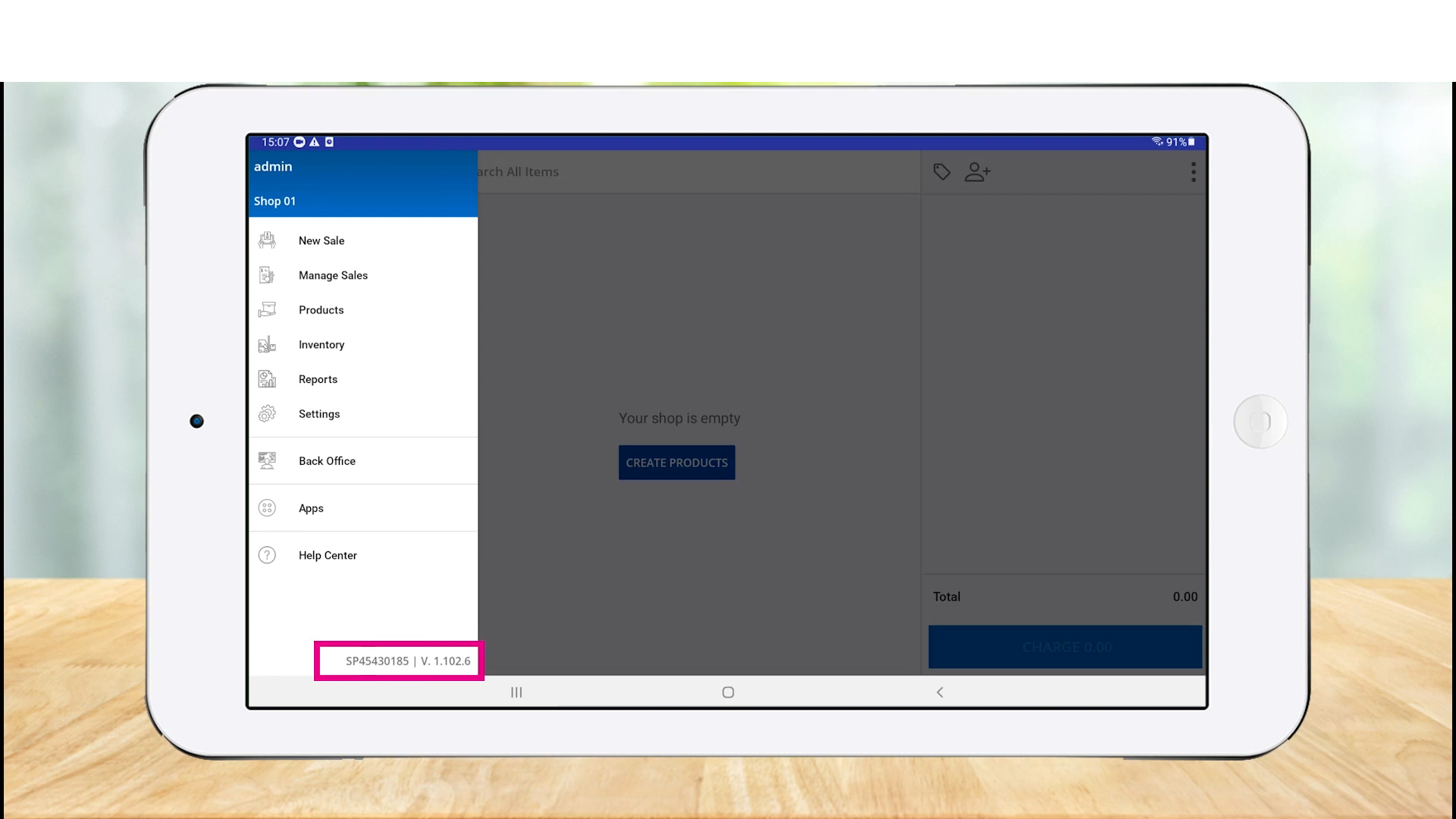
8. Terminal activated in Back Office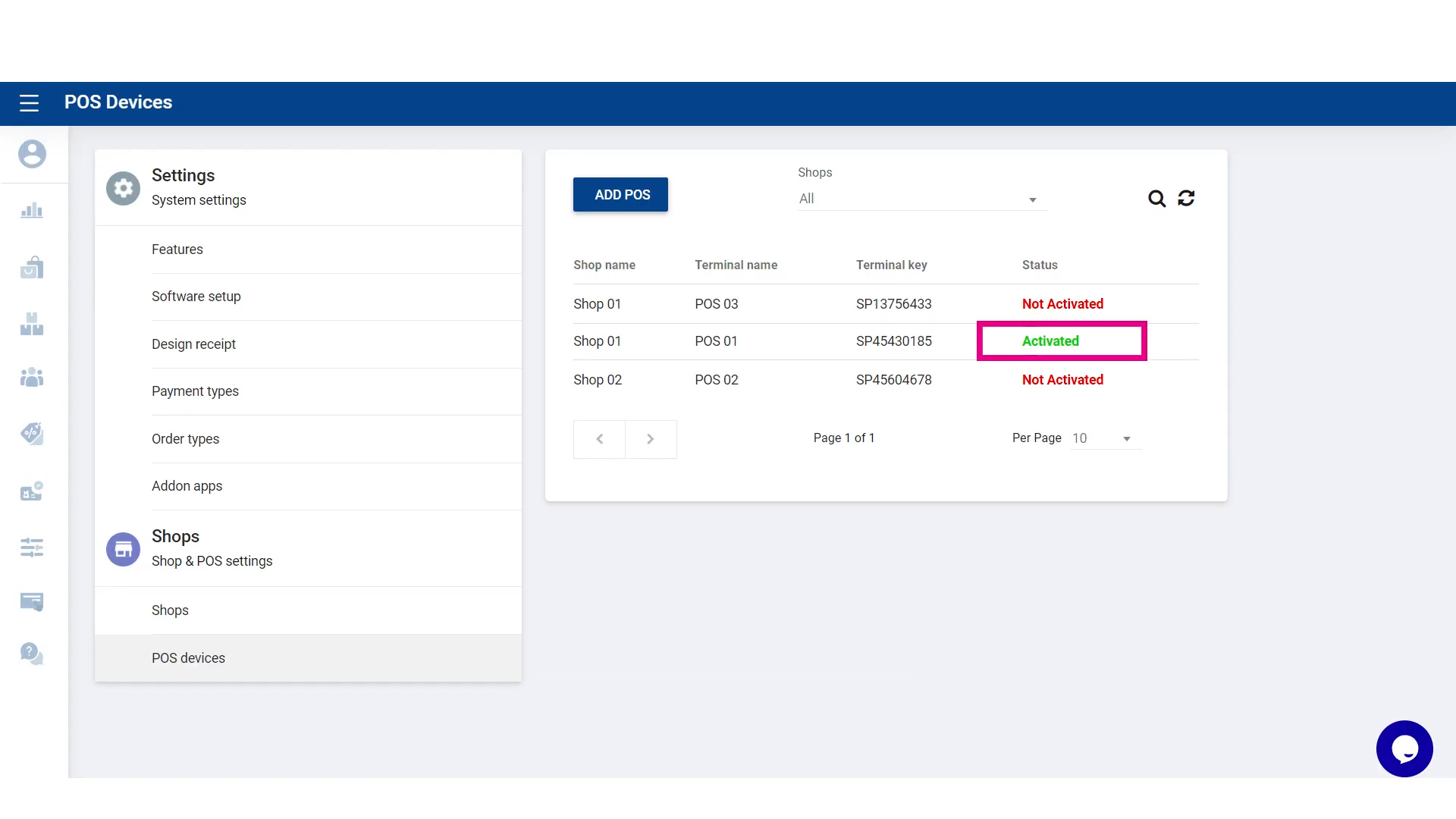
Related Articles
Let's Add Shops and POS Devices in Back Office
Let's Add Shops and POS Devices in Back Office Step-by-step process Managing Multiple Shops and Devices with Ease The Vendtill POS system is a versatile and powerful tool designed to streamline business operations, especially for businesses with ...How to Clear Data & Delete Shop or Terminal in Back Office
How to Clear Data & Delete Shop or Terminal in Back Office Vendtill Back Office > Main Menu > Settings > Shops 1. Clear Data in Back Office POS System gives an option to clear all data and clear all sales and stocks data. “Clear all data” This option ...How to Manage Employee Back Office Access Rights
Manage Employee Back Office Access Rights StepsHow to Subscribe Add-ons Advanced Inventory
How to Subscribe Add-ons / Modules Advanced Inventory Vendtill Back Office Subscription for Advanced Inventory The Advanced Inventory module is one of our add-ons, allowing you to perform various tasks such as creating Purchase Orders PO, generating ...How to Add Subscription Payment Methods
How to Add Subscription Payment Methods Vendtill Back Office Special Notes If you wish to delete your card information entirely, please use the "My Profile" section in your backoffice. If you choose to delete your profile, please be aware that your ...