How to Create a Composite Product
1. Go to Back Office > Products
- Composite product contains a collection of other products which you can sell as a whole.
- Go to Back Office > Products.
2. Create Components of the Composite Product
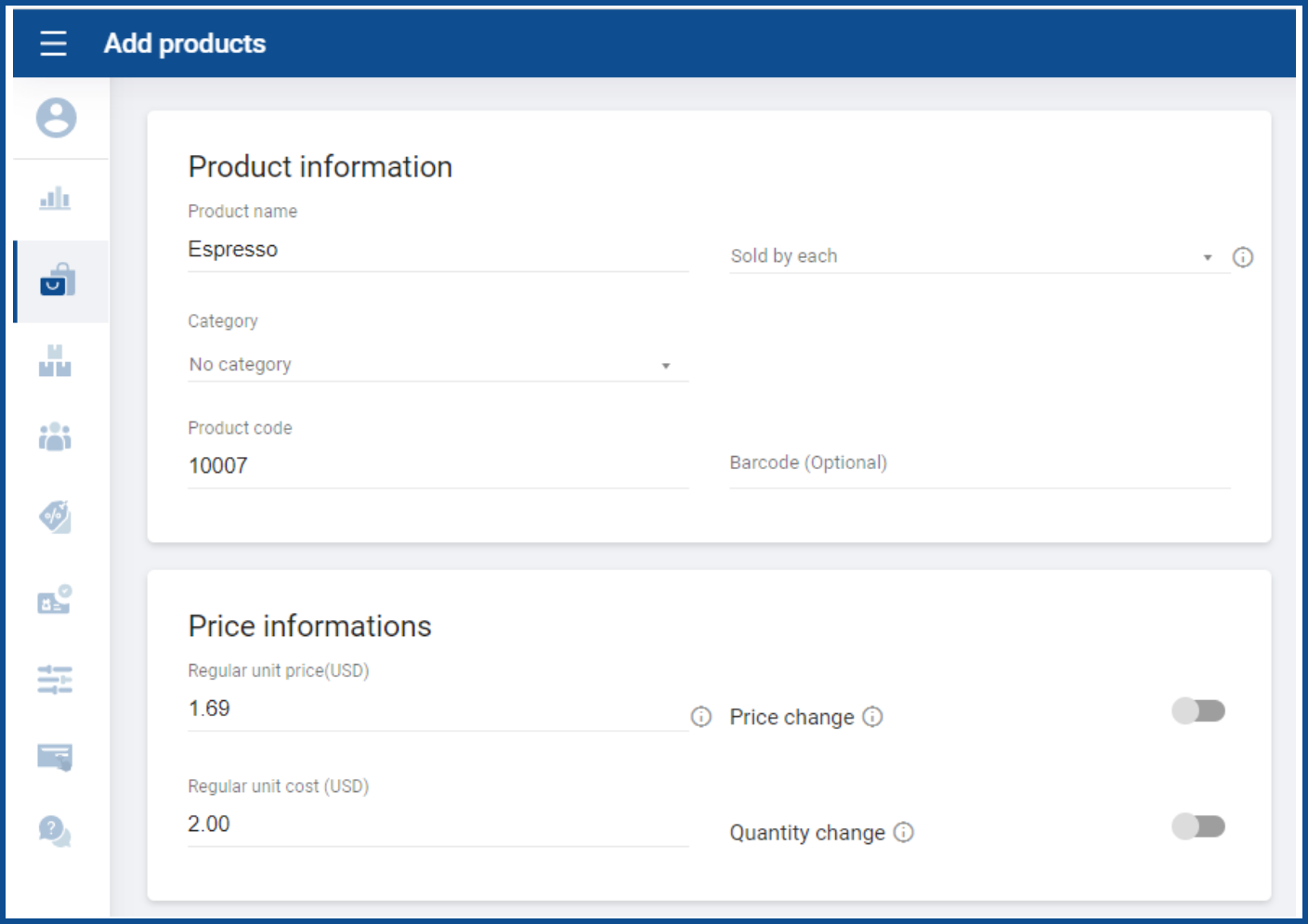
- To add a new component product, click ‘Add product’.
- Enter the name and other details of the product.
3. Mark Product as Ingredient (Optional)
- If the product is not available for sale, select ‘Ingredient product’ from additional options.
4. Create the Composite Product
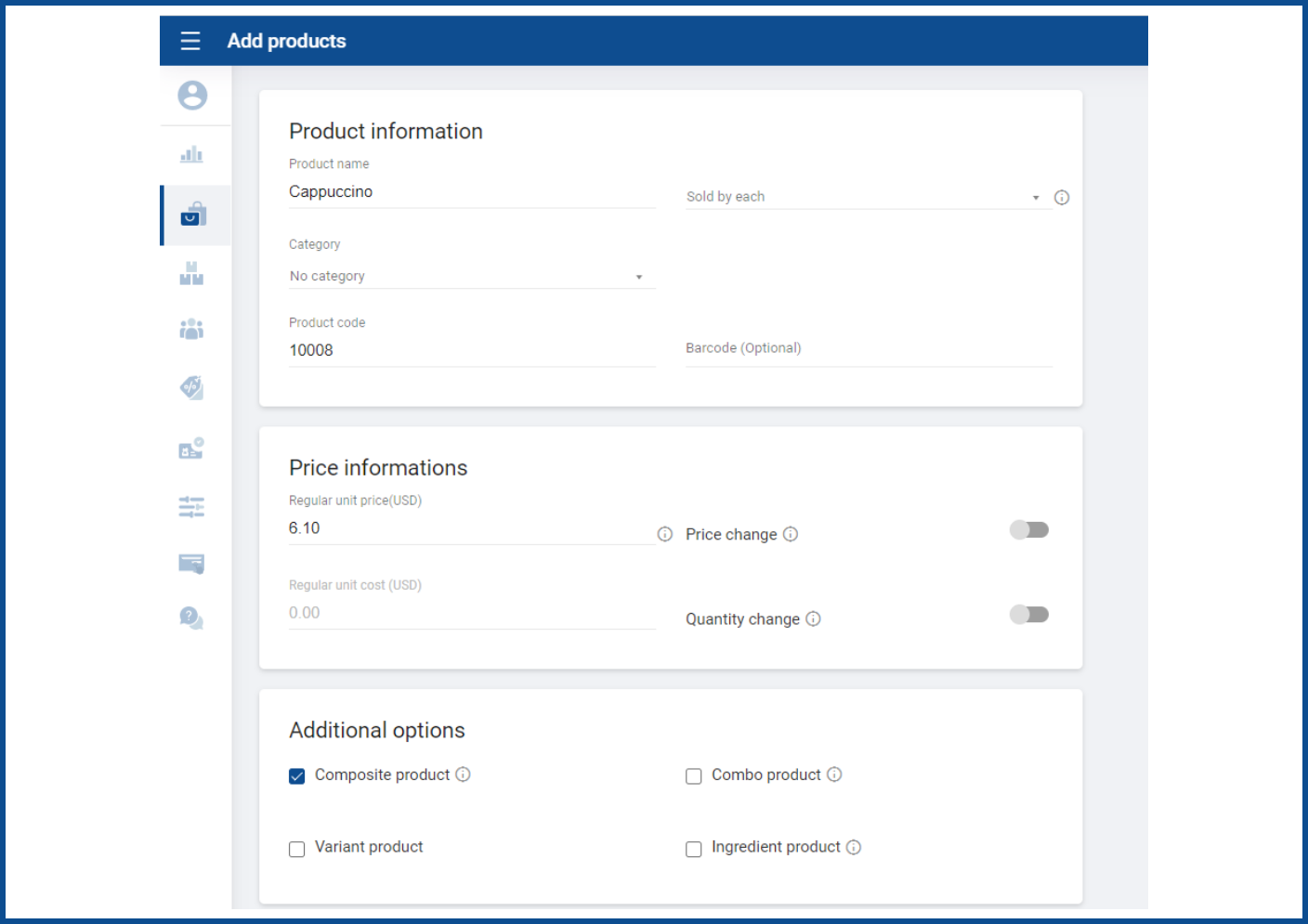
- After you have all the components, create the composite item by clicking the ‘Add products’ button again.
- Select ‘Composite product’ option from the additional options.
5. Add Component Products
- Add component products one by one by searching for them in the product list.
- The regular unit cost of the composite product will be calculated based on the quantity and cost of all components.

6. Save the Composite Product
Related Articles
How to Use Multiple Units of Measure for a Single Product
How to Use Multiple Units of Measure for a Single Product Vendtill Back Office Multiple Units of Measure (UoM) for a Single Product Multiple Units of Measurement (UoM) for a single product refer to the ability to measure and sell a product using ...
How to Create a Combo Product
A combo product bundles multiple items together as a single package. Benefits: Cost Savings: Customers get a discount when buying bundled items. Increased Sales: Combo deals encourage higher order values. Steps to create: Create regular selling ...
Copy Product Clone Product
Copy Product (Clone Product) Feature Step-by-step guidelines The “Copy Product” or “Clone Product” feature allows users to duplicate an existing product within their POS System. By creating a new product with similar attributes, this feature ...
How to Implement a Buy-One-Get-One Free Promotion
How to Implement a Buy-One-Get-One Free Promotion Vendtill Back Office Key Points to Remember In addition to the "Buy 1 Get 1 Free" setup process, businesses can utilize the same approach to set up other promotional options, such as "Buy 2 Get 1 ...
How to Work with Productions
How to Work with Productions Vendtill Back Office Overview of Productions The Production function in Vendtill POS allows businesses to efficiently add finished goods to the inventory while managing raw materials and recipe stocks separately. By ...