How to Implement a Buy-One-Get-One Free Promotion
How to Implement a Buy-One-Get-One Free Promotion

Vendtill Back Office
Key Points to Remember
In addition to the "Buy 1 Get 1 Free" setup process, businesses can utilize the same approach to set up other promotional options, such as "Buy 2 Get 1 Free" or "Buy 5 Get 2 Free." The key consideration when creating a composite product is to ensure that the total quantity reflects both the items being sold and the free items.
For instance, if a business wants to offer a "Buy 2 Get 1 Free" promotion on a specific item composite product quantity should be 3. The price should be the total of two items as the other 1 is free.
1. Go to 'Products' in the Back Office
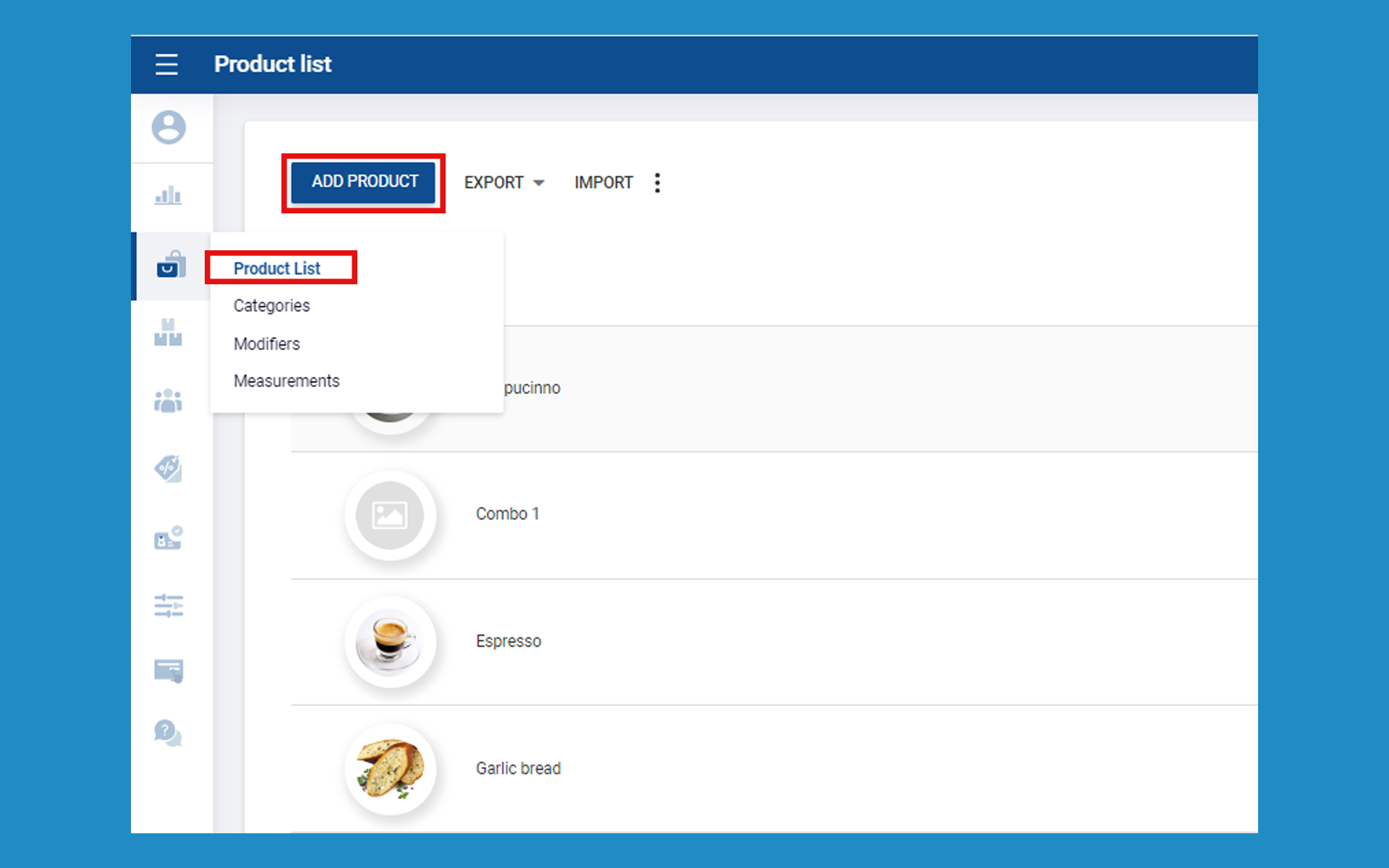
- Login to POS Back Office Webportal
- Select “Products” from the main menu
- Go to the “Product list”
- Click the “Add Product” button
2. Add a Product
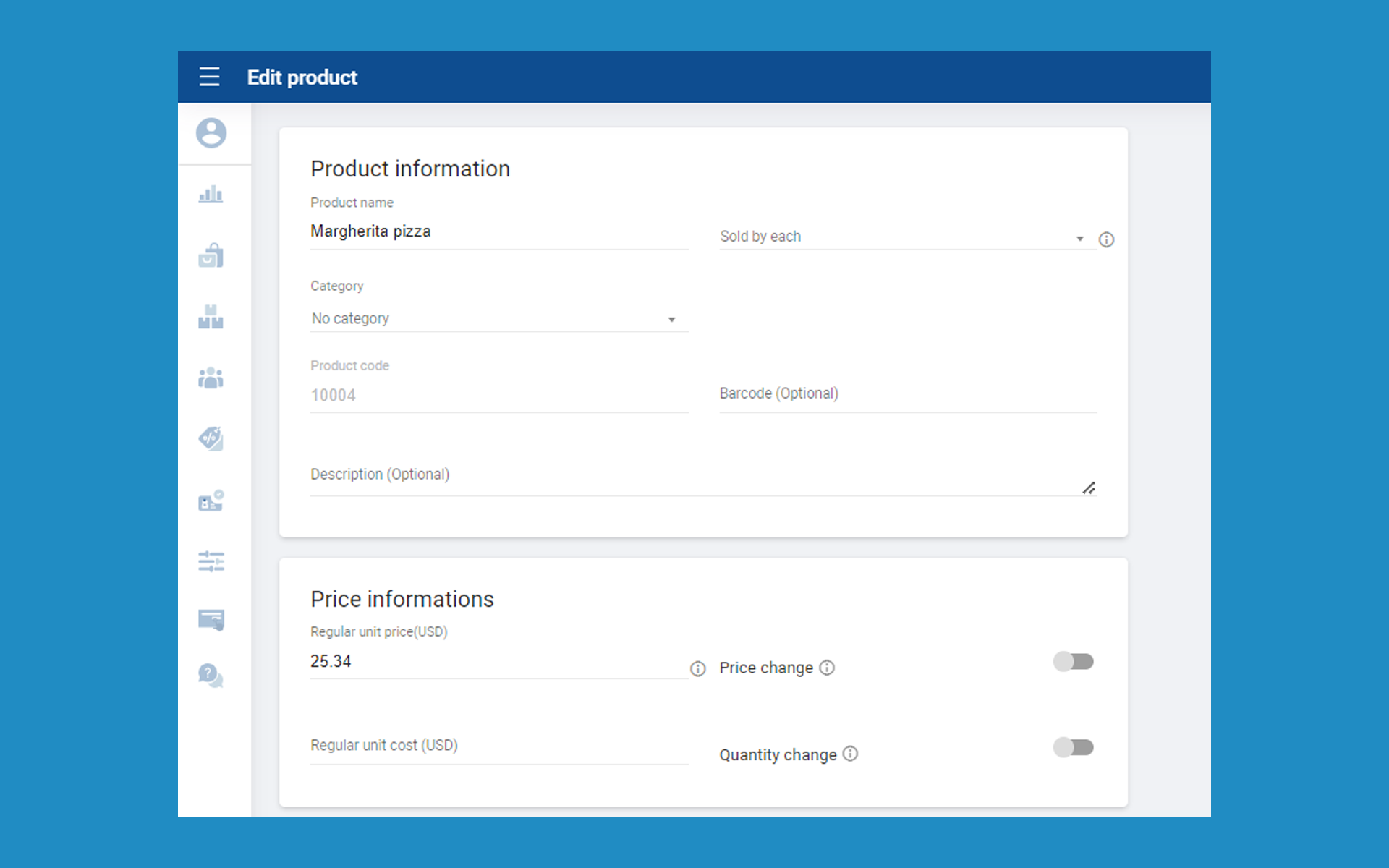
- Enter the product name and “regular unit price”
- Tick ON “Stock Control”
- Click the “Save” button
3. Create a 'Composite Product' in the Back Office
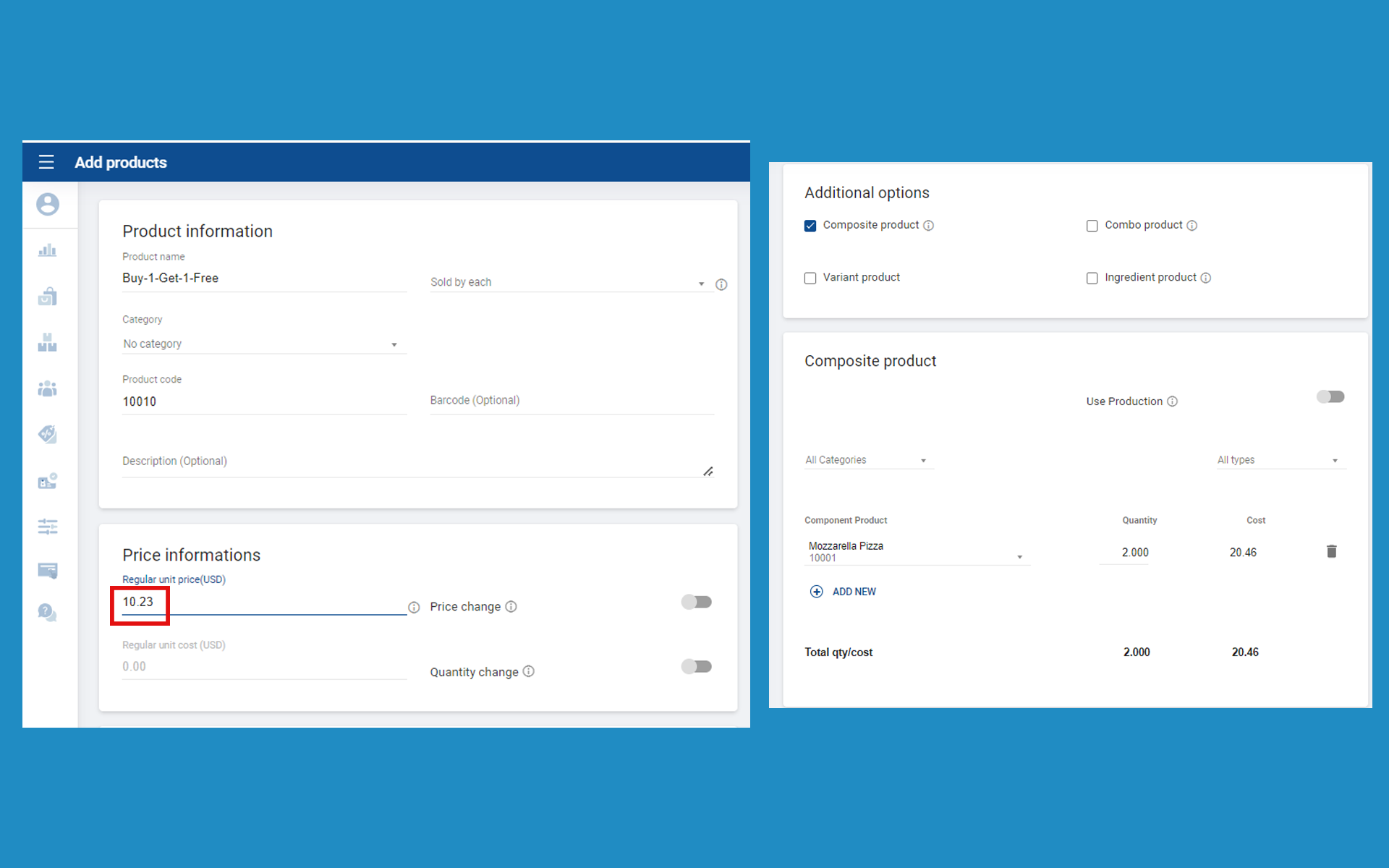
- Login to POS Back Office Webportal
- Select “Products” from the main menu
- Go to the “Product list”
- Click the “Add Product” button
- Enter the Composite product name
- Enter the price “regular unit price”
- Tick ON “Composite Product” under Additional options
- Select the already created main product from dropdown
- Enter how many of those under QTY
- Click “Save” button
4. Overview
- Composite products in a POS system refer to the ability to create bundled or customized products consisting of multiple individual items.
Related Articles
Let's Get Started with Vendtill Web POS App
Let's Get Started with Vendtill Web POS App Vendtill Website > 'Register for Web App' Special Note To access Vendtill Web POS seamlessly, it is recommended to use the Exe File option. After downloading, a desktop shortcut will be created for easy ...How to Get an Email Notification
How to Get an Email Notification What Is Email Notification The "Email Notification" feature is a functionality within a POS software system that enables the automatic generation and dispatch of email messages to designated recipients based on ...How to Get Email Notification for Low & Negative Stocks
How to Get Email Notification for Low & Negative Stocks Vendtill Back Office Get Email Notification for Low & Negative Stocks “E-mail Notification” function is another very special feature in the POS System. You can get an email notification of the ...REST API Access for Integration
REST API Access for Business Integration Step-by-step How to Get Vendtill REST API Access for Business Integration If you're looking to integrate Vendtill POS with your own inventory, accounting, or ERP system, our REST API allows you to securely ...How to Subscribe Add-ons Advanced Inventory
How to Subscribe Add-ons / Modules Advanced Inventory Vendtill Back Office Subscription for Advanced Inventory The Advanced Inventory module is one of our add-ons, allowing you to perform various tasks such as creating Purchase Orders PO, generating ...