Let's Get Started with Vendtill Web POS App
Let's Get Started with Vendtill Web POS App

Vendtill Website > 'Register for Web App'
Special Note
- To access Vendtill Web POS seamlessly, it is recommended to use the Exe File option. After downloading, a desktop shortcut will be created for easy access. Simply double-click the shortcut to open Vendtill Web POS without relying on a web browser
- If not using the EXE File option, the recommended web browser for Vendtill web POS is Google Chrome, and it needs to be configured to permit "show notifications."In order to ensure the smooth operation of the Vendtill Web POS, it's essential to use Google Chrome as your web browser and enable the "show notifications" feature. If this feature is not enabled, you may encounter loading issues. To help you activate this feature, please follow the steps provided below.
- Open Google Chrome Web Browser
- Go to https://webpos.vendtill.com/
- Tap View site information Permissions Notifications.( Tap the padlock icon in the address bar)Turn On Notifications
Please note that a unique email address must be used for each platform (Android, iOS, and Web POS) during account creation. This approach enhances simplicity and security, ensuring that one email address is associated with only one platform.
You cannot use the same email address for creating an account on one platform and then use it to sign in on another platform.
For example:
If you create a Web POS account using an email address and need to add an Android Terminal for the same shop, you cannot use the same email address.
1. To get registered with Vendtill Web POS, visit Vendtill homepage where you will find the 'Register for Web App' button.
- Visit Vendtil homepage
2. Sign Up
- To sign up,
- Enter a valid Email address
- Enter a password : must be at least 8 characters.
- Enter your business name and select business type and your country.
- Click 'Submit'
3. Now you will receive the confirmation Email to the Email address you provided during 'Sign up'. Please check you your inbox.
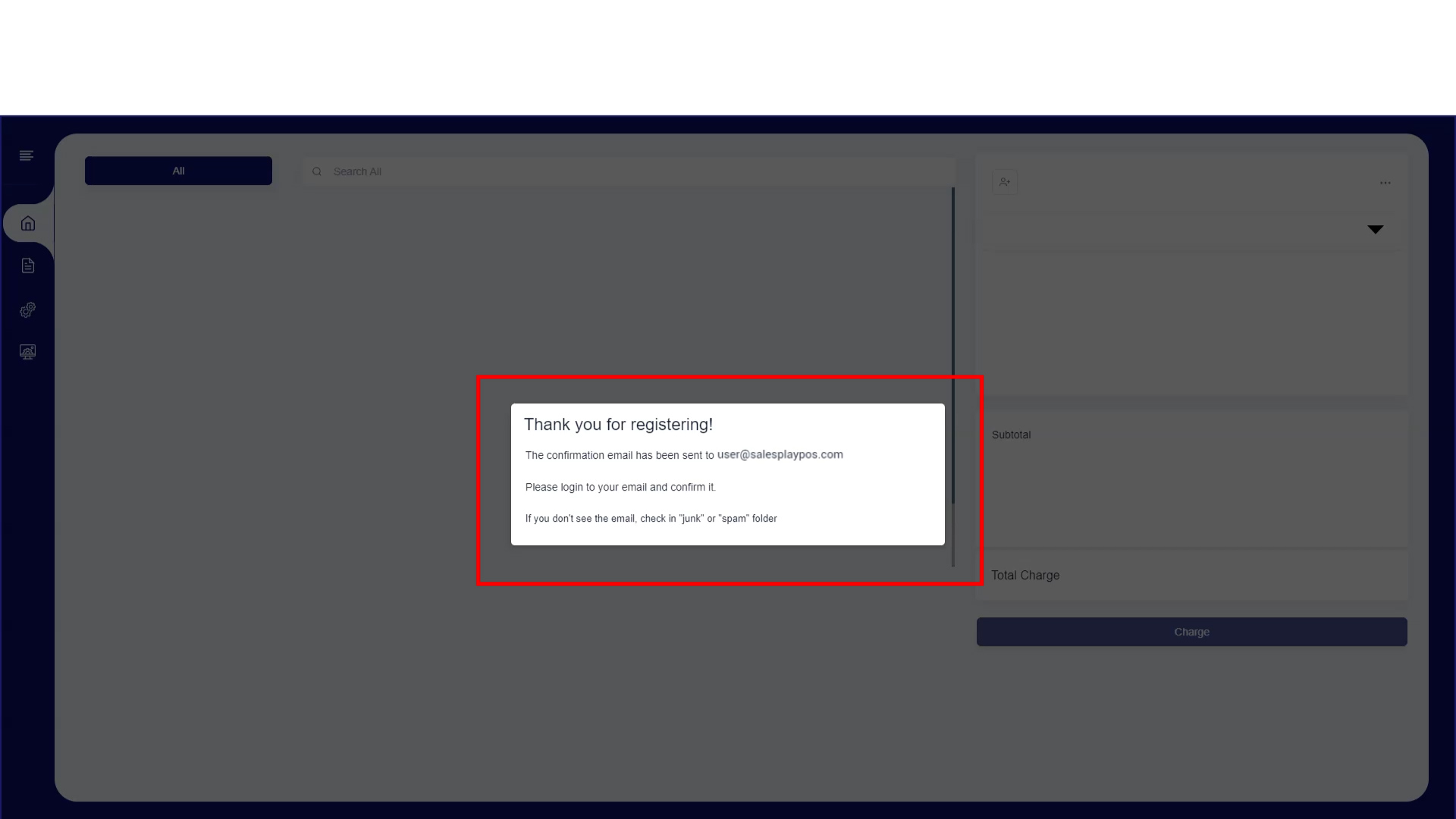
- If you haven't received it, please check your spam folder as well.
4. Your personalized Web App URL is included in the Email. Add it to 'Favorites' in your browser.
5.After successfully getting registered , you need to allow Vendtill to send notifications for you, as in this image.
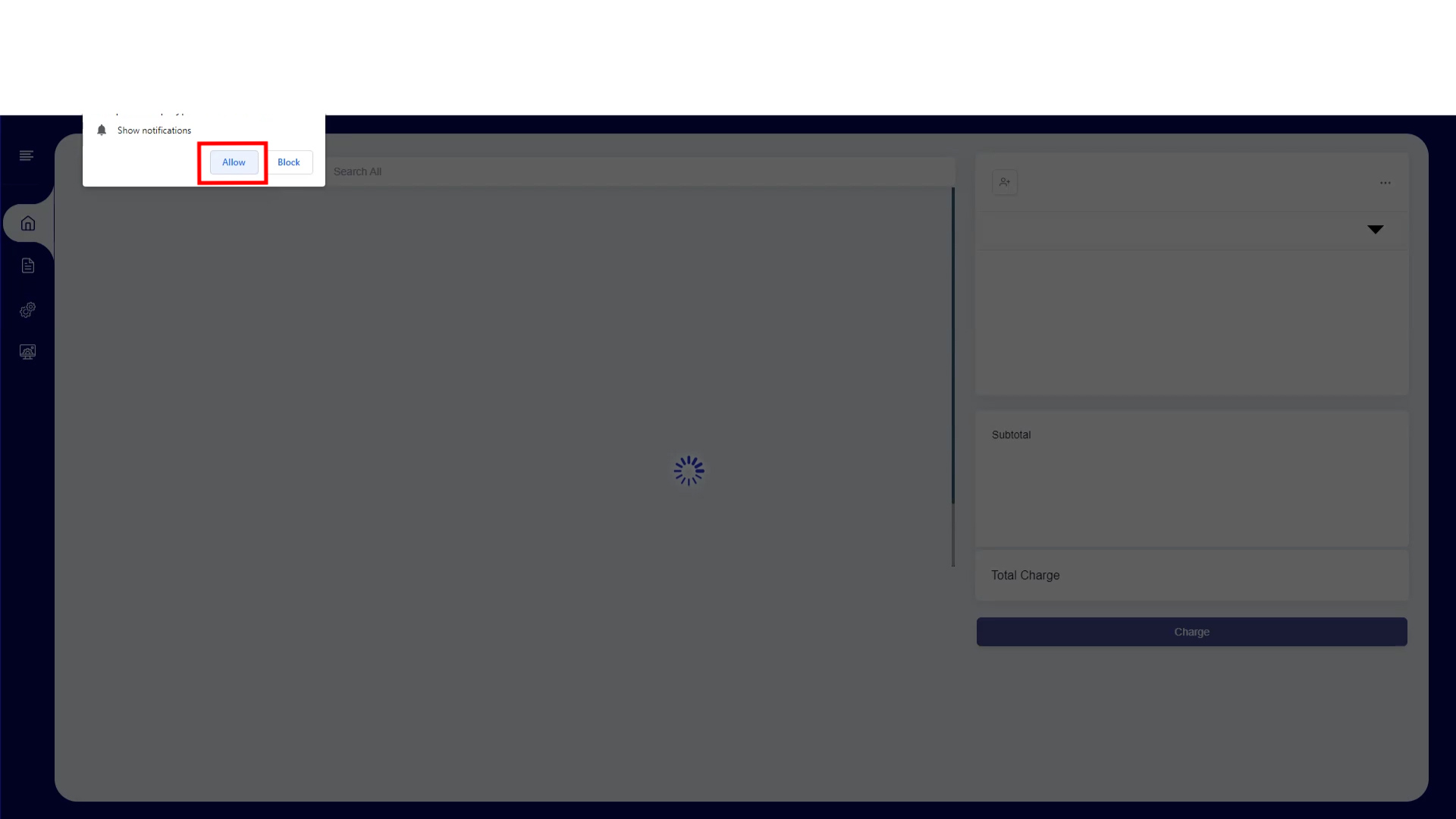
- If you cannot enable it here,
- Open Chrome
- Click 'Settings' at the top right corner and select 'Privacy and security'.
- Then go to 'Site settings' > 'Permissions' > 'Notifications'.
- At the 'Allowed to send notifications' section, click 'Add' button and you can simply enter your web app URL and then click 'Add'.
- Make sure to refresh the web app page after allowing the notifications.
Related Articles
Getting Started with Vendtill
Let's Register with Vendtill POS Vendtill POS App Special Note To download the POS app: For Android devices (phones and tablets): Visit the Google Play Store. We recommend using Android version 6.0 or higher. For iOS devices (iPhones and iPads) (ONLY ...How to Connect Printer to Web POS App
How to Connect Printer to Web POS App Vendtill Web POS Main Menu > Settings > Printers You can connect a network printer to the Web POS terminal using Ethernet Cable and the router. Connect one end of an Ethernet cable to the Ethernet port on the ...How to Switch to Web POS EXE
How to Switch to Web POS EXE Vendtill Web POS Description Vendtill Web POS offers a feature - the ability to run as an EXE file. This option provides users with a seamless way to use the Web POS without relying on a web browser. Discover the ...How to Setup Home Screen Layout in Vendtill Web POS App
How to Setup Home Screen Layout in Vedtill Web POS App Vendtill Web App 1. Setup Home Screen Layout in Vendtill Web POS App Vendtill offers you three options to choose when setting up the home screen layout. Here's how to do it. Login to Vendtill web ...How to Sign in with Vendtill Web POS
How to Sign in with Vendtill Web POS Vendtill Web POS Vendtill Web POS Users have the option to access Vendtill Web POS directly through the Vendtill Backoffice. This can be easily accomplished by navigating to the "Settings" menu and selecting the ...