How to Create Customer Orders with Advance Payment
How to Create Customer Orders with Advance Payment

Vendtill POS App
Special Note
- To activate the "Create Order" option in POS App, users must enable the "Open Receipts (Bills)" feature in the Back Office settings.
- Back Office > Settings > Feature > Open Receipts (Bills) > Save
1. Create Customer Orders with Advance Payment
- You can create and manage customer orders when customers are willing to pay an ‘Advance” amount.
- Ex: A customer inside a shop wants to order products today by paying an “Advance” amount and customer wants to pick them up on a later date.
2. Create Customer Orders with Advance Payment
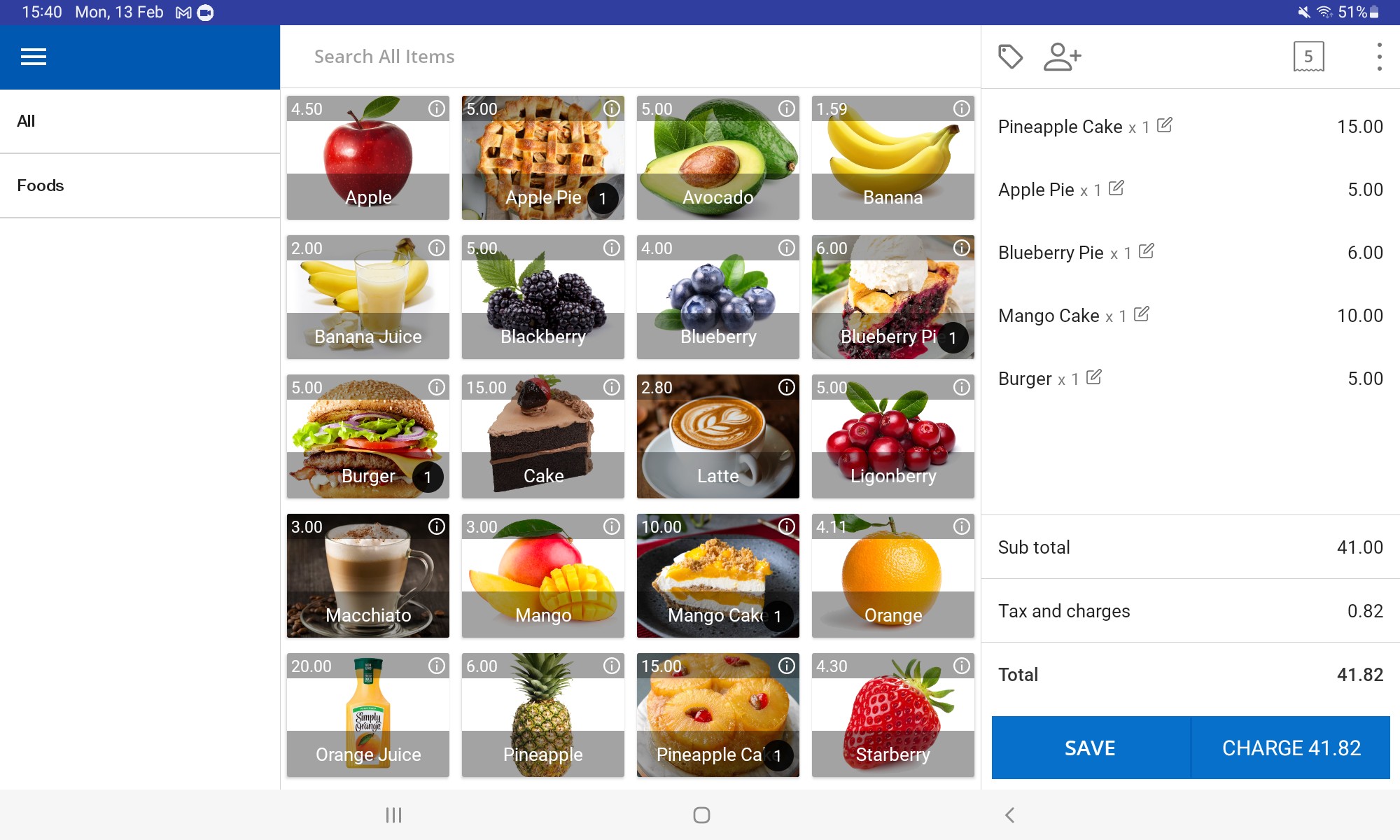
- POS App main menu
- Select “ New Sale ”
3. Create Customer Orders with Advance Payment
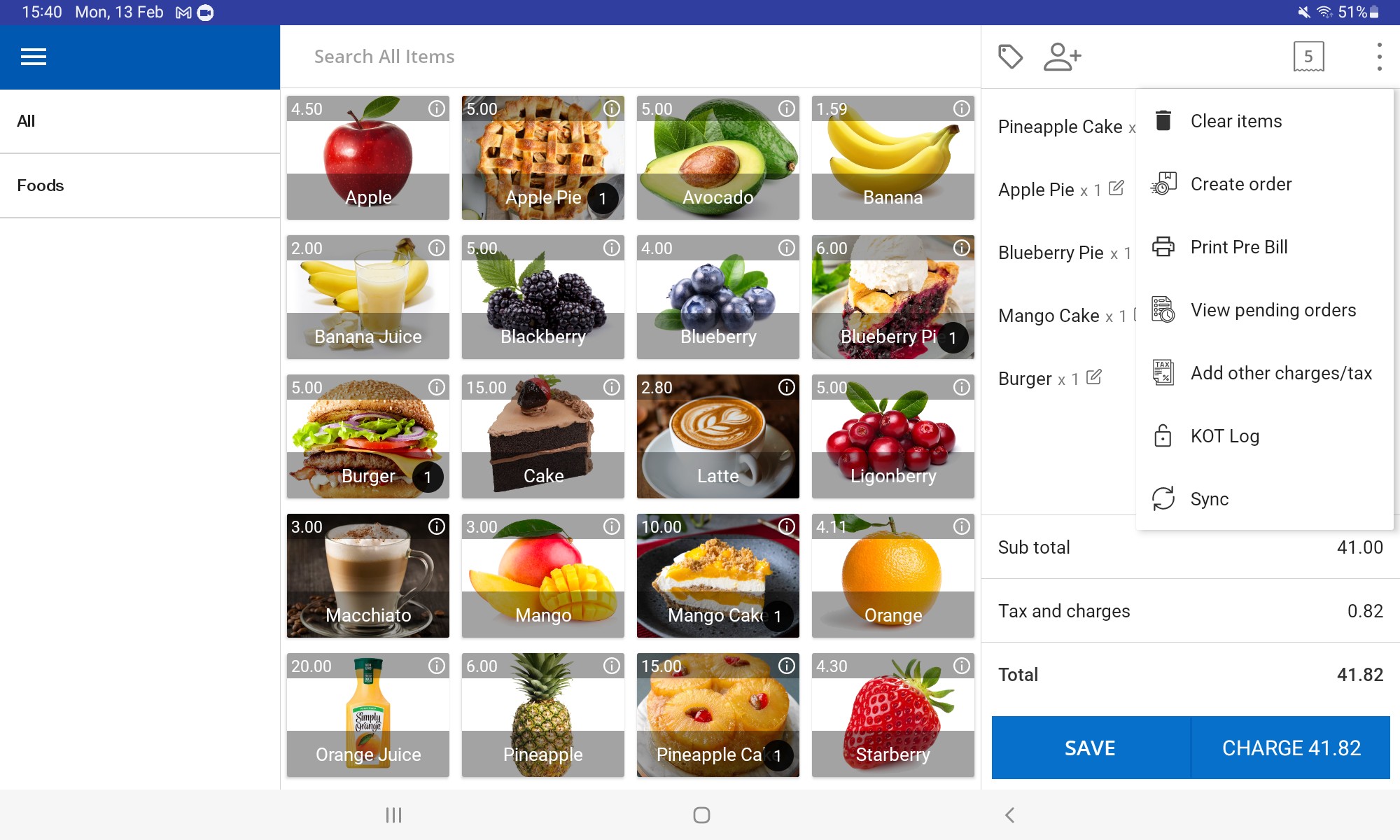
- Click 3-dot button on right-hand upper section
- Click “Create Order”
4. Create Customer Orders with Advance Payment
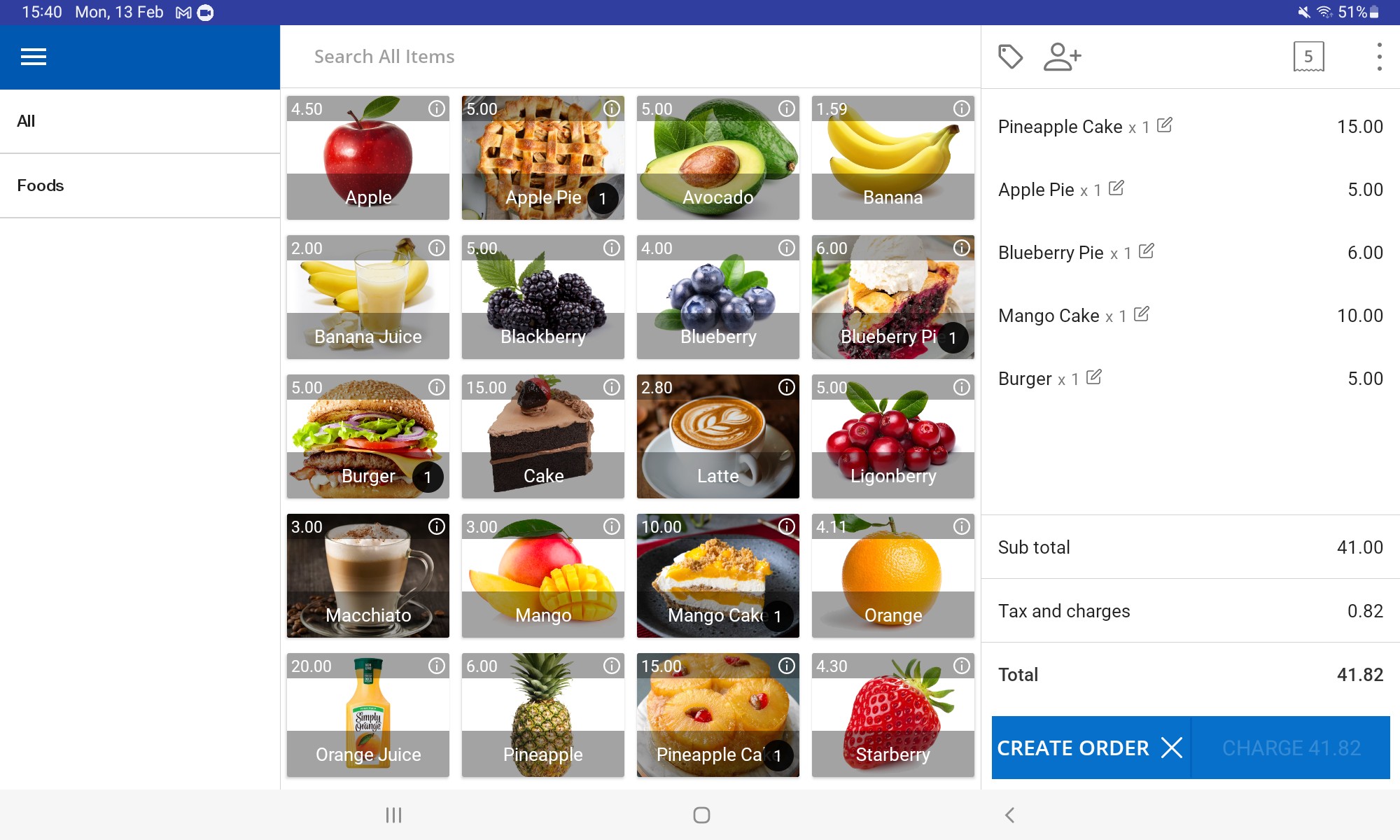
- Select items customer wants and click “Create Order” button
5. Create Customer Orders with Advance Payment
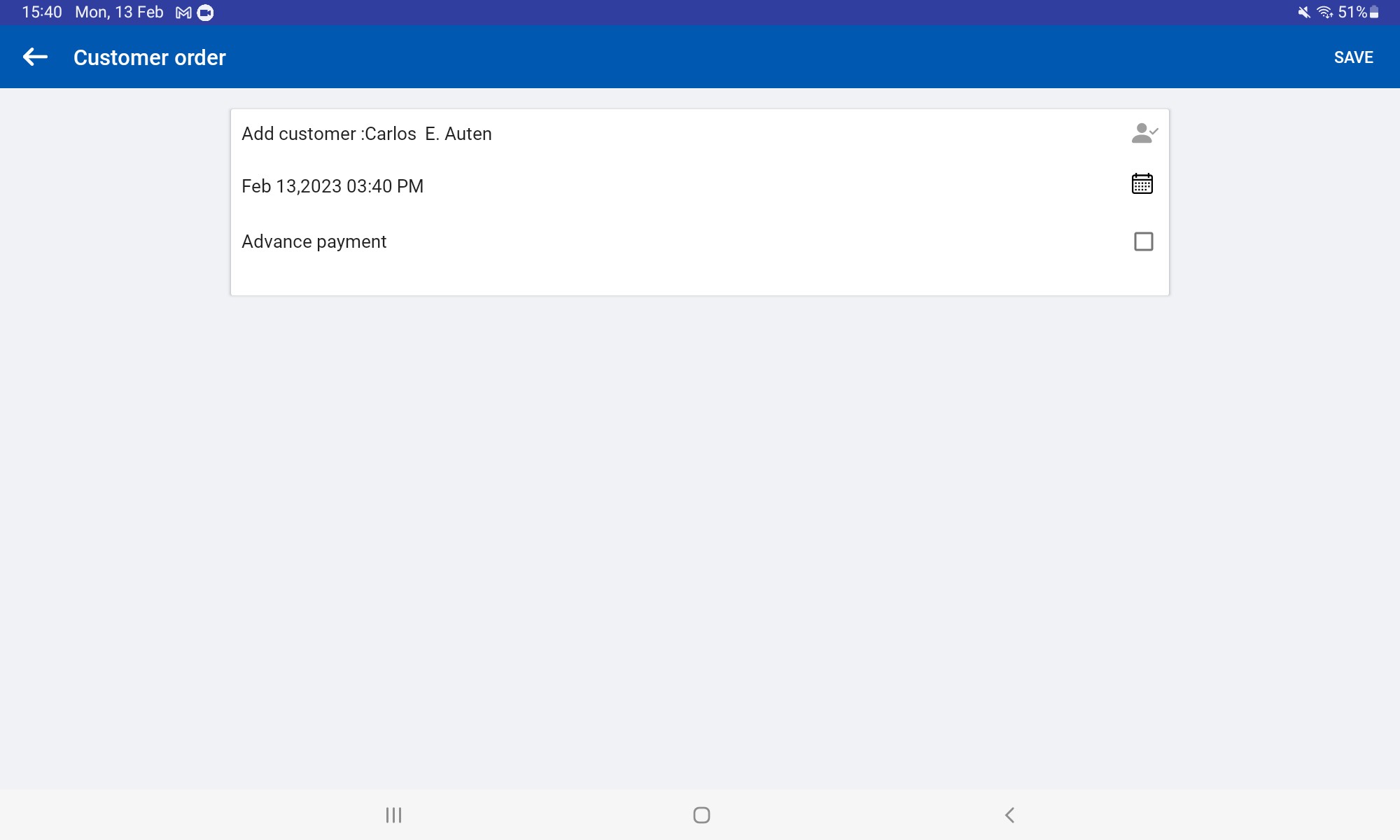
- Add Customer ( Add new or select existing) and click “Add to order “
6. Create Customer Orders with Advance Payment
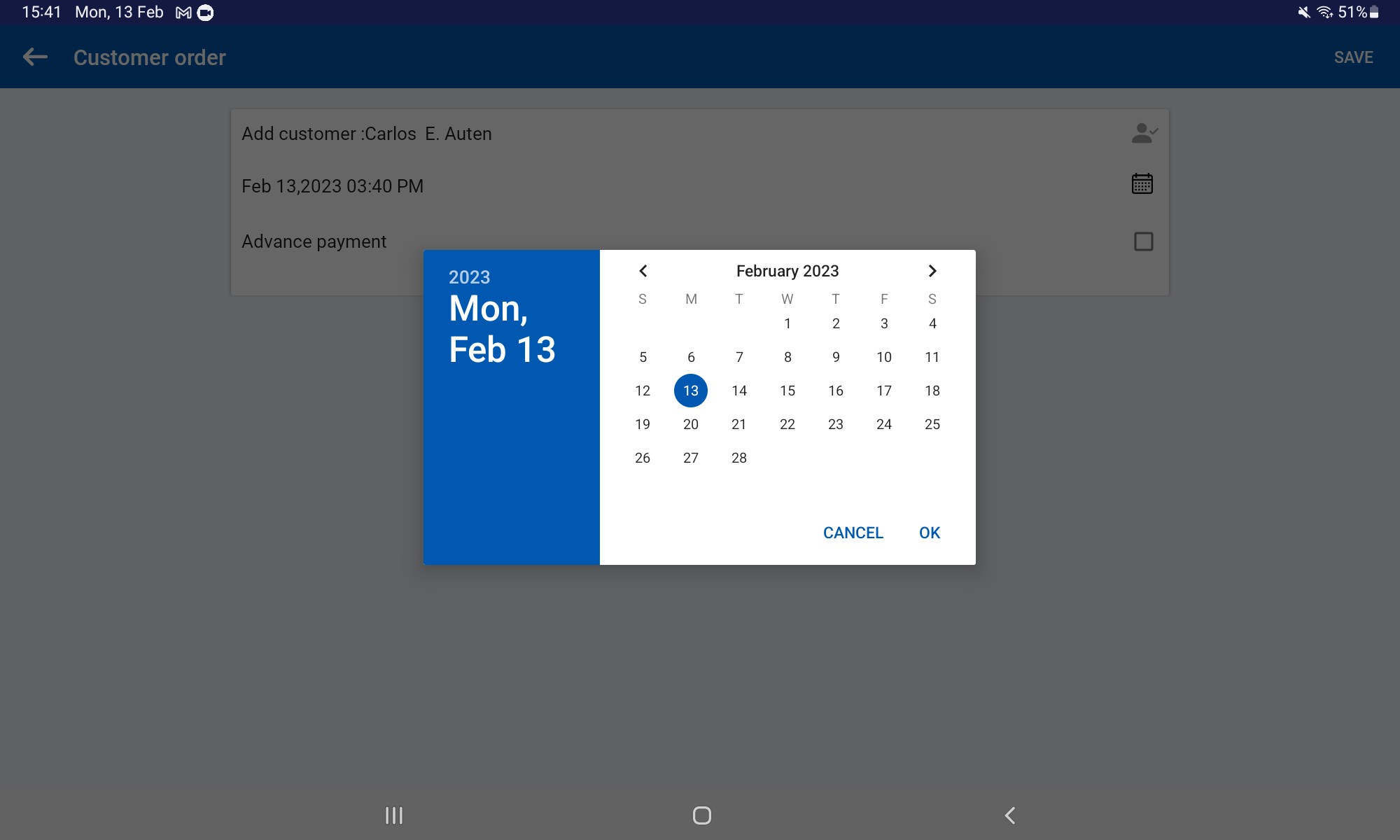
- Select calendar icon and provide delivery date and time
7. Create Customer Orders with Advance Payment
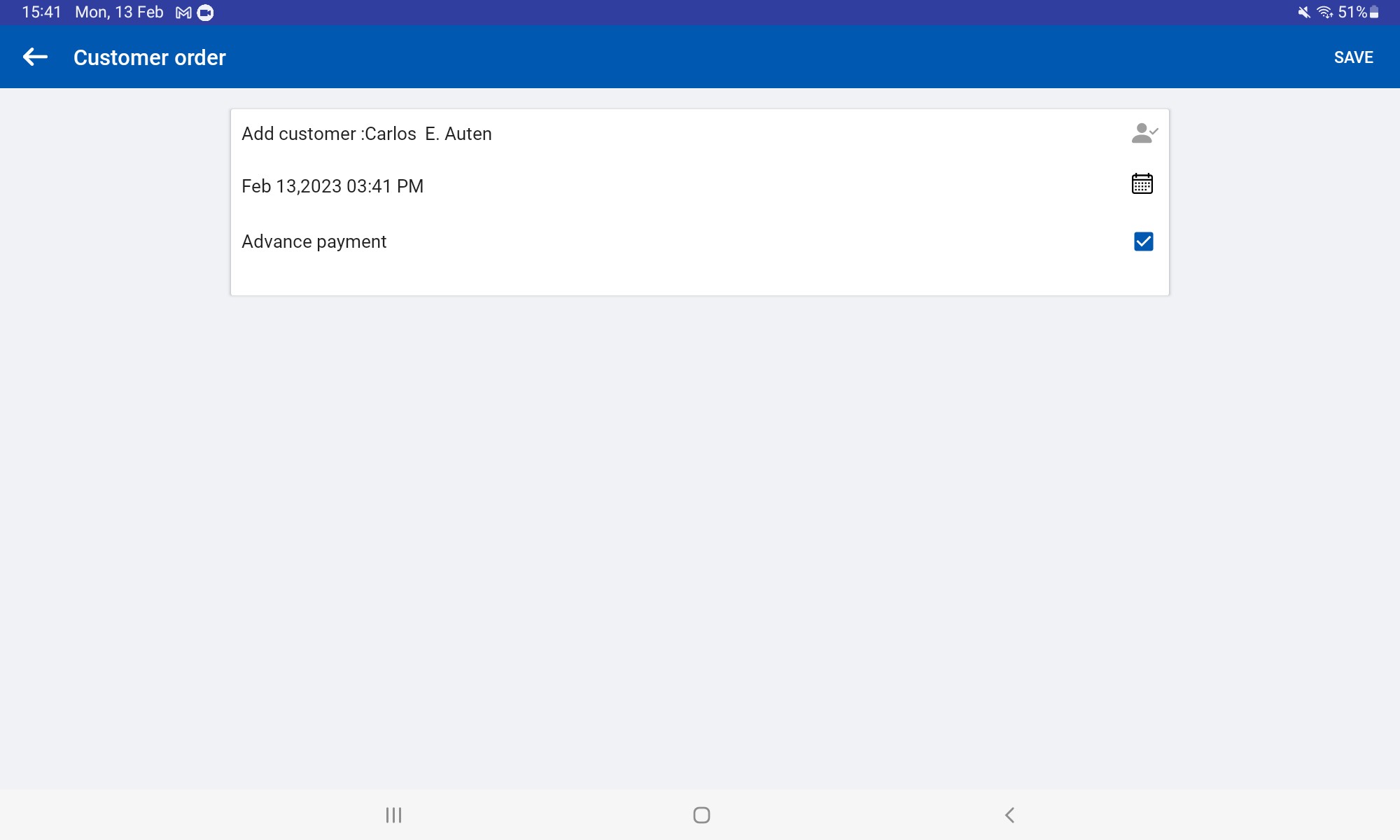
- Tick ON “Advance Payment” icon
- Click “Save” button
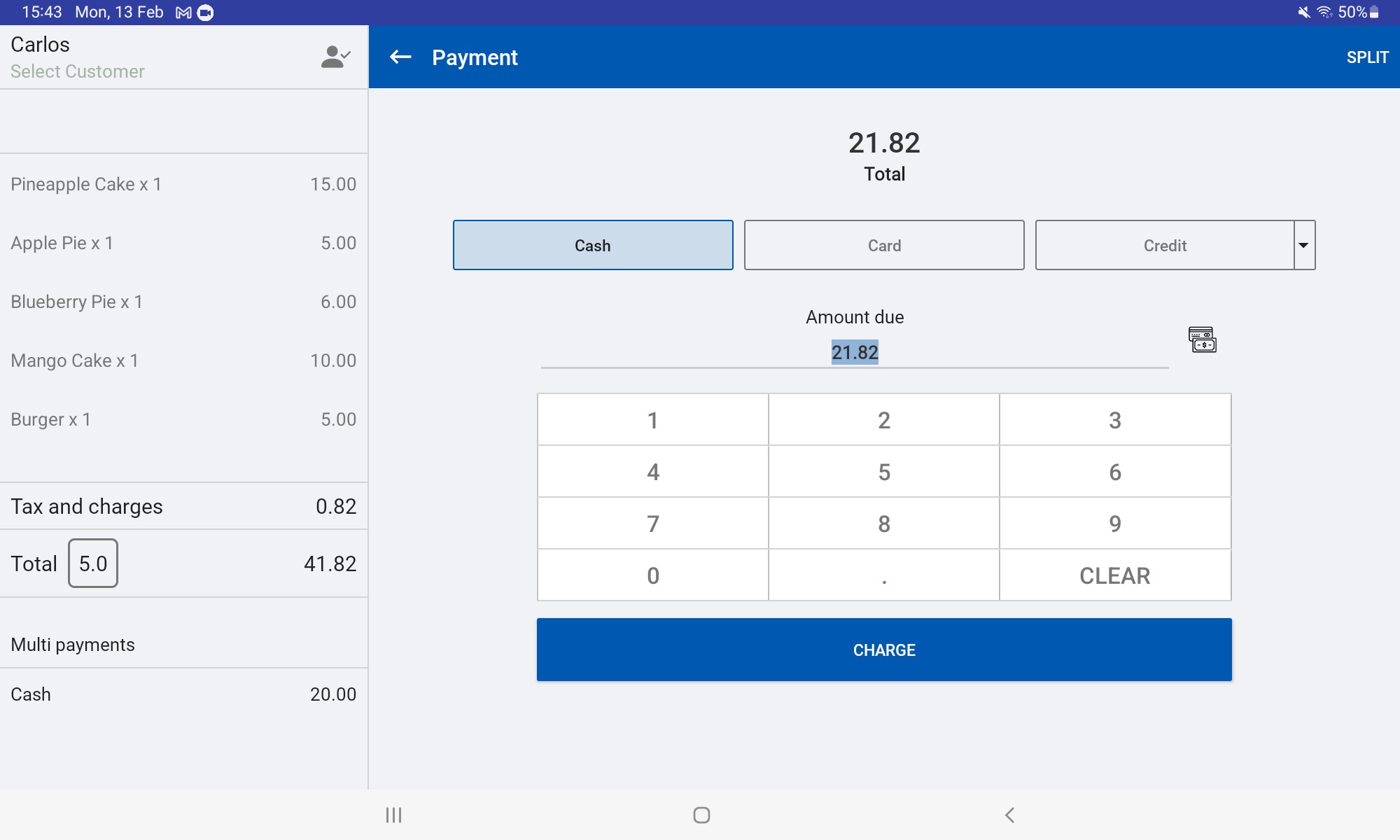
8. Create Customer Orders with Advance Payment
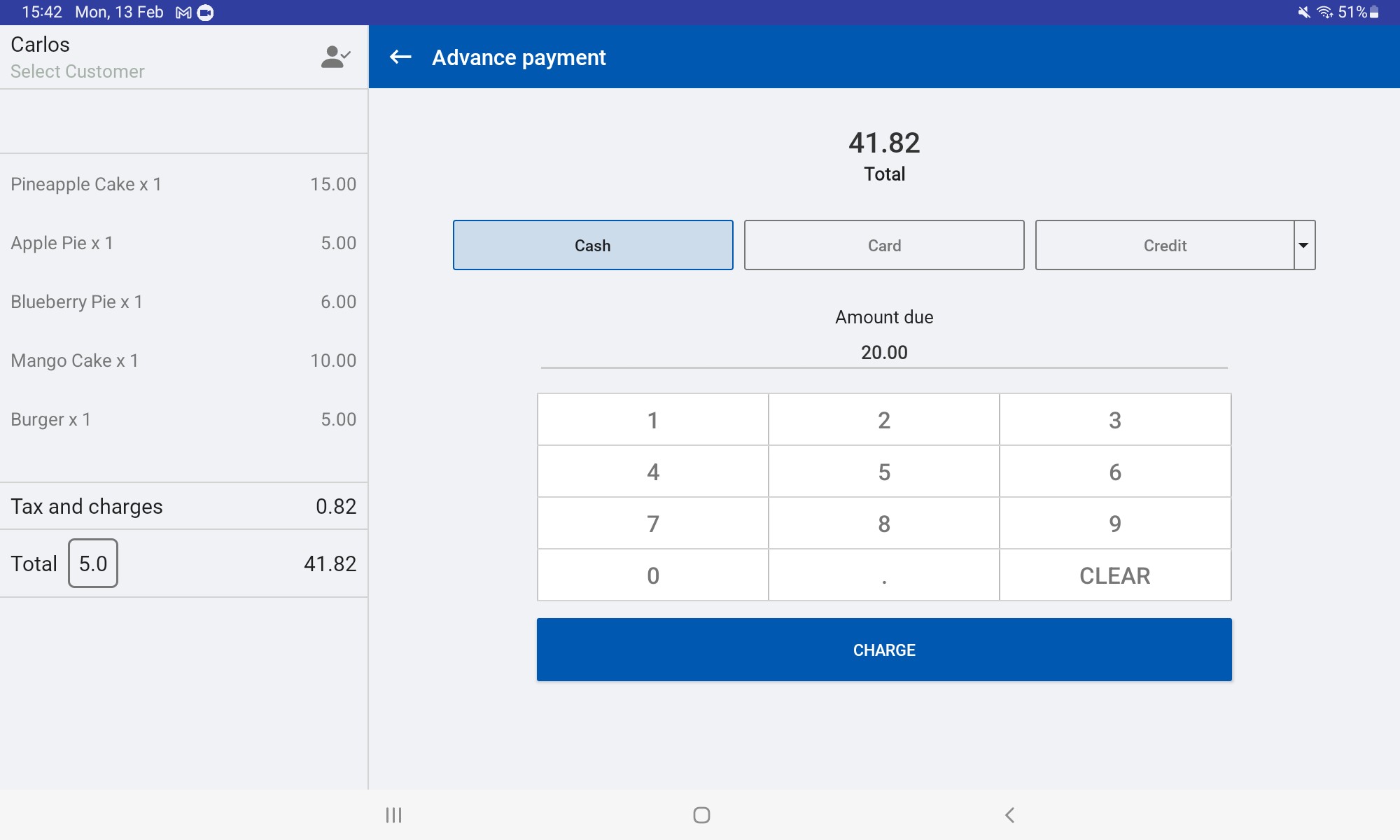
- Enter the advance amount customer willing to pay
- Click “Charge” button
9. Create Customer Orders with Advance Payment
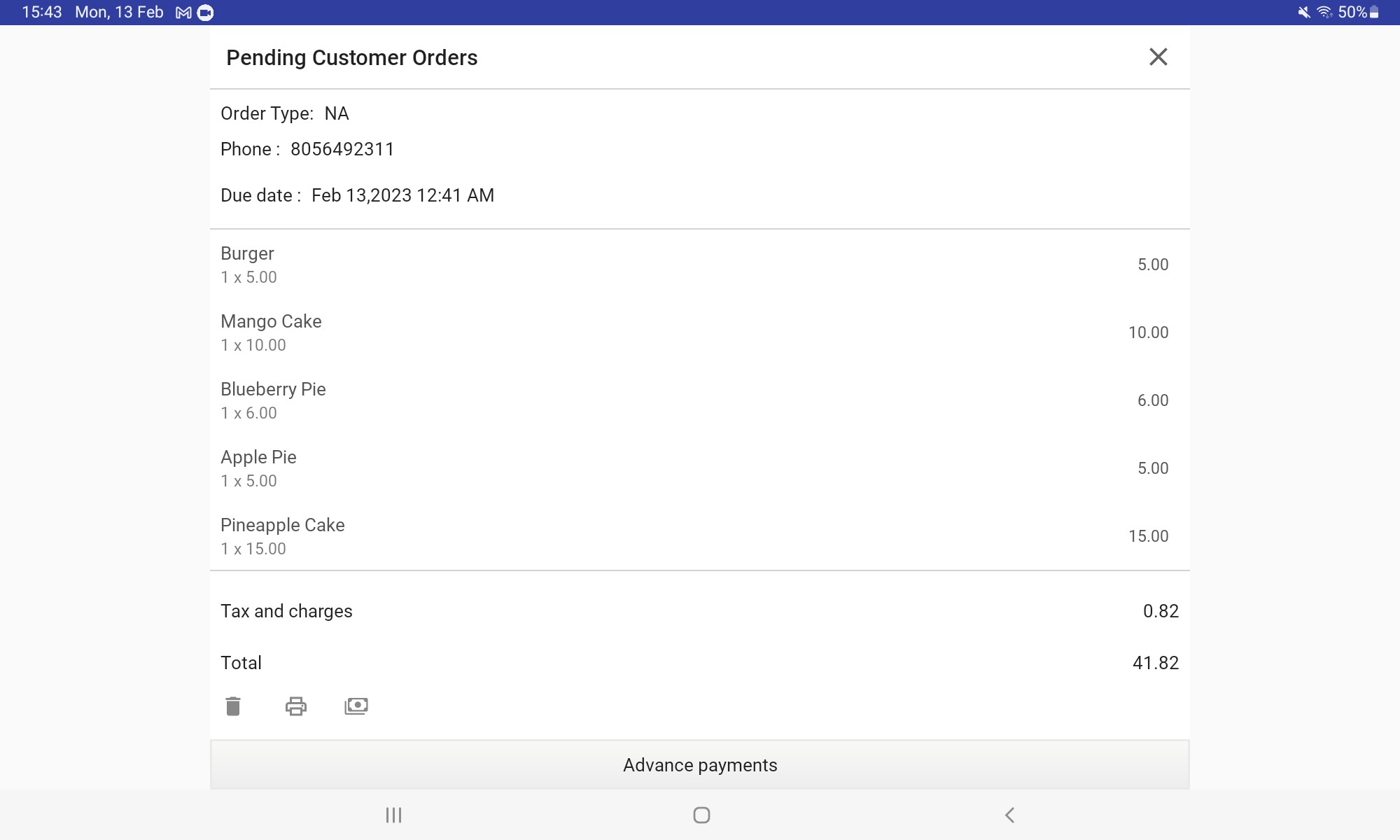
- Once click Charge, Advance receipt will be created with paid advance amount and due amount
10. Create Customer Orders with Advance Payment
Related Articles
How to Create & Use Different Types of Payment Methods
The Vendtill POS System allows users to create and manage custom payment methods to suit different business needs. This enables businesses to accept a wide range of payment options beyond standard cash and card payments. What Are Payment Methods? ...How to Create Purchase Orders (PO)
How to Create Purchase Orders (PO) Vendtill Back Office > Inventory Overview A Purchase Order (PO) is a document sent from a buyer to a supplier requesting products or services. It includes the PO number, product codes, names, quantities, and prices. ...How to Add a Payment Gateway
How to Add a Payment Gateway Vendtill Back Office Vendtill POS supports integration with PAX and Wallee payment devices, enabling seamless card transactions directly through your POS system. Step 1: Add Payment Gateway via Back Office Login to POS ...How to Use Open Orders Function
The Open Orders feature in Vendtill POS allows users to put a receipt on hold when a customer wants to add more items later. This ensures the cashier can continue serving other customers while keeping the held receipt editable until the customer ...How to Create Graphical Table Layout
How to Create Graphical Table Layout Vendtill Back Office Vendtill POS offers a powerful Graphical Table Layout feature that allows restaurants and cafes to manage floor plans visually. This guide walks you through activation, customization, and ...