How to Disable the Automatic Print Receipt Option
How to Disable the Automatic Print Receipt Option

Vendtill Back Office
Follow these steps to turn off automatic receipt printing in both the Back Office and the POS App. This allows you to control when receipts are printed.
1. Disable Automatic Receipt Printing via Back Office
Vendtill POS allows you to deactivate the automatic print feature. When disabled, pressing the CHARGE button will not print a receipt automatically, but you can still print it manually from the summary page.
- Login to Vendtill Back Office.
- Select Settings from the main menu.
- Go to Design Receipt.
- Click the More section.
- Tick OFF the Automatically print receipt option.
- Click Update to save changes.
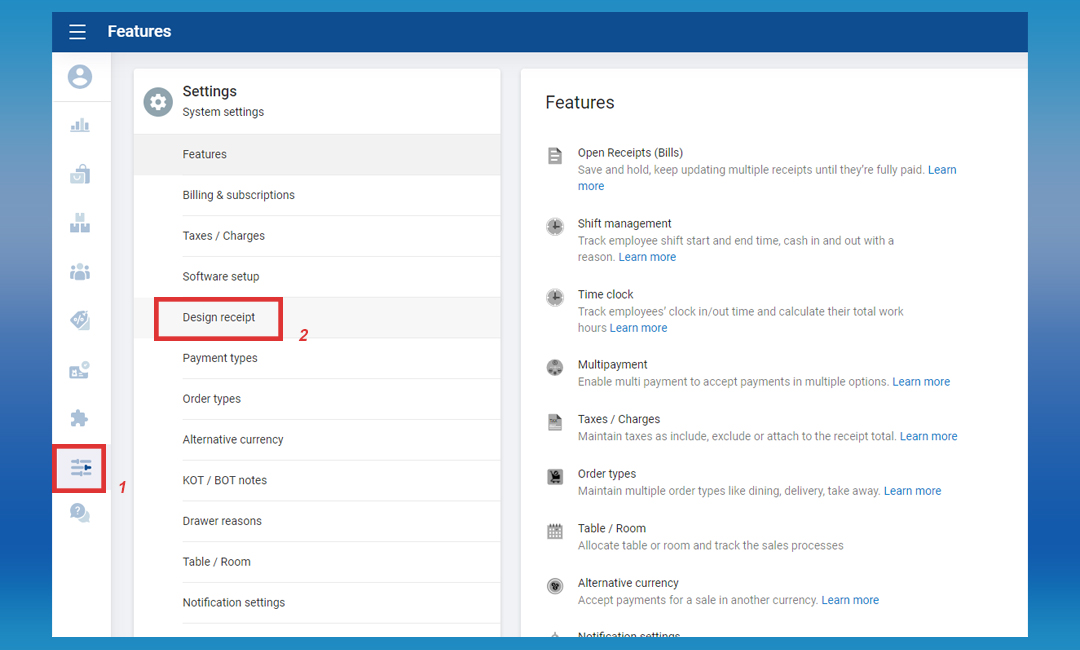


Note: After updating, the CHARGE button will not print receipts automatically. Use the Print Receipt button on the final billing summary page if a manual print is needed.
2. Disable Automatic Receipt Printing within the POS App
- Open the POS App main menu.
- Select Settings > Printers.
- Click on an existing printer or select the Add (+) button to create a new printer.
- Tick OFF the Automatically print receipt option.
- Click SAVE to confirm.
Note: Once this is deactivated, pressing the CHARGE button will not print a receipt. To print a receipt, press the Print Receipt button on the final billing summary page.
Related Articles
Print Width Receipt Alignment
Adjusting Print Width for Better Receipt Alignment Step-by-step Vendtill POS supports two main thermal roll paper sizes: 58mm and 80mm. However, some thermal paper rolls may have slight differences in width. This can cause receipt text to print too ...How to Prevent Duplicate Receipt Printing in Vendtill
How to Restrict Duplicate Receipt Printing in Vendtill Vendtill Back Office Vendtill allows business owners to control whether users can print duplicate receipts, ensuring better oversight and minimizing unnecessary printing. Steps to Disable ...How to Print Receipts in Other Languages
How to Print Receipts in Other Languages Language Printing (Non-Latin scripts) Step-by-step guidelines Vendtill POS now supports printing in multiple languages using non-Latin scripts. This enhancement caters to a diverse global clientele by enabling ...QR Print for Customers
How to Print QR for Customers Step-by-step The "Print QR for Customer" (QR codes - Quick Response codes) feature enables businesses to send relevant information to customers through QR codes, enhancing the overall customer experience and interaction. ...How to Create Discount Plans Attached to the Receipt
Special Note As part of the restructuring process, the Product-wise Discount plan options are now accessible within the item customization dialog, while Receipt-wise Discount plans are under a discount icon in the main receipt interface. You can ...