How to Enable and Use Multipayment

How to Enable and Use Multipayment

How to Use Multipayment via SPLIT option (V 115.5 Onwards)

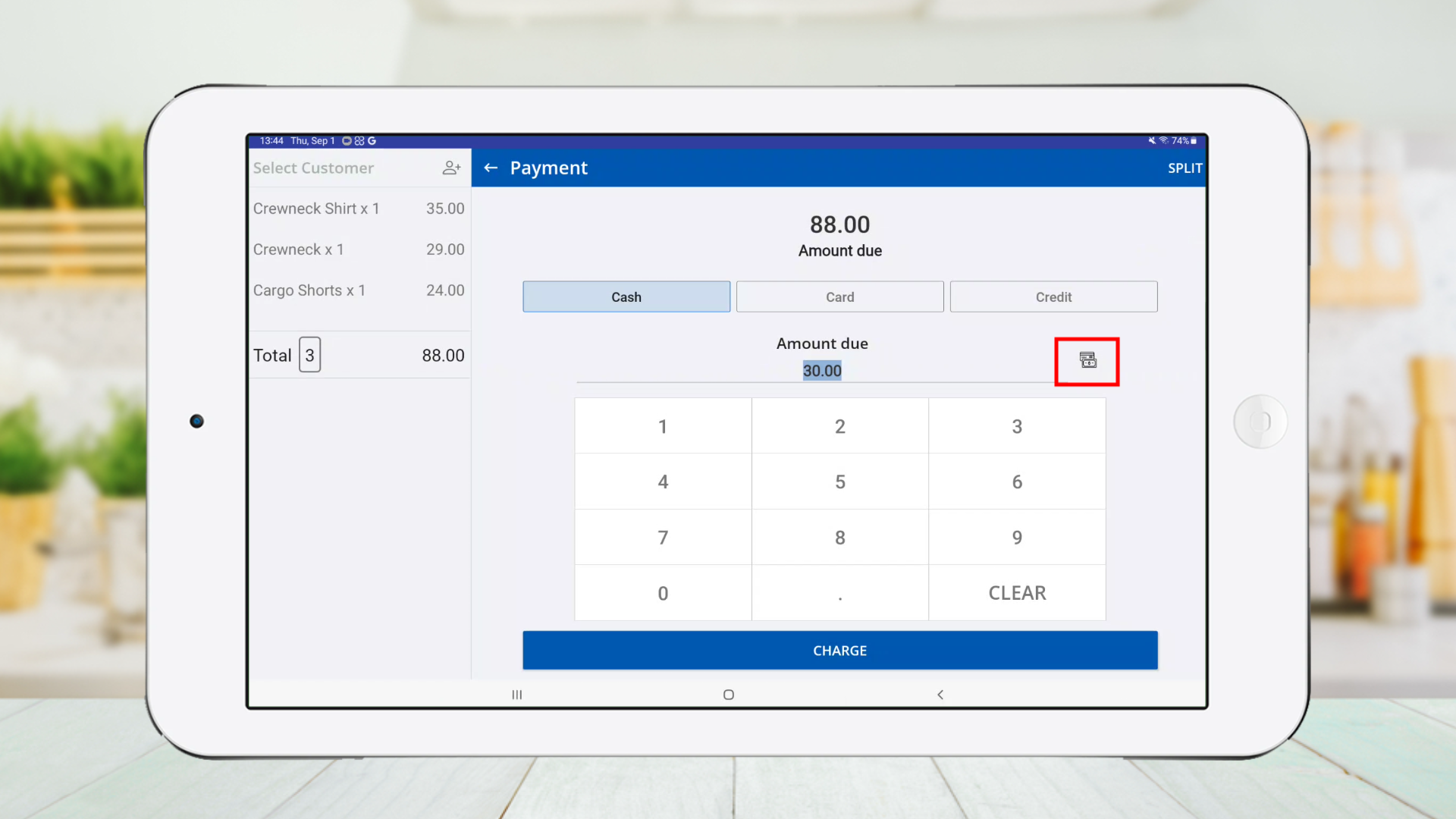
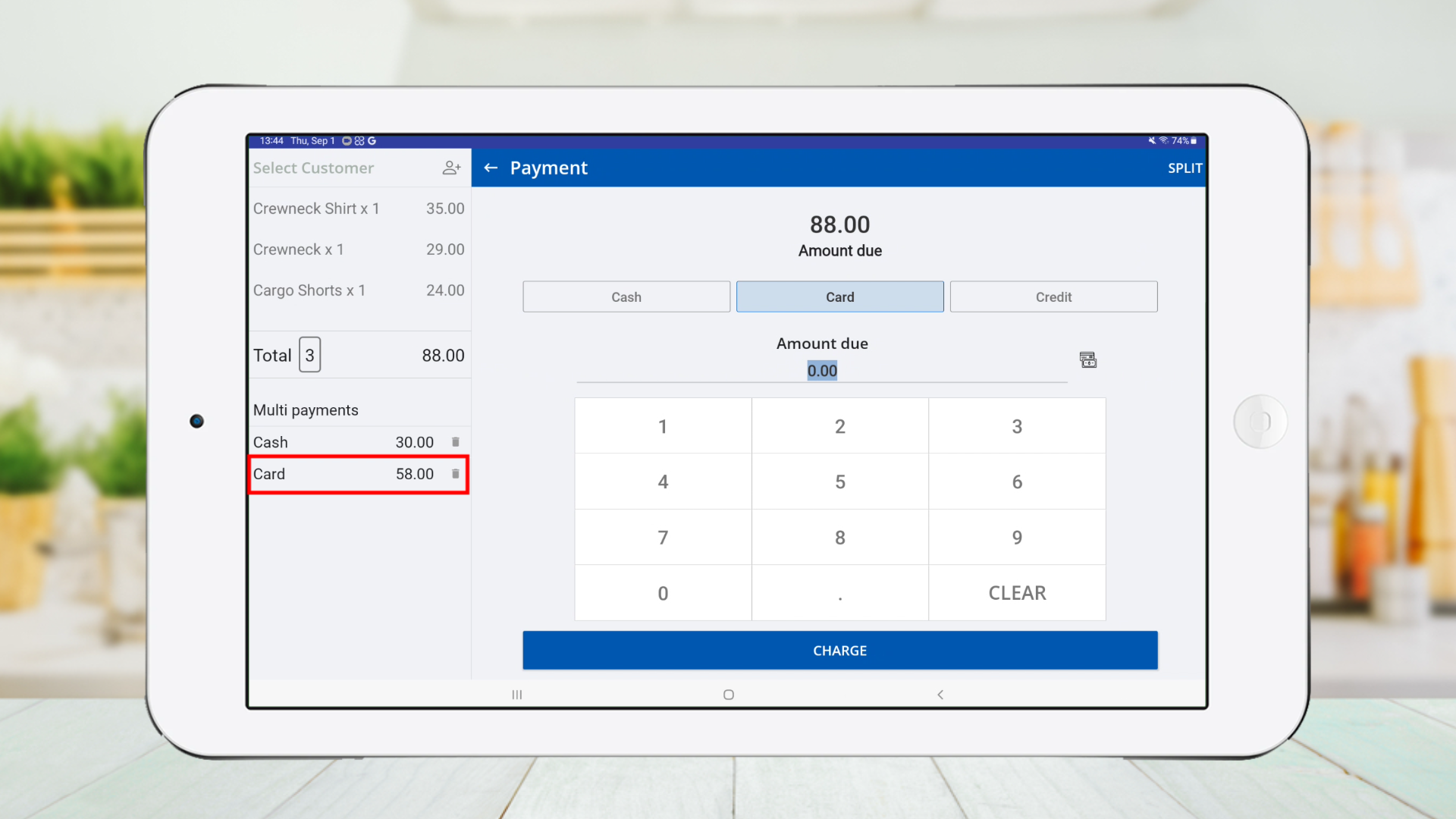
Customers can make payments for a receipt using a combination of payment methods. Vendtill POS System allows users to perform multi-payment transactions. Ex: Customer can pay any amount of the receipt using Cash and the rest of the payment using a CARD.

Note:

From the new version 115.5, the "Use Multi Payment" option has changed. The separate "Multi Payment" button is now replaced with the new SPLIT feature, which allows easier and more flexible multi-payment processing. 

How To Enable Multipayment (New Version)

Within Backoffice

  1. Login to POS Back Office Webportal  
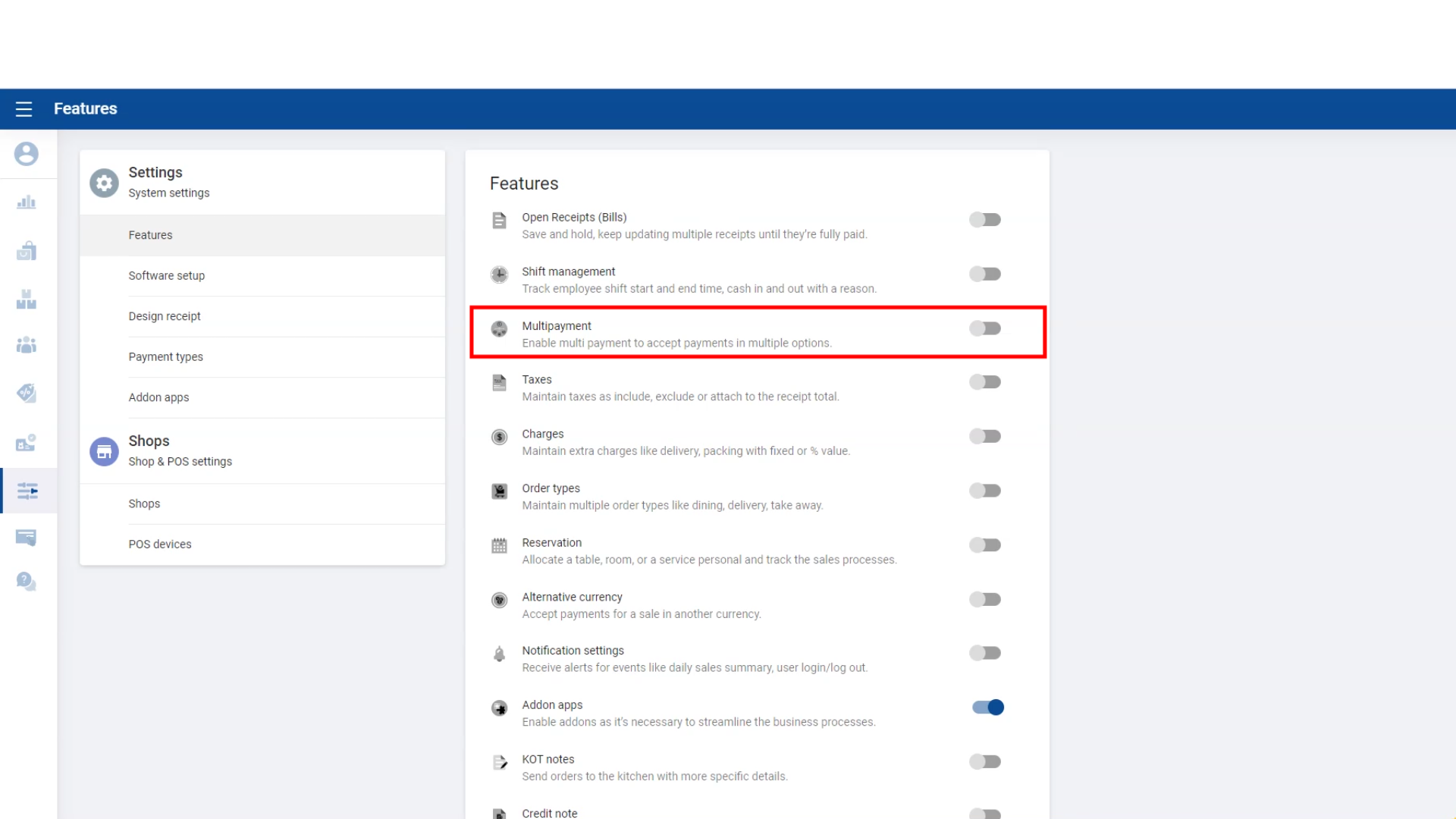
  2. Select “ Settings ” from main menu 
  3. Go to the “ Feature” 
  4. Tick ON “Multipayment ” button 
  5. Click “ Save”  

(Once you turn on “Multipayment”, already created payment types will downloaded to the POS App payment interface.) 

  Within POS App

  1. Open the POS App
  2. Add products to the cart
  3. Click the CHARGE button
  4. Tap the SPLIT button at the top-right
  5. Select the first payment type from the dropdown
  6. Enter the payment amount and click CHARGE
  7. Click CONTINUE
  8. Select the second payment type, enter the amount, and click CHARGE
  9. Click DONE to complete the transaction

You can split payments between cash, card, and other available methods seamlessly.


How To Enable Multipayment (Old Version)


Within Backoffice

  1. Login to POS Back Office Webportal  
  2. Select “ Settings ” from main menu 
  3. Go to the “ Feature” 
  4. Tick ON “Multipayment ” button 
  5. Click “ Save”  

(Once you turn on “Multipayment”, already created payment types will downloaded to the POS App payment interface.)   


How To Use Multipayment


Within POS App


1. POS App main menu
2. Select “ New Sale ”
3. Select the item and click the “Charge” button
4. Once you click the “ Charge” button in the Payment Interface, you will see payment types
5. Click on Payment type and enter a value on the “amount due” section
6. Click the “Multipayment” button right-hand side near the “amount due” section
7. Again, click other payment type and enter the balance value
8. Click the “Multipayment” button right-hand side near the “amount due” section
9. Click the “Charge” button  


How To Use Multipayment


    • Related Articles

    • How to Use Shift Management

      How to Use Shift Management Vendtill POS App 1. Enable shift management Go to Vendtill Back Office > Settings > Features > Enable 'Shift Management' > Save Once you enable “Shift Management”, a new option, ‘Drawer reasons,” will appear in the ...
    • How to Use Cash Rounding

      How to Use Cash Rounding Vendtill Back Office Cash-Rounding Option The bill total is rounded to the nearest multiple of the smallest denomination, which may be higher or lower than the unrounded total. This rounding is applied to the total of a bill. ...
    • How to Use Time Clock

      How to Use Time Clock Vendtill Back office Main Menu > Settings > Features What is the Time Clock Feature in Vendtill? The Time Clock feature in Vendtill helps you track employee attendance and working hours. It allows staff to Clock In at the start ...
    • How to Use Barcodes and Find Products Easily

      How to Use Barcodes and Find Products Easily Step-by-step Please note : Key Points to Remember To ensure proper functionality of the barcode features, it is important to configure the barcode terminal settings to include the use of "Enter" or "TAB" ...
    • How to Use Xero Accounting Software with Vendtill POS

      How to Use Xero Accounting Software with Vendtill POS Vendtill Back Office Integration of Xero Accounting Software with Vendtill POS Software Integrating Xero accounting software with POS system offers businesses a comprehensive and streamlined ...